
JavaFX Event Filters
In JavaFX, in order to handle the event which are created by any of the mouse action, keyboard action, rotate action, scroll action Event filters are used. The event filters comes in picture and process the particular event during the event capturing phase. Before providing the actual event handling logic event filter must be registered with particular node. The javafx provides us handle() method of the event handler interface to provide actual execution logic when the event is generated. JavaFX also provides us the facility to register one event filter on more than one node. And for more than one event types.
Adding Event filters on the node:
In order to handle any event on a particular node in a event capturing phase, the event filters must be registered with that particular node. To register particular event filter on the specified node, we use addEventFilter() method. The handle() method of this interface allows us to define logic for execution of event when a particular event is triggered. The user has to pass two arguments for the method, the first one is the type of the event to be generated and the second one is the filter which contains all the code for handling specific event.
Syntax:
node.addEventFilter (Event-Type, new EventHandler<Event_Type>(){
public void handle(Event_Type){
//code to handle the event
});
Removing Event filters on the node:
When the user no longer want to handle events on a particular node, we can remove event filter associated with a particular node using removeEventFilter() method. This method takes two arguments, first one is type of the event and the second one is object of the event filter.
Syntax:
node.removeEventFilter(Event-type, eventfilter_Object);JavaFX Event Filter for Key Events
Example:
import javafx.application.Application;
import javafx.event.EventHandler;
import javafx.scene.Group;
import javafx.scene.Scene;
import javafx.scene.control.Label;
import javafx.scene.control.TextField;
import javafx.scene.input.KeyEvent;
import javafx.stage.Stage;
public class EventUI extends Application{

    @Override
    public void start(Stage primaryStage) throws Exception {

        Label l1 = new Label(" Enter any text ");
        Label l2 = new Label(" Event filtering ");

        l1.setTranslateX( 100);
        l1.setTranslateY( 100);

        l2.setTranslateX( 100);
        l2.setTranslateY( 150);

        TextField tf1 = new TextField();
        TextField tf2 = new TextField();

        tf1.setTranslateX( 250);
        tf1.setTranslateY( 100);
        tf2.setTranslateX( 250);
        tf2.setTranslateY( 150);
        tf2.setMinWidth( 200);

        EventHandler<KeyEvent> newfilter = new EventHandler<KeyEvent>() {
            @Override
            public void handle(KeyEvent event) {
                tf2.setText("Event filter used: "+event.getEventType());
                tf1.setText(event.getText());
                event.consume();
            }
        };

        tf1.addEventFilter(KeyEvent.ANY,newfilter );

        Group root = new Group();
        root.getChildren().addAll(l1, l2, tf1, tf2);
        Scene scene = new Scene(root, 500, 300);
        primaryStage.setScene(scene);
        primaryStage.setTitle(" JavaFX Event Filter ");
        primaryStage.show();
    }
    public static void main(String[] args) {
        launch(args);
    }

}
Output:
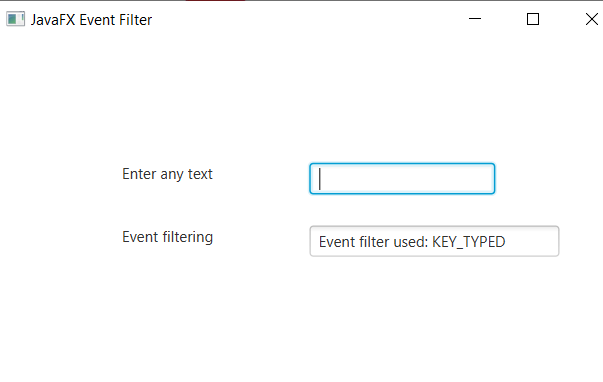
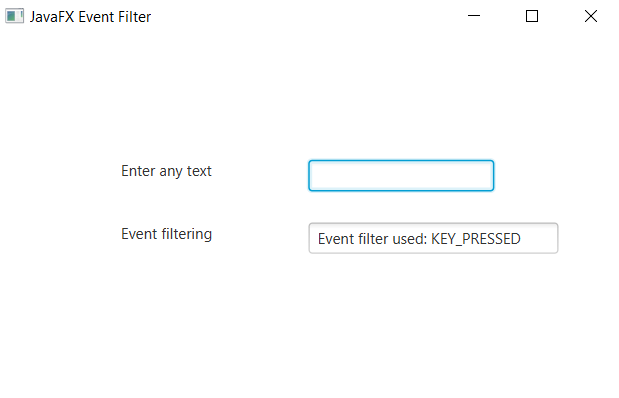
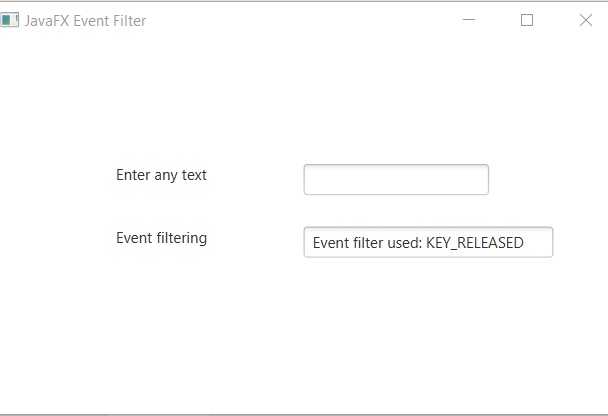
Explanation:
In order to create the event on any given components in JavaFX using event filter, we have to import all the required libraries. Then we have created one class named EventUI extending the Application class. Also, we have to override the start method to provide implementation details. This method creates an object of Stage as primaryStage. For the container to hold various components with the event filters, a Group object is created which is then passed to the Scene class object.
One label is created for asking the user to any text and the second label showing the event filter occurred on that particular node. Two text fields created using constructor. First text field accepts the user input and the second text field shows the particular key event occurred. Various setters methods are used to set positions for label and text fields. According to the key action of the user the event is handled. The handle() method with the key event object passed to it is used for the actual business logic. The text field 2 will show the event occurred. It may be the key_pressed, key_typed or key_released. The getEventType() method is used to get the type of event generated by user action using event filter.
The stage is prepared, the title is set and the show() method is called to display output. In order to run the application, the launch(args) method is called in the main() method. In output Frame like container is displayed with title “ JavaFX Event Filter”. Also, it displays One label to enter any text and other to show event filter. When user type a key, it shows key_typed else show key_pressed or key_released based on key action performed by the user.