
JavaFX Inline Styles
In the JavaFX application, in order to apply various Inline css effect we will use the various css classes available in the JavaFX. It is used to apply the various css effect on the given object to make interface more understandable to the user. In order to design the webpages we use the Inline style CSS to give different color, backgrounds, text size, font style, spacings, paragraph, and alignments for a specified object. In JavaFX if we want to define rules of CSS inside the JavaFX application, we use the inline styles. The precedence is generally given to rules written in JavaFX application code than the rules written in separate CSS file. We can apply the CSS rule in JavaFX code on particular node as follows:
Syntax:
Label label_name= new Label(“label_id”);
label_name.setStyle(/*CSS Properties*/);
Example:
Label l1= new Label(“Percentage”);
l1.setStyle("-fx-background-color:Black; -fx-text-fill:white; -fx-font-size:16");
JavaFX CSS – Employee information form using Inline CSS:
Example:
import javafx.application.Application;
import javafx.scene.Scene;
import javafx.scene.control.Button;
import javafx.scene.control.Label;
import javafx.scene.control.TextField;
import javafx.scene.layout.GridPane;
import javafx.stage.Stage;

public class CSSUI extends Application {

@Override
public void start(Stage primaryStage) throws Exception {

Label fname=new Label("First Name");
Label lame=new Label("Last Name");
Label country=new Label("Country Name");
Label lang=new Label("Language Name");
TextField tf1=new TextField();
TextField tf2=new TextField();
TextField tf3=new TextField();
TextField tf4=new TextField();
country.setStyle("-fx-background-color:Blue; -fx-text-fill:white; -fx-font-size:16");
lang.setStyle("-fx-background-color:Blue; -fx-text-fill:white; -fx-font-size:16");
fname.setStyle("-fx-background-color:Blue; -fx-text-fill:white; -fx-font-size:16");
lame.setStyle("-fx-background-color:Blue; -fx-text-fill:white; -fx-font-size:16");


Button Submit=new Button ("Submit");
Submit.setStyle("-fx-background-color:Red; -fx-text-fill:white; -fx-font-size:26");


GridPane root=new GridPane();
root.setHgap(10);
root.setVgap(15);
Scene scene = new Scene(root,600,400);
root.addRow(0, fname,tf1);
root.addRow(1, lame,tf2);
root.addRow(2, country,tf3);
root.addRow(3, lang,tf4);
root.addRow(4, Submit);
primaryStage.setScene(scene);
primaryStage.setTitle("Employee Information");
primaryStage.show();
}
public static void main(String[] args) {
launch(args);
}

}
Output:
Explanation:
In order to create the inline CSS effect on given components in JavaFX, we have to import all the required libraries. Then we have created one class named CSSUI extending the Application class. Also, we have to override the start method to provide implementation details. This method creates an object of Stage as primaryStage. For the container to hold various components with inline CSS effect, a Group object is created which is then passed to the Scene class object.
The label is created using the constructor and various properties are set using setters. Also, button is created using the constructor and various properties are set. The CSS effect on the label is applied by using the setStyle() method in java file.
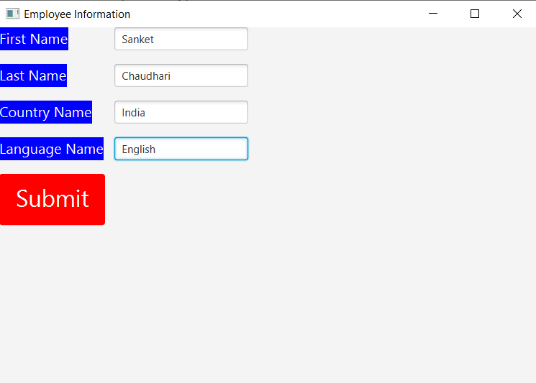
The stage is prepared, the title is set and the show() method is called to display output. In order to run the application, the launch(args) method is called in the main() method. In output Frame like container is displayed with title “ Employee Information ”. Also, it displays the label for First name, Last name, Country name, and Language name with submit button.
JavaFX CSS – Student marks information form using Inline CSS:
Example:
import javafx.application.Application;
import javafx.scene.Scene;
import javafx.scene.control.Button;
import javafx.scene.control.Label;
import javafx.scene.control.TextField;
import javafx.scene.layout.GridPane;
import javafx.stage.Stage;

public class CSSUI extends Application {

@Override
public void start(Stage primaryStage) throws Exception {

Label English=new Label("English");
Label Maths=new Label("Maths");
Label Science=new Label("Science");
Label Hindi=new Label("Hindi");
TextField tf1=new TextField();
TextField tf2=new TextField();
TextField tf3=new TextField();
TextField tf4=new TextField();
English.setStyle("-fx-background-color:Brown; -fx-text-fill:white; -fx-font-size:16");
Maths.setStyle("-fx-background-color:Brown; -fx-text-fill:white; -fx-font-size:16");
Science.setStyle("-fx-background-color:Brown; -fx-text-fill:white; -fx-font-size:16");
Hindi.setStyle("-fx-background-color:Brown; -fx-text-fill:white; -fx-font-size:16");


Button Submit=new Button ("Submit");
Submit.setStyle("-fx-background-color:Green; -fx-text-fill:white; -fx-font-size:26");


GridPane root=new GridPane();
root.setHgap(10);
root.setVgap(15);
Scene scene = new Scene(root,600,400);
root.addRow(0, English,tf1);
root.addRow(1, Maths,tf2);
root.addRow(2, Science,tf3);
root.addRow(3, Hindi,tf4);
root.addRow(4, Submit);
primaryStage.setScene(scene);
primaryStage.setTitle("Student Marks Information");
primaryStage.show();
}
public static void main(String[] args) {
launch(args);
}

}
Output:
Explanation:
In order to create the inline CSS effect on labels and buttons in JavaFX, we have to import all the required libraries. Then we have created one class named CSSUI extending the Application class. Also, we have to override the start method to provide implementation details. This method creates an object of Stage as primaryStage. For the container to hold labels and buttons with inline CSS effect, a Group object is created which is then passed to the Scene class object.
The label is created using the constructor and the name is set using the parameter. Also, button is created using the constructor and the name is set using the parameter. The CSS effect on the label and button is applied by using the setStyle() method on the labels and button in java file.
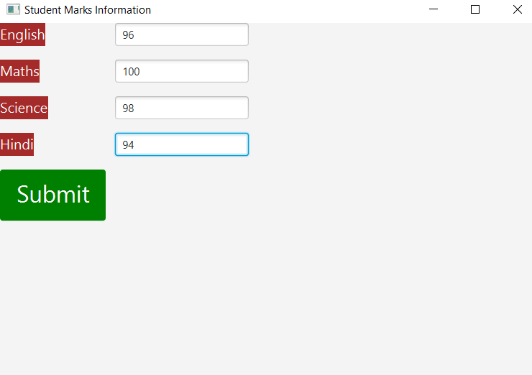
The stage is prepared, the title is set and the show() method is called to display output. In order to run the application, the launch(args) method is called in the main() method. In output Frame like container is displayed with title “ Student Marks Information ”. Also, it displays the label for English, Math, Science, and Hindi with submit button.