
×

Ionic Select

The Ion Selection component is similar to the HTML <select> element. However, the Ionic Selection component makes it easy for users to categorize and choose the preferred option or other options. You must use a selection with the <ion-select-option> subitems. If the second option does not receive a value attribute, its text is used as a value.

If the value is set to <ion-select>, the selected option is chosen based on that value. Otherwise, the attribute selected can be used in <ion-select-option>.

The Select components are two types:

  1. Single-Selection
  2. Multiple -Selection

Single-Selection

By default, the single-selection permits the user to select only one option. The alert interface offers users a list of options in the style of a radio button. The Action-sheet interface can only be used with one specific value. If the number of options exceeds 6, you will use the alert interface even if the action-sheet is passed. You receive a component value that specifies an ion-select value for the selected option.

Example: This example shows how you can select the one option from various options.


 Select Example 


 Single Selection 
  
 Face Color 
  
 Light 
 Fair 
 Wheatish 
 Dark 


 hair Color 
 
 Black 
 White 
 Brown 


 Gender 
  
 Female 
 Male 


Output: After executing this code, you will get the output, as shown below.
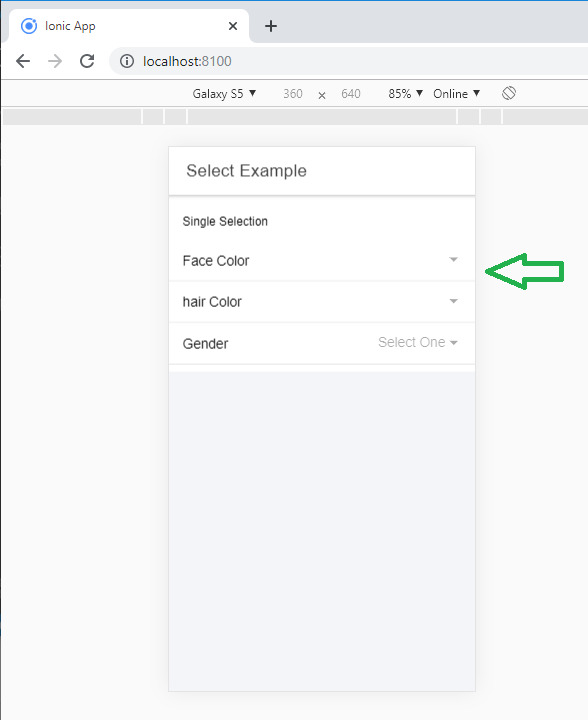
Ionic Select

When you can click on the face color option, then it shows various options, and when you select one option, then you can click on the Ok button to finalize the choice.
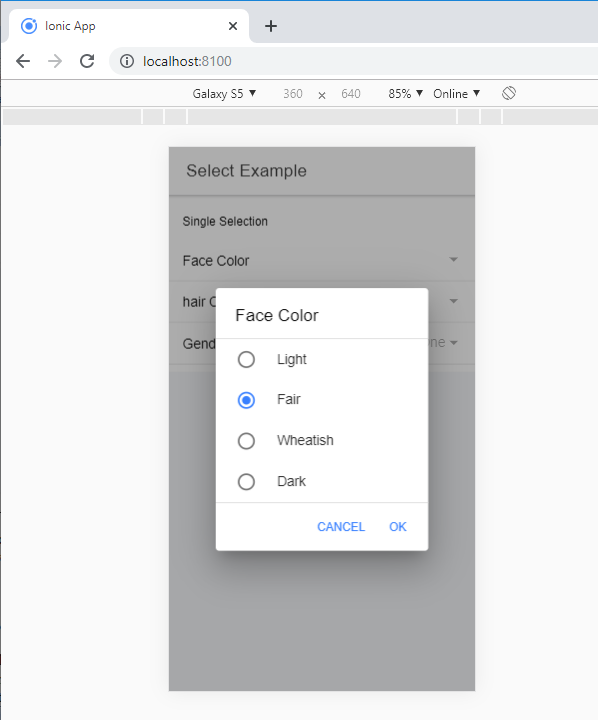
Ionic Select 1

Multiple-Selection

By adding multiple attributes to select, users can choose various options. When several options can be selected, the alert overlay provides users with a list of options in the checkbox style. The value of the selected component receives a set of all values for the options chosen.

Example: This example shows how you can select multiple options at a time.


 Select Example 


 Multiple Selection 
  
 Subjects 
  
 Maths 
 Science 
 Computer 
 English 
 Civics 
 Hindi 


 Games 
  
 Cricket 
 Hockey 
 Badminton 
 Tennis 
 Bollyball


 Computer Languages 
  
 Android 
 Java 
 Python 
 Angular 
 PHP


OuTput: After executing this code, you will get the output, as shown below.

When you can click on the game option, then it shows various options. Here, you can select many options, and then you click on the Ok button to finalize the choice.
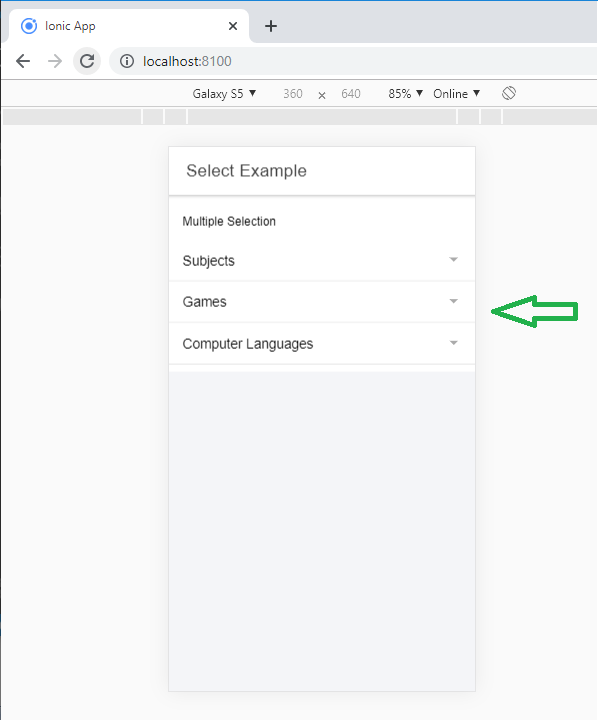
Ionic Select 2

Select Buttons

It has two buttons: Cancel and Ok. The text of each button can be customized using the CancelText and okText properties. You can select the button from the given syntax.

 
 ... 
  

There is no Ok button in the Action-sheet and popover interfaces, so clicking any of the options would automatically close the overlay. The popover interface does not contain a Cancel button. If you click on the background, then it will close the overlay.

Interface Options

By default, the select component uses the AlertController API to open the options overlay in the alert. The interface can be modified to use the ActionSheetController API or the PopoverController API by transferring the action-sheet or popover to the interface property.

Example: The following example shows how you can make the interface option in the ionic application.

Home.page.html


 Select Example 


 Interface Options 
  
 Alert 
  
 Cricket 
  Badminton 
  Tennis 
  Bollyball 
  Hockey 


  Popover 
   
  Apple 
  Banana 
  Grapes 
  Papaya 
  Pineapple 


  Action Sheet 
   
 Java 
 Python 
 Angular 
 PHP 
 C# 


Home.page.ts

import { Component } from '@angular/core';
@Component({
 selector: 'app-home',
 templateUrl: 'home.page.html',
 styleUrls: ['home.page.scss'], 
})
export class HomePage { 
 customAlertOptions: any = { 
 header: 'Games', 
 subHeader: 'Select your game', 
 message: 'Select your favourite game', 
 translucent: true 
 }; 
 customPopoverOptions: any = { 
 header: 'Fruites name', 
 subHeader: 'Select your Fruite name', 
 message: 'Only select your favorite Fruite' 
 }; 
 customActionSheetOptions: any = { 
 header: 'Computer Languages', 
 subHeader: 'Select your favorite language' 
 }; 
} 

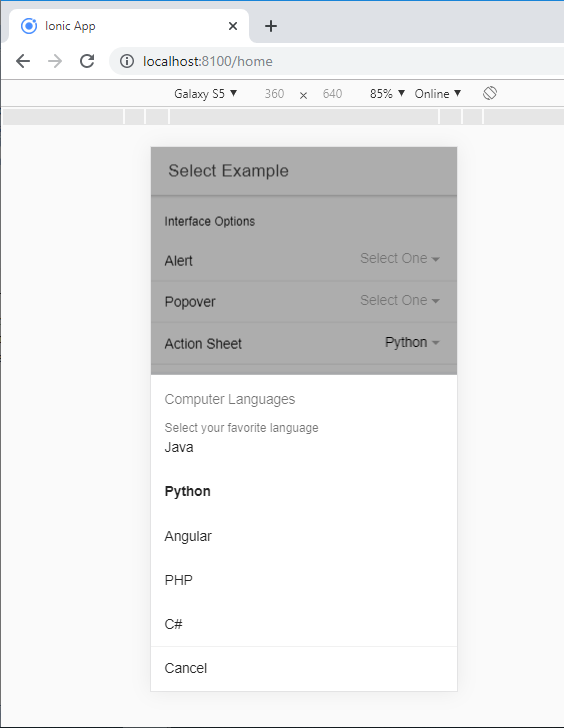
Output:  After executing this code, you will get the output, as shown below.
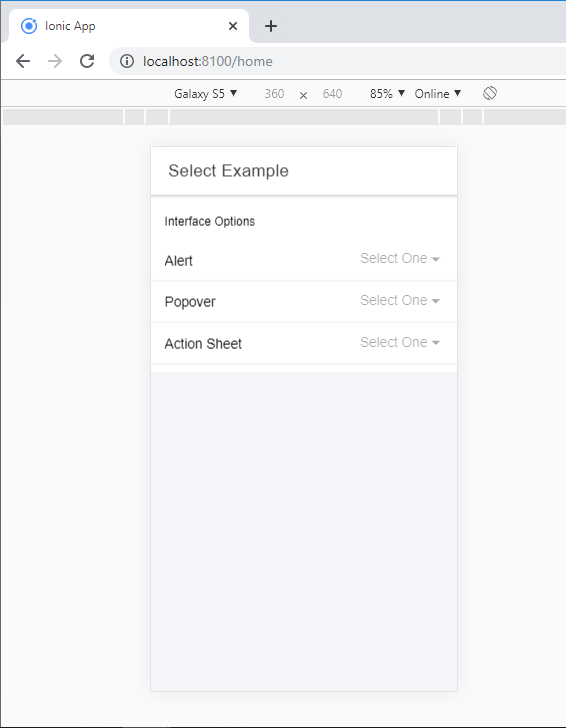
Ionic Select 3

When you can click on the action sheet option, then it shows various options. Here, you can select one option to finalize the choice. You can also select the options alert and popover the same as the action sheet.
Ionic Select 4

Related Topics

Ionic Grid

The Ionic grid is a very powerful mobile-first flexbox system for building the custom layouts. It is a CSS feature supported by all devices that ionic supports. The Ionic grid is composed of...

11 minutes read.

Ionic Actionsheet

Ionic Actionsheet The Action sheet is a dialog box that displays a group of options. It is shown on the top of the application content and must be dismissed manually before the user can resume...

3 minutes read.

Features of Ionic Framework

The Ionic Framework is based on the AngularJS framework that permits a programmer to use a combination of many other programming languages, like HTML5, CSS, and JavaScript. Some of the...

4 minutes read.

Ionic-fab Button

Ionic-fab Button The Ionic FABs (Floating Action Buttons) are standard material design compounds. It is a container element that contains one or more fab buttons. They are required to be placed in a fixed position,...

2 minutes read.

Ionic Spinner

The ionic spinner component provides the various SVG (Scalable Vector Graphic) spinners. Ionic spinners are the visual indicators that display the app which is loading content or performing another process that the user...

5 minutes read.

Ionic Contents

Ionic Contents The content component provides an easy-to-use content area with some useful ways to control the scrollable region. There should be only one content in one view. Content, along with several other Ionic...

2 minutes read.

Ionic Segment

A segment is a collection of buttons, sometimes which are known as segmented controls. The segment buttons are displayed at horizontal rows. These segment buttons can be shown in a toolbar or the...

2 minutes read.

Difference between Ionic 4 and Ionic 3

The ionic framework is an open-source platform that is used to develop mobile applications. It is also used to build android applications, desktop applications, iOS, and web applications using web technologies like HTML,...

5 minutes read.

Ionic progress bar

The ionic progress bar element is a horizontal progress bar used to visualize the progression of operation and activity. You can use the <ion-progress-bar> component to create a progress bar in the ionic...

4 minutes read.

Ionic Editors

Editors are software programs that permit the users to create and edit the text files. In the development field, editors are usually used to create the source code editors that includes many specific...

3 minutes read.

Ionic Colors

Ionic Colors Before we start with the actual elements available in the Ionic frame, let's understand a little bit how Ionic uses colors for different elements. Ionic Color Classes Ionic framework is a set of nine predefined...

3 minutes read.

Ionic framework Installation

Installation of Ionic Before proceeding with the ionic application, you'll need to install node.js and NPM (Node Package Manager), the code editor, and Ionic CLI. Installation of node.js and NPM These are the primary...

5 minutes read.

Ionic Checkbox

Ionic Checkbox Ionic Checkbox is nearly the same as a toggle. It can be placed in an ionic element or used as a separate checkbox. It is designed differently for every platform, such...

2 minutes read.

Ionic Tabs

The ionic tabs mostly used for mobile navigation. It means that tabs are placed at the top of the display on android devices, while at the bottom on IOS. It does not provide...

2 minutes read.

Ionic Tutorial for Beginners

What is Ionic? Ionic is an open-source framework that is used for the development of mobile applications. It is also used to build android applications, iOS, applications, desktop applications, and web applications using web...

4 minutes read.

Ionic Radio

Ionic Radio The radio button is the type of input component that has a Boolean value. The Ionic radio button has a different pattern on every platform, as well as other Ionic components....

2 minutes read.

Ionic Chip

Ionic chip displays the complex entities in small entities in small blocks, such as the contacts. Ionic chip has several types of elements like avatars, thumbnails, text, and icons. It is a bubble-like...

3 minutes read.

Ionic Infinite Scroll

The infinite scroll permits you to perform an action when the user scrolls a particular content from the bottom or top of the page. When you display the large collection of data...

3 minutes read.

History of Ionic

It is a complete open-source platform for hybrid mobile application development created by Ben Sperry, Max Lynch, and Adam Bradley of Drifty Co. in 2013. The first alpha version of the framework was...

2 minutes read.

Ionic Modal

Ionic modal is displayed as a temporary UI that slides into the screen. The ionic modal is a dialog box that is displayed at the top of the app’s content, and it...

5 minutes read.