
Html <datalist >Tag
The autocomplete feature in HTML files is provided by the <datalist> tag. It can be used in conjunction with an input tag to enable users to quickly fill out form by selecting the data.
A value may be stored in the value and label attributes as well as the internal content of the <option> element. The drop-down menu's visibility depends on the browser, but no matter which option is selected. the control field's content always comes from the value attribute.
You have to provide the special identifier ‘id’ attribute in the <datalist> tag and add the value which is assigned in the list attribute of the <input> element.
This behavior can differ from one browser to another and is only supported by specific types of "input".
Syntax
<datalist> Write Your List or Option Here  </datalist>
Example of Datalink Tag in Text form
When a user clicks or double-clicks on the control, suggested values for the types text, search, URL, tel, email, and number are displayed in a drop-down menu. The presence of predefined values is typically indicated by an arrow on the right side of the control.
<!DOCTYPE>
<html>
<body>
<label>
 Enter your favourite Car:  <br />
 <input type="text" id="favcar" list="favtcar">
 <datalist id="favtcar">
 <option value="Maruti 800">
 <option value="Brezza">
 <option value="Swift">
 <option value="Accord">
 <option value="Honda City">
 <option value="Audi">
 <option value="BMW">
 <option value="Bentaly">
 <option value="Jaquar ">
 <option value="Ferarri">
 <option value=" Rolls Royce">
 <option value="Austo-Martin">
 </datalist>
</label>
</body>
</html>
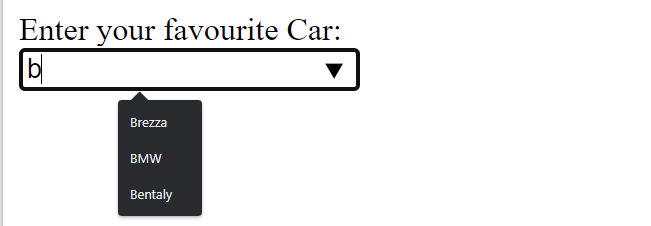
Output:

Here, the HTML displays all the auto-suggested values beginning with the character "c" because the user has entered the value "c" in the input box. Additionally, we can also changed the option elements to show the auto-suggest feature based on the alphabet.
Example of Datalink Tag in Date and Time Form
The types month, week, date, time, and Datetime-local may display an interface that enables to select simple date and time. The user can fill in the control value quickly by seeing predefined values there.
<!DOCTYPE>
<html>
<body>
<label>
 Choose Your Perfect Time : <br />
<input type="time" list="popularHours">
<datalist id="popularHours">
  <option value="12:00">
  <option value="13:00">
  <option value="14:00">
</datalist>
</body>
</html>
Output :

Example of Datalink Tag in Range Form
The user can choose from a series of hash marks that are displayed as the range according to the suggested values.
<!DOCTYPE>
<html>
<body>
<label>
 Choose Your Monthly Expenses Range: <br />
<input type="range" list="tickmarks">
<datalist id="tickmarks">
  <option value="0">
  <option value="Rs.10,000">
  <option value="Rs. 20,000">
  <option value="Rs.30,000">
</datalist>
</body>
</html>
Output:

Example of Datalink Tag in Color Form
The color type can display predefined colors in an interface offered by the browser.
<!DOCTYPE>
<html>
<body>
<label>
 Choose Your Favourite Color  :  <br />
<input type="color" list="redColors">
<datalist id="redColors">
  <option value="#800000">
  <option value="#8B0000">
  <option value="#A52A2A">
  <option value="#DC143C">
</datalist>
</body>
</html>
Output:

Example Of Datalist With CSS
<!DOCTYPE html>
<html>
<head>
<style>
.cars {
height: 110px;
background-color: cadet blue;
width: 100%;
}
</style>
</head>
<body>
<div class = "cars" >
<label style = "font-size: x-large; font-weight: 500; margin-left: 20px " > Car Brand: </label >
<input list = "car_brands" name = "car brand" style = "margin-top: 40px; " >
<datalist id = "car_brands" >
<option value = "Aston Martin " >
<option value = "Audi " >
<option value = "Cadillac " >
<option value = "Chevrolet " >
<option value = "Honda " >
<option value = "Hyundai " >
<option value = "Chrysler " >
<option value = "Kia " >
</datalist>
</div>
</body>
</html>
Output :

Attribute
The <datalist> tag only accepts Global Attributes. The <datalist> tag doesn't have any unique attributes.
Benefits of Datalist Tag
This datalist tag offers a feature that allows the user to pick and quickly enter data into the input field without having to type. It is helpful when an HTML form allowing the user to type into the field and then choose an option from the list.
Browser Compatibility
Chrome
Mozilla Firefox
Safari
Opera
Conclusion
The autocomplete feature in HTML files is provided by the <datalist> tag. It can be used in conjunction with an input tag to enable users to quickly fill out data form by selecting the data.
This datalist tag offers a feature that allows the user to pick the data and quickly enter data into the input field without having to type it in. It is helpful when an HTML form allowing the user to type into the field and to choose an option from the list.