
React Bootstrap
React Bootstrap
React has a widely used JavaScript framework for creating web applications, and Bootstrap has become the most popular CSS framework. Single-page apps have become popular from the last few years, so the front-end frameworks like Angular, React, Ember, etc. have introduced. As a result, jQuery has lost its popularity for building web applications. So it is necessary to learn the ways by which we can use the Bootstrap in React apps.
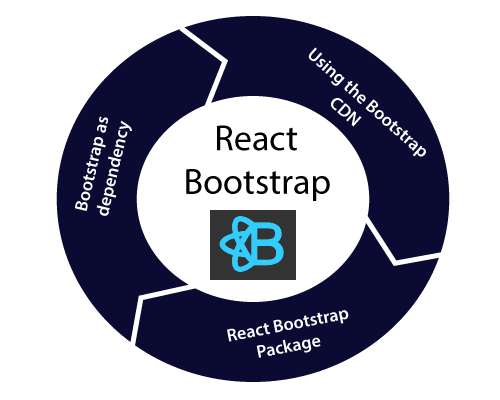
Adding Bootstrap to React
There are several ways to add Bootstrap to react apps; some are listed as follows:
- By using Bootstrap CDN
- Bootstrap as dependency
- React Bootstrap package
Using Bootstrap CDN
It is one of the simplest ways to use Bootstrap in ReactJS. It does not require any installation and downloading of Bootstrap. We have to put <link> tag into the <head> section of the index.html file of the react application.
<link
    rel="stylesheet"
    href="https://stackpath.bootstrapcdn.com/bootstrap/4.3.1/css/bootstrap.min.css"
    integrity="sha384-ggOyR0iXCbMQv3Xipma34MD+dH/1fQ784/j6cY/iJTQUOhcWr7x9JvoRxT2MZw1T"
    crossorigin="anonymous"
/>
If it is required to use Bootstrap components depends upon JavaScript/jQuery in the react application, we have to include jQuery and some files like Popper.js and Bootstrap.js within the document. You have to add the following imports within the <script> tags in the <head> section of the index.html file.
<script
    src="https://code.jquery.com/jquery-3.3.1.slim.min.js"
    integrity="sha384-q8i/X+965DzO0rT7abK41JStQIAqVgRVzpbzo5smXKp4YfRvH+8abtTE1Pi6jizo"
    crossorigin="anonymous">
</script>

<script
    src="https://cdnjs.cloudflare.com/ajax/libs/popper.js/1.14.7/umd/popper.min.js"
    integrity="sha384-UO2eT0CpHqdSJQ6hJty5KVphtPhzWj9WO1clHTMGa3JDZwrnQq4sF86dIHNDz0W1"
    crossorigin="anonymous">
</script>

<script
    src="https://stackpath.bootstrapcdn.com/bootstrap/4.3.1/js/bootstrap.min.js"
    integrity="sha384-JjSmVgyd0p3pXB1rRibZUAYoIIy6OrQ6VrjIEaFf/nJGzIxFDsf4x0xIM+B07jRM"
    crossorigin="anonymous">
</script>
Now, we have successfully added the Bootstrap in the React application so that we can use all of the UI components and CSS utilities available from Bootstrap in the React application.
Bootstrap as a dependency
If you are working with the build tool or a module bundler like Webpack, then it is preferred to be import Bootstrap as a dependency for adding Bootstrap in your React Application.
You can install Bootstrap as a dependency for your react application only by running the following command in the terminal window:
npm install bootstrap --save
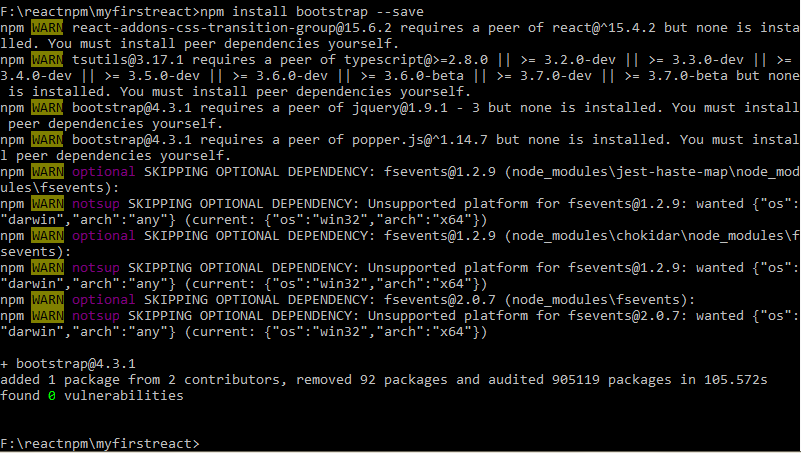
Once it gets installed, you can import it in your React application entry file. If you are creating the React project with the create-react-app tool, then open the src/index.js file, and add the following code:
import 'bootstrap/dist/css/bootstrap.min.css';
Now, you can use the utilities and CSS classes in the React application. If you want to use the components of JavaScript, then you have to install the popper.js and jquery packages from npm. To install these packages, run the following command in your terminal window:
npm install jquery popper.js
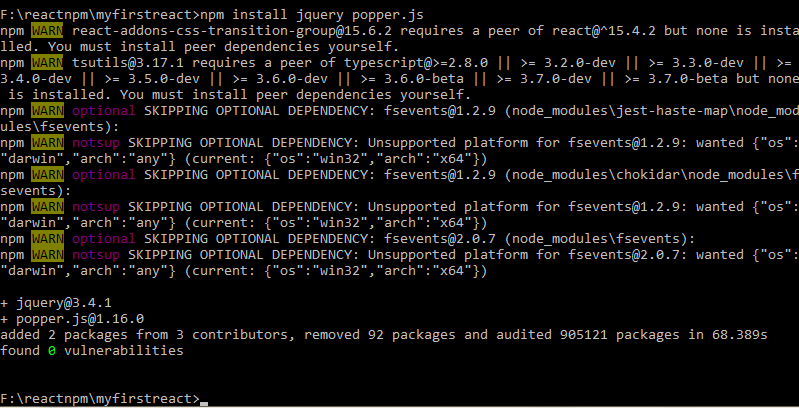
Once it gets installed, open your src/index.js file and add the following:
import $ from 'jquery';
import Popper from 'popper.js';
import 'bootstrap/dist/js/bootstrap.bundle.min';
React Bootstrap Package
It is the popular way of adding the Bootstrap in the React application. There are several Bootstrap packages created by the community, which aims to recreate Bootstrap components as the react components.
Two necessary packages of Bootstrap are as follows:
- react-bootstrap: It is the full re-implementation of the components of Bootstrap, such as react components. There is no requirement of any dependencies like jquery or bootstrap.js. If you have the React-setup and React-Bootstrap installed, then you have sufficient things you need.
- reactstrap: It is a library that contains the components of React Bootstrap 4, which favors control and composition. It does not depend upon jQuery or Bootstrap JavaScript. However, react-popper is required for the advanced positioning of content such as Tooltips, Popovers, and auto-flipping dropdowns.
React Bootstrap Installation
Let us try to create a new react app by using the following command:
npx create-react-app react-bootstrap-app
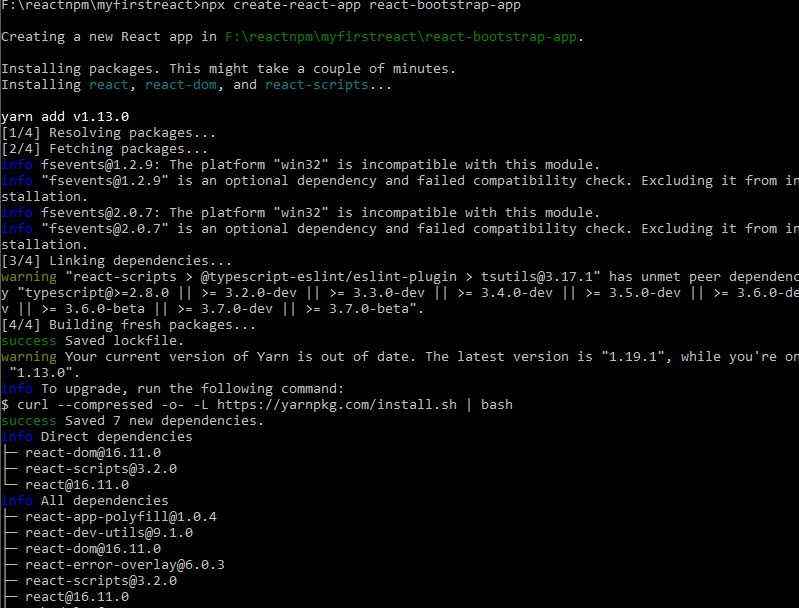
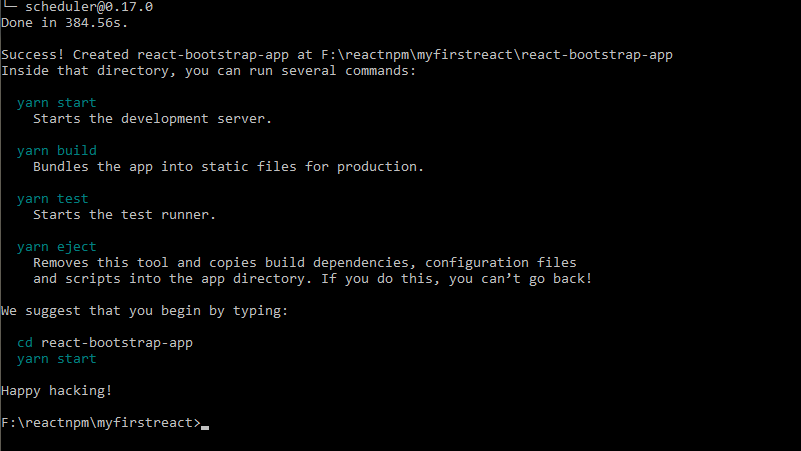
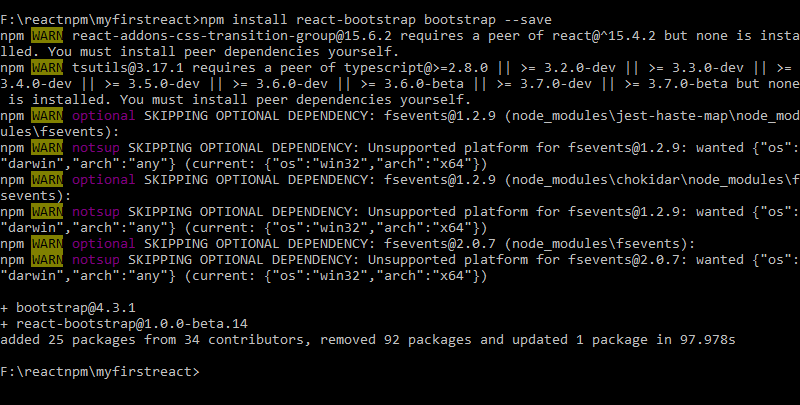
After creating the react app, you have to install the Bootstrap, and the best way to install it by using the npm package. Now, for installing the Bootstrap, open your terminal and navigate to the React app folder to run the following command:
npm install react-bootstrap bootstrap --save
Importing Bootstrap
After installing the Bootstrap, open your src/index.js file and add the following code for importing the Bootstrap file:
import 'bootstrap/dist/css/bootstrap.min.css';
We also can import the individual components such as import { SplitButton, Dropdown } from 'react-bootstrap'; rather than the entire library. It gives us the particular components that we require to use.
In the React app, let’s create a file like ThemeChanger.js in the src directory or you can use your existing App.js file, and put the following code into it:
ThemeChanger.js
import React, { Component } from 'react';
import { SplitButton, Dropdown } from 'react-bootstrap';

class ThemeChanger extends Component {
  state = {
    theme: null,
  };

  chooseTheme = (theme, evt) => {
    evt.preventDefault();
    if (theme.toLowerCase() === 'reset') {
      theme = null;
    }
    this.setState({ theme });
  };

  render() {
    const { theme } = this.state;
    const themeClass = theme ? theme.toLowerCase() : 'default';

    const parentContainer = {
      position: 'absolute',
      height: '100%',
      width: '100%',
      display: 'table',
    };

    const subContainer = {
      position: 'relative',
      height: '100%',
      width: '100%',
      display: 'table-cell',
    };

    return (
      <div className={`theme-changer ${themeClass}`} style={parentContainer}>
        <div style={subContainer}>
          <h2>{theme || 'Default'}</h2>
          <SplitButton
            id="theme-selector"
            title="Select Theme"
            onSelect={(theme, evt) => this.chooseTheme(theme, evt)}
          >
            <Dropdown.Item eventKey="Primary">Primary Theme</Dropdown.Item>
            <Dropdown.Item eventKey="Danger">Danger Theme</Dropdown.Item>
            <Dropdown.Item eventKey="Success">Success Theme</Dropdown.Item>
            <Dropdown.Item eventKey="Reset">Reset Theme</Dropdown.Item>
          </SplitButton>
        </div>
      </div>
    );
  }
}

export default ThemeChanger;
Index.js
import 'bootstrap/dist/css/bootstrap.min.css';
import React from 'react';
import ReactDOM from 'react-dom';
import './index.css';
import ThemeChanger from './ThemeChanger';
ReactDOM.render(<ThemeChanger />, document.getElementById('root'));
Output:
When the code gets successfully executed, you will get the following output:

When you click on the dropdown menu button, you will get the following output:
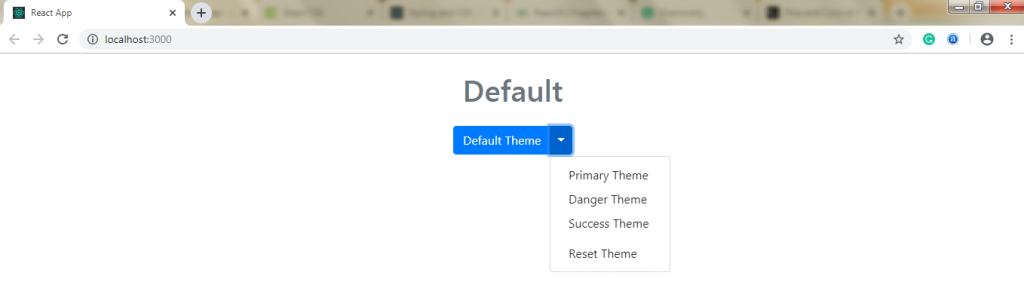
If we select any theme from the list, we will get the corresponding output, like if we are selecting the primary theme, then we will get:

On selecting the success theme, we will get:

By using Reactstrap
Let us try to create a new React app by using the following create-react-app command:
npx create-react-app reactstrap-app
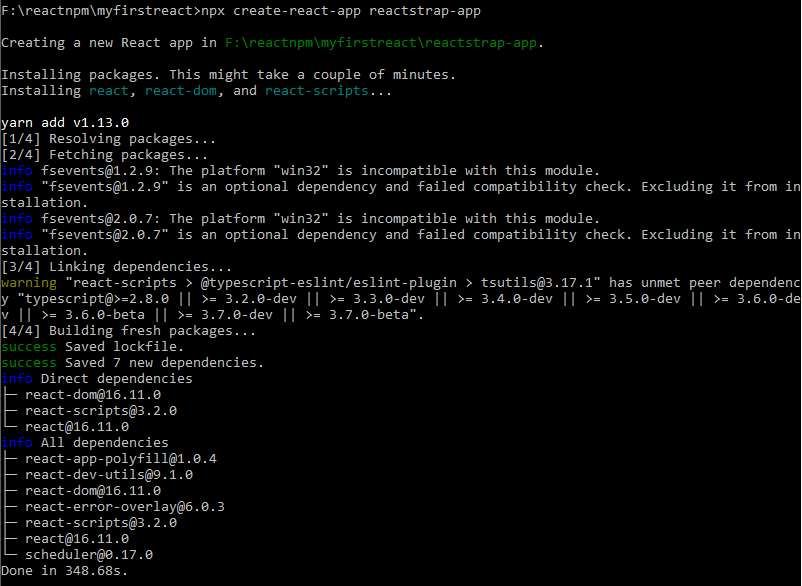
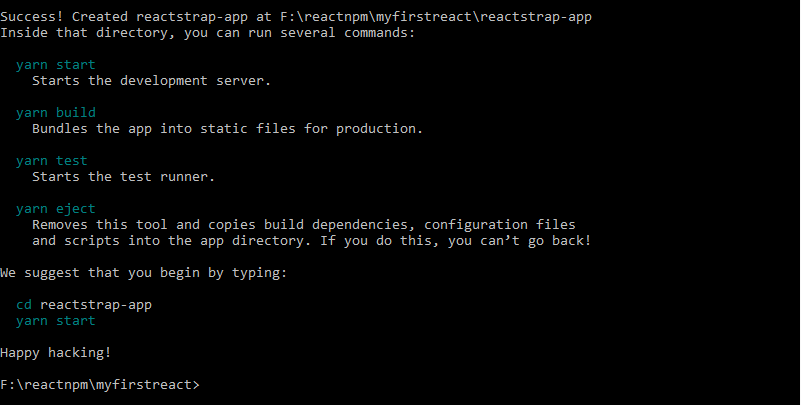
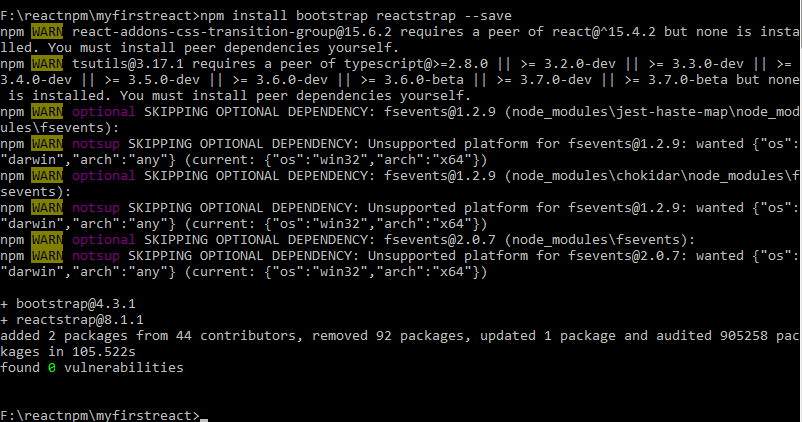
Now, you have to install the reactstrap by using the npm package. To install reactstrap, go to your terminal and navigate to the React app folder, and run the following command:
npm install bootstrap reactstrap --save
Importing Bootstrap
Now, open your src/index.js file and add the following code for importing the Bootstrap file:
import 'bootstrap/dist/css/bootstrap.min.css';
We also can import the components like import { Button, Dropdown } from 'reactstrap'; rather than the entire library. It gives the individual components which we require to use and can reduce the code.
Let us try to understand the following example of Buttons in Bootstrap:
App.js
import React from 'react';
import './App.css';
import 'bootstrap/dist/css/bootstrap.min.css';
import { Button, ButtonToolbar } from 'react-bootstrap';

class App extends React.Component {
  render() {
    return (
      <div>
        <h2>ReactJS Bootstrap Buttons</h2>
        <ButtonToolbar>
          <Button variant="primary" className="m-2">Primary</Button>
          <Button variant="secondary" className="m-2">Secondary</Button>
          <Button variant="success" className="m-2">Success</Button>
          <Button variant="warning" className="m-2">Warning</Button>
          <Button variant="danger" className="m-2">Danger</Button>
          <Button variant="info" className="m-2">Info</Button>
          <Button variant="light" className="m-2">Light</Button>
          <Button variant="dark" className="m-2">Dark</Button>
          <Button variant="link" className="m-2">Link</Button>
        </ButtonToolbar>
      </div>
    );
  }
}

export default App;
Output:

Let us see another example of Accordion and Card in Bootstrap:
For using Accordion and Card, you have first to import two packages in your App.js file:
import { Accordion } from 'react-bootstrap';
import { Card } from 'react-bootstrap';
Now, open your App.js file and paste the following code into it.
App.js
import React from 'react';
import './App.css';
import 'bootstrap/dist/css/bootstrap.min.css';
import { Accordion, Card, Button } from 'react-bootstrap';

class App extends React.Component {
  render() {
    return (
      <>
        <Accordion>
          <Card>
            <Card.Header>
              <Accordion.Toggle as={Button} variant="link" eventKey="0">
                Click me!
              </Accordion.Toggle>
            </Card.Header>
            <Accordion.Collapse eventKey="0">
              <Card.Body>Hello World! I'm the first body.</Card.Body>
            </Accordion.Collapse>
          </Card>
          <Card>
            <Card.Header>
              <Accordion.Toggle as={Button} variant="link" eventKey="1">
                Click me!
              </Accordion.Toggle>
            </Card.Header>
            <Accordion.Collapse eventKey="1">
              <Card.Body>Hello World! I'm another body.</Card.Body>
            </Accordion.Collapse>
          </Card>
        </Accordion>
      </>
    );
  }
}

export default App;
Output:
After the successful execution of code, you will get the following output:
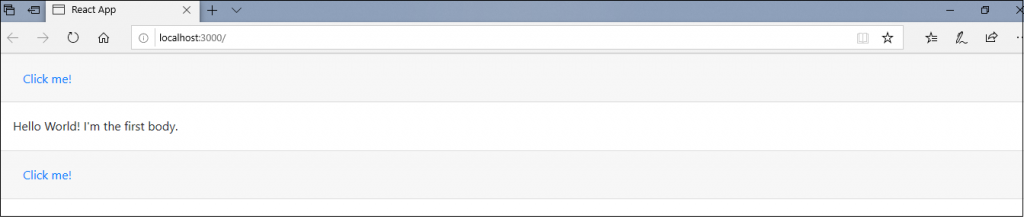
On clicking the ‘Click me!’ You will see that the details get to hide, it will be clear from the following image:

On clicking the second ‘Click me!’ you will get:
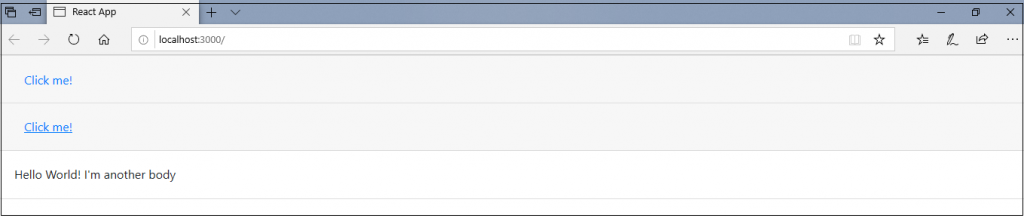
Similarly, when you click again on the second ‘Click me!’ then you will get:
