
×

Design a BMI calculator using JavaScript

BMI calculator

BMI stands for Body Mass Indicator. It is a numeric value which is calculated based on the height and weight of a person. It represents the fatness of the body by a numeric value. The formula of BMI is: BMI = kg/m2

Let’s suppose for a person if weight is W (in kg) and his height is H (in meter) then his BMI will be:

BMI= (W) / (H*H)

For creating the BMI calculator, we will use HTML, CSS, and JavaScript. We will ask the user to enter his weight in the centimeter and also we will ask the user to enter his weight in kilograms. If any input is empty then we will not calculate the BMI and there will be a warning stating that empty fields are not allowed.

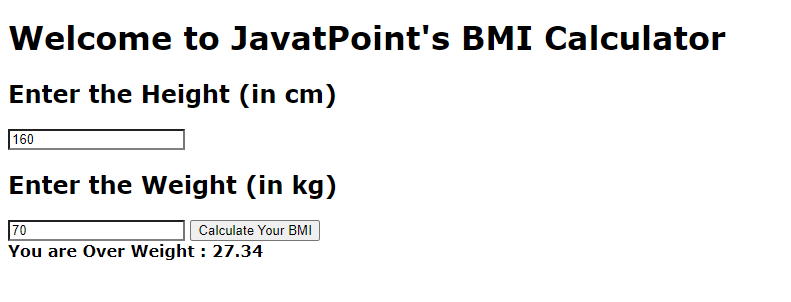
After entering the values, the user will click the button and his BMI will be displayed on the screen and based on the values of the BMI we can display the message if it is under fat or overfat using simple if else conditions.

HTML code-

<!DOCTYPE html>
<html>


<head>


      // we are adding the JavaScript file into html code
	<script src="script.js"></script>
      <style>
		body{
		  font-family: verdana;
		  font-weight:800;
		}
		input{
		  text-decoration:none;
		  outline :none;
		  border-bottom: 2px solid grey;
		}
	
	</style>


</head>


<body>
	<div class="main_div">
		<h1> Welcome to JavatPoints BMI Calculator</h1>


		<h2>Enter the Height (in cm)</h2>


		<input type="text" id="height">


		<h2>Enter the Weight (in kg)</h2>


		<input type="text" id="weight">


		<button id="btn">Calculate Your BMI </button>
            
          // here div section is empty as BMI will be placed here dynamic
		<div id="result"></div>
	</div>
</body>


</html>

JavaScript Code-

window.onload = () => {
	let bmiButton = document.querySelector("#btn");


	bmiButton .addEventListener("click", getBMI);
};


function getBMI() {


	let H = parseInt(document
			.querySelector("#height").value);


	let W= parseInt(document
			.querySelector("#weight").value);


	let ans= document.querySelector("#result");


	if (H=== "" || isNaN(H))
		ans.innerHTML = "Provide a valid Height!";


	else if (W=== "" || isNaN(W))
		ans.innerHTML = "Provide a valid Weight!";


	else {


		// Fixing upto 2 decimal places
		let bmi = (W / ((H * H)/ 10000)).toFixed(2);


		if (bmi < 18.6) ans.innerHTML =
			`You are Underweight : <span>${bmi}</span>`;


		else if (bmi >= 18.6 && bmi < 24.9)
			ans.innerHTML =
				`You are Normal : <span>${bmi}</span>`;


		else ans.innerHTML =
			` You are Overweight : <span>${bmi}</span>`;
	}
}

Code Explanation-

We have here two files: the first one id idnex.js and the second one script.js. Although we can use the third file of CSS but currently we are ignoring that CSS because we are more focused on the functionality of this calculator instead of styling.

In the index.js file first, we have included the script.js file so that all the functionality which is written in the JavaScript file is merged to particular elements of HTML.

Now in the body section of the HTML file, we have two input boxes of type text where the user will enter its height and weight. Then, we have a button and we have given a unique id to this button.

We have another div section which will be empty initially and when we calculate the BMI then it will be updated according to that value.

Now, let’s talk about the JavaScript file where we have implemented all the functionality of our calculator.

As the window is loaded on the screen, we will add the event listener with the click of the button and attach a function to calculate the BMI. Now let's see the function’s description.

Initially, we will take the value from the input box and store it in the variables. The value of height will be stored in the variable ‘H’ and the value of weight will be stored in the variable ‘W’.

Now if H is null then in the result div we will print the text to enter a valid height. Now if W is empty then we will print the text in the div result to enter the valid weight.

If users enter both values correctly then we will calculate the BMI using the formula and we will have if else conditions.

  • If the BMI value is lesser than 18.6, we will print as underweight.
  • If the value is greater than 18.6 but less than 24.9, we will just print the text as normal weight.
  • Else BMI value represents the overweight so; we will print the corresponding text.

Output:
Design a BMI calculator using JavaScript

Related Topics

Javascript Example

What is JavaScript? JavaScript is a highly versatile programming language. It provides the capability to add interactivity to static web pages, which are designed with HTML and CSS. It also provides...

5 minutes read.

What is Ternary Operator in JavaScript?

In some cases, a ternary operator can be used instead of an if-else expression. A ternary operator examines a condition and then runs a block of code in response to...

4 minutes read.

Javascript input maxlength

Various attributes often accompany the input tag in HTML to change the properties of the input field. Maxlength() is one such attribute. The maxLength attribute defines the maximum number of characters...

2 minutes read.

Javascript Re-Password Validation

Example <!DOCTYPE html>   <html>   <head>   <script>   function pass_validation()   {   var firstpassword=document.f1.password1.value;     var secondpassword=document.f1.password2.value;     if(firstpassword==secondpassword){     return true;     }     else{   alert("Password does Not Match");     return false;     }     }    </script>   </head>   <body>   <form name="f1" action="/JavaScript/Index" onsubmit="return pass_validation()">   Password:<input type="password" name="password1" /><br/>   Re-enter :<input type="password" name="password2"/><br/>   <input type="submit">   </form>   </body>   </html> Try Now ← Prev Next → ...

1 minute read.

Javascript Switch Statement

Introduction Conditional statements are simple building blocks in programming languages and are utilized fairly frequently. This portion of Developing Conditional Statements in JavaScript talks about how to utilize the if, else,...

5 minutes read.

Javascript Window Object

The window object represents a window in browser. An object of window is created automatically by the browser. Window is the object of browser, it is not the object of JavaScript. The...

3 minutes read.

Javascript Email Validation

We can validate the email with the help of JavaScript. Here we check the condition related to any email id, like email it must have "@" and "." sign and...

2 minutes read.

JavaScript setTimeout()

The setTimeout() method creates a timer that, when it expires, runs a function or provides a piece of code. setTimeout() is an asynchronous function, which means that it will not interrupt...

3 minutes read.

JavaScript focus on input

In JavaScript, the elements can be focused using either focus() method or onfocus() event. What is focus() method? When we want to focus on an element (if it can be focused) or...

4 minutes read.

Array to String in JavaScript

As a web developer, you often have to deal with multiple data types in a single application. How to convert an array to a string in JavaScript is essential for...

19 minutes read.

Design a BMI calculator using JavaScript

BMI calculator BMI stands for Body Mass Indicator. It is a numeric value which is calculated based on the height and weight of a person. It represents the fatness of the...

4 minutes read.

Javascript Number

The Number object is a wrapper object which allows you to work with numerical values. The number object is created using the Number() constructor.It may be integer or floating-point. Syntax var n=new Number(value); Examples <!DOCTYPE html>   <html>   <body>   <script>   var x=100;//integer value   var y=100.7;//floating point value   var z=12e5;//exponent value, output: 1200000   var n=new Number(20);//integer value by number object     document.write(x+" "+y+" "+z+" "+n);   </script>   </body>   </html> Try Now Output 100 100.7 1200000 20 Description The primary...

1 minute read.

Javascript Document Object

Document object represents the whole HTML documents. When HTML document is loaded in browser it becomes the document object. It is the root elements that represent the HTML documents. With the help of...

2 minutes read.

Javascript Math

Math is build-in object that has properties and methods for mathematical constants and functions. It allows you to perform mathematical tasks on numbers. Syntax varpi_val = Math.PI; varsin_val = Math.sin(30); Examples Math.pow() Math.pow(x,y) returns the value of x to the power...

2 minutes read.

Javascript Forms Validation

Form validation works at server, after client had entered all the necessary details and then pressed submit button. JavaScript provides the facility to validate the form on the client side...

9 minutes read.

JavaScript Image resize before upload

Image resizing can be a quite tedious task, so it is usually done on the server-side. The resized image file is then delivered to the client side. However, sometimes the...

3 minutes read.

JavaScript radio button checked value

What are radio buttons? A radio button is defined as an icon that is used to take input from the user. The user can choose only one option(value) from the group...

5 minutes read.

Javascript Object

An object is an entity having state and behavior. JavaScript is an object oriented scripting language. JavaScript is template based not class based but we can create object directly. Syntax to...

2 minutes read.

JavaScript Arrays

JavaScript Arrays: JavaScript Arrays are a type of variables that allows us to store the individual or the group of values under a single variable. What is an Array in JavaScript? The array...

6 minutes read.

Javascript Variable

Variables are used to store values (name="Ram") or expressions (Sum=x+y). Before using of variable first we need to declare it. We use keyword var to declare a variable like this: var name; There are two types of variables: Local Variable ...

1 minute read.