How to add Google Translate Button on your Webpage?
Google translator is a multi-language translator used for translating the webpage. Google develops it. In today's digital age, it is essential because information is available worldwide in some specific language which can be translated in our language. By using language translator, we can increase our website's expandability and reachability. Suppose, our website uses a particular language and we have users where another language is mainly spoken. In that case, the translator has a vital role where it can translate the website language to the spoken language of that area.
One of the most essential and popular tools for translation is Google translator. It provides accurate results for the user’s query and gives a designer look to the webpage.
There are four steps for creating this:
Step 1: Create an HTML file and save it with the extension name “.html”.
Step 2: After creating the HTML file, we need to create a CSS file with the extension name “.css”.
Step 3: Include JavaScript file to the webpage.
Step 4: Now, we need to include a Google transcript.
Note: Google translator button is designed with the help of HTML, CSS and JavaScript.
HTML code for Google translator-
Create an HTML file and save as with the extension name “.html”.
<div class="ct-topbar">
 <div class="container">
 <ul class="list-unstyled list-inline ct-topbar__list">
 <li class="ct-language">Language <i class="fa fa-arrow-down"></i>
 <ul class="list-unstyled ct-language__dropdown">
 <li><a href="#googtrans(en|en)" class="lang-en lang-select" data-lang="en"><img src="https://www.solodev.com/assets/Google-translate/flag-usa.png" alt="USA"></a></li>
 <li><a href="#googtrans(en|es)" class="lang-es lang-select" data-lang="es"><img src="https://www.solodev.com/assets/Google-translate/flag-mexico.png" alt="MEXICO"></a></li>
 <li><a href="#googtrans(en|fr)" class="lang-es lang-select" data-lang="fr"><img src="https://www.solodev.com/assets/Google-translate/flag-france.png" alt="FRANCE"></a></li>
 <li><a href="#googtrans(en|zh-CN)" class="lang-es lang-select" data-lang="zh-CN"><img src="https://www.solodev.com/assets/Google-translate/flag-china.png" alt="CHINA"></a></li>
 <li><a href="#googtrans(en|ja)" class="lang-es lang-select" data-lang="ja"><img src="https://www.solodev.com/assets/Google-translate/flag-japan.png" alt="JAPAN"></a></li>
 </ul>
 </li>
 </ul>
 </div>
</div>

<nav class="navbar navbar-default">
 <div class="container">
 <div class="navbar-header">
 <button type="button" class="navbar-toggle collapsed" data-toggle="collapse" data-target="#navbar" aria-expanded="false" aria-controls="navbar">
 <span class="sr-only">Toggle navigation</span>
 <span class="icon-bar"></span>
 <span class="icon-bar"></span>
 <span class="icon-bar"></span>
 </button>
 <a class="navbar-brand" href="#"><img src="https://www.solodev.com/assets/email/logo.png" alt="Logo Solodev"></a>
 </div>
 <div id="navbar" class="collapse navbar-collapse">
 <ul class="nav navbar-nav">
 <li><a href="#">Home</a></li>
 <li><a href="#about">About</a></li>
 <li><a href="#contact">Contact</a></li>
 <li class="dropdown">
 <a href="#" class="dropdown-toggle" data-toggle="dropdown" role="button" aria-haspopup="true" aria-expanded="false">Dropdown <span class="caret"></span></a>
 <ul class="dropdown-menu">
 <li><a href="#">Action</a></li>
 <li><a href="#">Another action</a></li>
 <li><a href="#">Something else here</a></li>
 <li role="separator" class="divider"></li>
 <li class="dropdown-header">Nav header</li>
 <li><a href="#">Separated link</a></li>
 <li><a href="#">One more separated link</a></li>
 </ul>
 </li>
 </ul>
 </div><!--/.nav-collapse -->
 </div>
</nav>


<div class="container">
 <h1>Use Google Translate with your Website</h1>
 <p>Select a language from the upper-right dropdown menu and watch as the content of the page automatically translates.</p>
 <hr />
 <p> lorem100 </p>
</div>
CSS code-
After creating the HTML file, we need to create a CSS file with the extension name “.css”.
.ct-topbar {
  text-align: right;
  background: #eee;
}
.ct-topbar__list {
  margin-bottom: 0px;
}
.ct-language__dropdown{
     padding-top: 8px;
     max-height: 0;
     overflow: hidden;
     position: absolute;
     top: 110%;
     left: -3px;
     -webkit-transition: all 0.25s ease-in-out;
     transition: all 0.25s ease-in-out;
     width: 100px;
     text-align: center;
     padding-top: 0;
  z-index:200;
}
.ct-language__dropdown li{
     background: #222;
     padding: 5px;
}
.ct-language__dropdown li a{
     display: block;
}
.ct-language__dropdown li:first-child{
     padding-top: 10px;
     border-radius: 3px 3px 0 0;
}
.ct-language__dropdown li:last-child{
     padding-bottom: 10px;
     border-radius: 0 0 3px 3px;
}
.ct-language__dropdown li:hover{
     background: #444;
}
.ct-language__dropdown:before{
     content: '';
     position: absolute;
     top: 0;
     left: 0;
     right: 0;
     margin: auto;
     width: 8px;
     height: 0;
     border: 0 solid transparent;
     border-right-width: 8px;
     border-left-width: 8px;
     border-bottom: 8px solid #222;
}
.ct-language{
     position: relative;
  background: #00aced;
  color: #fff;
  padding: 10px 0;
}
.ct-language:hover .ct-language__dropdown{
     max-height: 200px;
     padding-top: 8px;
}
.list-unstyled {
   padding-left: 0;
   list-style: none;
}


.navbar-brand>img {
  padding-top: 11px;
  width: 130px;
  margin-left: 15px;
}
.navbar-brand {
   height: auto;
   margin: 0;
   padding: 0;
   margin-right: 20px;
}
.navbar {
  background-color: #000000;
}
.navbar-default .navbar-nav > .active > a {
  padding: 8px 19px 9px !important;
}
.navbar-nav > li.active {
  padding: 8px 0px 9px 0;
}
.navbar-right {
  padding-top: 0;
}
.navbar-default .navbar-nav > li > a::after {
  background-color: transparent;
  border-bottom: 3px solid #d2282e;
}
.navbar-default .navbar-nav>li {
  display: inline-block;
  text-align: center;
  float: none;
}
.navbar-default .navbar-nav>li>a {
   color: #fff;
}
.navbar-default .navbar-nav>li>a:hover {
   color: #fff;
   background-color: #0392CC;
}
JavaScript code
Then, include the JavaScript file to the webpage.
<script type="text/JavaScript" src="https://ajax.Googleapis.com/ajax/libs/jquery/3.1.1/jquery.min.js"></script>
<script type="text/JavaScript" src="https://maxcdn.bootstrapcdn.com/bootstrap/3.3.7/js/bootstrap.min.js"></script>
<link rel="stylesheet" type="text/css" href="https://maxcdn.bootstrapcdn.com/bootstrap/3.3.7/css/bootstrap.min.css">
<link href="https://maxcdn.bootstrapcdn.com/font-awesome/4.7.0/css/font-awesome.min.css" rel="stylesheet">
Google transcript code-
We need to include a Google transcript.
<script type="text/JavaScript">
 function GoogleTranslateElementInit() {
 new Google.translate.TranslateElement({pageLanguage: 'en', layout: Google.translate.TranslateElement.FloatPosition.TOP_LEFT}, 'Google_translate_element');
 }


 function triggerHtmlEvent(element, eventName) {
 var event;
 if (document.createEvent) {
 event = document.createEvent('HTMLEvents');
 event.initEvent(eventName, true, true);
 element.dispatchEvent(event);
 } else {
 event = document.createEventObject();
 event.eventType = eventName;
 element.fireEvent('on' + event.eventType, event);
 }
 }


 jQuery('.lang-select').click(function() {
 var theLang = jQuery(this).attr('data-lang');
 jQuery('.goog-te-combo').val(theLang);


 window.location = jQuery(this).attr('href');
 location.reload();
 });
</script>
<script type="text/JavaScript" src="//translate.Google.com/translate_a/element.js?cb=GoogleTranslateElementInit"></script>
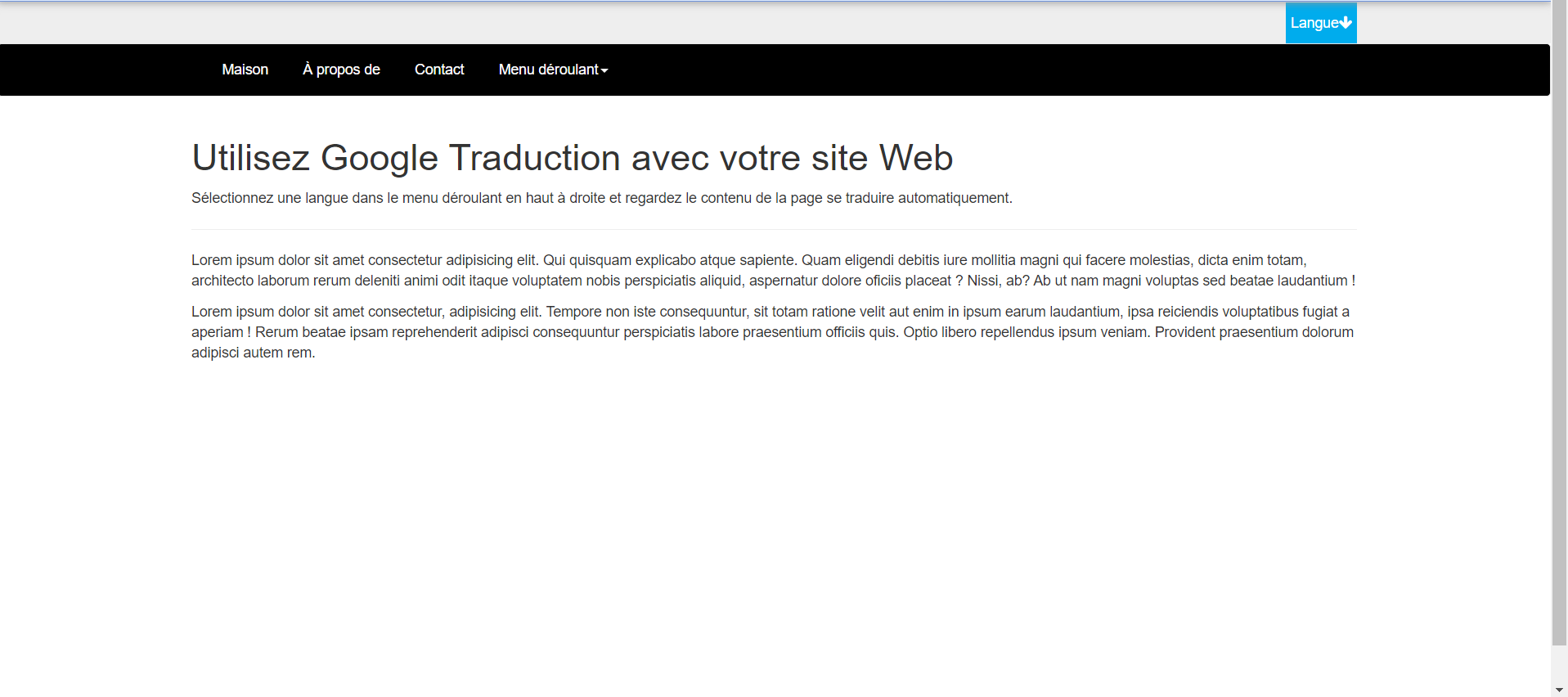
Output: