
Android Project Folder Structure
JetBrains community developed Android Studio, the official IDE (Integrated Development Environment) for Android app development and is freely distributed by Google.
After the complete Android Architecture setup, we can construct an Android application in the studio. For each sample application, we should establish a new project and learn the folder structure.
After setting up an Android development environment in Android Studio, we can create an example application, and our project folder structure will look like this. If you are unfamiliar with creating an application using an Android studio, please check out this Android Hello World App.
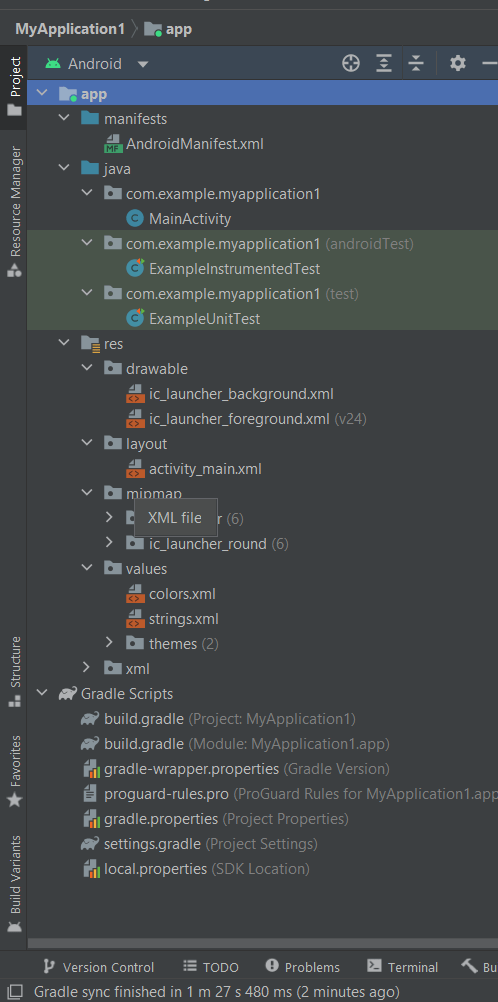
The structure of the Android project on disk can differ from the above picture. Select Project from the Project selection instead of Android to see the Project's actual file structure.
Many app modules, source code files, and resource files are included in the Android project. We'll go through all of the Android app's directories and files.
- Manifests Folder
- Java Folder
- res (Resources) Folder
- Drawable Folder
- Layout Folder
- Mipmap Folder
- Values Folder
- Gradle Scripts
Manifests Folder
This folder includes the AndroidManifest.xml, which we will use to create the Android application. This file holds information about our programs, such as the Android versions, metadata, the states packages for the Kotlin code, and other app components. It functions as a bridge between the Android operating system and our application.
Let's see the manifests folder structure of the Android application shown below.

AndroidManifest.xml
XML code:
<? xml version="1.0" encoding="utf-8" ?>
< manifest xmlns:android = "http:// schemas.android.com/apk/res/android"
    Package = "com.geeksforgeeks.myapplication" >

    < application
        android:allowBackup = "true"
        android:icon = "@mipmap/ic_launcher"
        android:label = "@string/app_name"
        android:roundIcon = "@mipmap/ic_launcher_round"
        android:supportsRtl = "true"
        android:theme = "@style/AppTheme">
        < activity android:name = ".MainActivity" >
            < intent-filter >
                < action android:name = "android.intent.action.MAIN" />

                < category android:name = "android.intent.category.LAUNCHER" />
            </ intent-filter >
        </ activity >
    </ application >
</ manifest >
Java folder
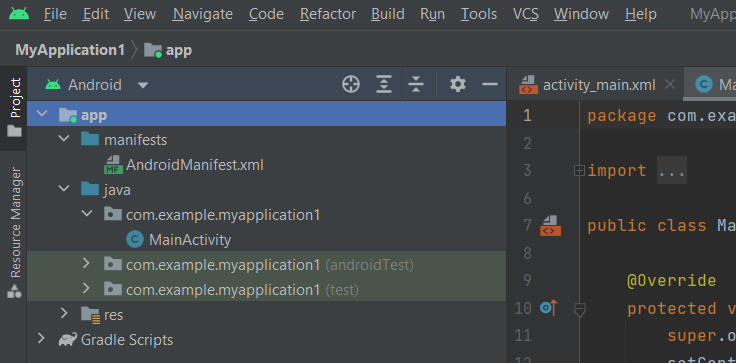
The Java folder holds all of the java and Kotlin source code (.java) files created during app development, as well as additional Test files. When we begin a fresh Java project, the class file MainActivity.java is automatically produced under the package name "com.example.myapplication1" as seen here.
Java Code
package com.example.myapplication1;
import android.os.Bundle;
import androidx.appcompat.app.AppCompatActivity;
public class MainActivity extends AppCompatActivity {
    @Override
    protected void onCreate ( Bundle savedInstanceState )
    {
        super.onCreate ( savedInstanceState ) ;
        setContentView ( R.layout.activity_main) ;
    }
}
Kotlin Code
package com.example.myapplication1
 import androidx.appcompat.app.AppCompatActivity import android.os.Bundle
 class MainActivity : AppCompatActivity ( ) {
 override fun onCreate ( savedInstanceState : Bundle ? )
{
super.onCreate ( savedInstanceState )
        	setContentView ( R.layout.activity_main )
 }
}
Resource (res) folder
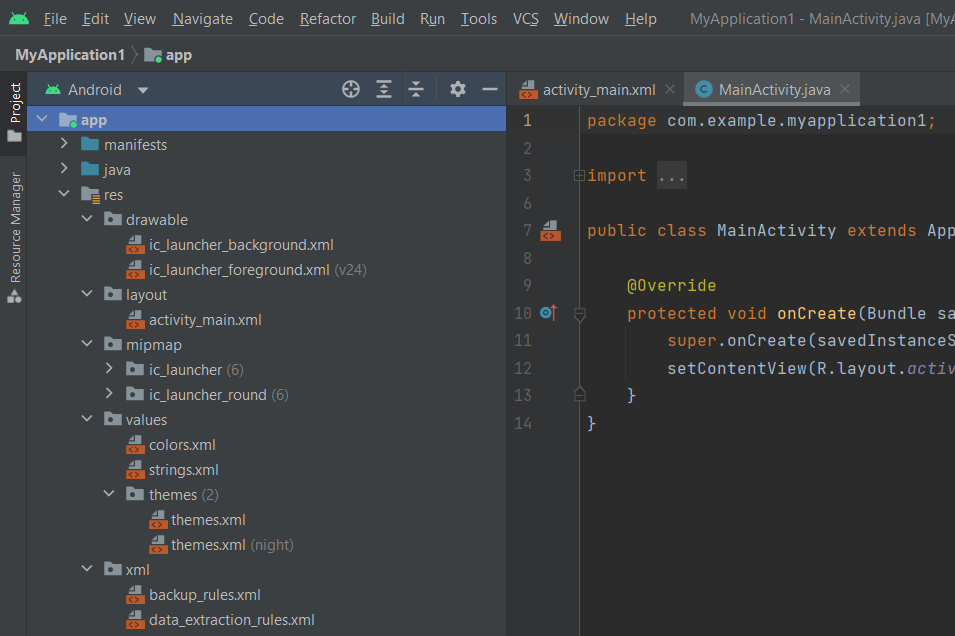
The resource folder is the most essential because it provides all of our android application's non-code sources like XML layouts, photos, and UI strings.
Folder of res/drawable
It consists of the various sorts of photos used in the application's development. For the application development, we should place all of the pictures in a drawable folder.
Folder res/layout
The layout folder includes all of the XML layout files we utilised to define our application's user interface. It contains the file activity main.xml.
XML Code
<? xml version = "1.0" encoding = "utf-8"?>
< androidx.constraintlayout.widget.ConstraintLayout
    xmlns:android = "http:// schemas.android.com/apk/res/android"
    xmlns:app = "http:// schemas.android.com/apk/res-auto"
    xmlns:tools = "http:// schemas.android.com/tools"
    android:layout_width = "match_parent"
    android:layout_height = "match_parent"
    tools:context = ".MainActivity" >
    < TextView
        android:layout_width = "wrap_content"
        android:layout_height = "wrap_content"
        android:text = "Hello World ! "
        app:layout_constraintBottom_toBottomOf = "parent"
        app:layout_constraintLeft_toLeftOf = "parent"
        app:layout_constraintRight_toRightOf = "parent"
        app:layout_constraintTop_toTopOf = "parent" />
 </ androidx.constraintlayout.widget.ConstraintLayout>
Folder res/mipmap
This section includes launcher.xml files that specify the icons on the home screen. It has several icon densities based on the device size, such as hdpi, mdpi, and xhdpi.
Folder res/values
The Values folder contains various XML files such as strings, dimensions, colors, and style definitions. The strings.xml file, which includes the resources, is one of the most crucial.
XML Code
< resources >
    < string name = "app_name"> NameOfTheApplication </string>
    < string name = "checked" > Checked </ string >
    < string name = "unchecked" > Unchecked </ string >
</ resources >
Gradle Scripts directory
Gradle is an automated build system that includes several files that create a build configuration. Buildscripts are used in the build.gradle (Project), and plugins and implementations are used in the build.gradle (Module) to make settings that may be used by all of our application modules.
