Android Time picker example

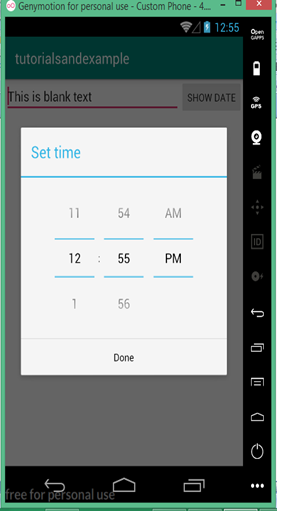
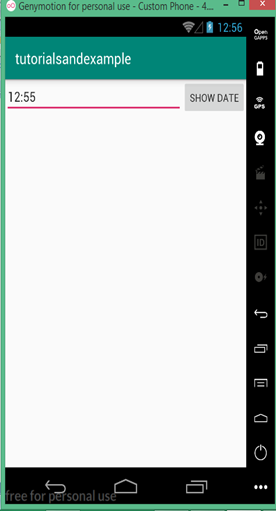
How to pick Time from the user in android? Write an android example to pick Time from the user and display the date to the user. Android provides controls for the user to pick a Time through a pre-defined dialog box. Picker provides controls for selecting each part of the Time i.e. hour, and minute. Picker time helps to ensure that users can pick a date that is valid, formatted correctly, and adjusted to the user's locale. In this tutorial, we are going to ask the user to input the Time with the help of Time picker and with the simple one click show button user can view the Time entered. Time class is required to hold the data set by the picker. Data members inside the Time class are static to access the data from the MainActivity. Static data members of the class were created only for the first time when the object of that class has been created. Use DialogFragment class to host each time or date picker. The DialogFragment class manages the dialog lifecycle for you and allows you to display the pickers in different layout configurations. public class TimePickerDialog extends AlertDialog implements DialogInterface.OnClickListener,TimePicker.OnTimeChangedListener
java.lang.Object
   ? android.app.Dialog
   ? android.app.AlertDialog
   ? android.app.TimePickerDialog
  OUTPUT SCREENS: JAVA FILE:          MainActivity
package com.example.android.tutorialsandexample;
import android.support.v4.app.DialogFragment;
import android.support.v7.app.AppCompatActivity;
import android.os.Bundle;
import android.view.View;
import android.widget.Button;
import android.widget.EditText;

public class MainActivity extends AppCompatActivity {
EditText editText;
Button button;
    @Override
    protected void onCreate(Bundle savedInstanceState) {
        super.onCreate(savedInstanceState);
        setContentView(R.layout.activity_main);
        final DialogFragment newFragment = new TimePickerFragment();
        newFragment.show(getSupportFragmentManager(), "timePicker");

        editText=findViewById(R.id.editText);

       button=findViewById(R.id.show);
       button.setOnClickListener(new View.OnClickListener() {
           @Override
           public void onClick(View v) {
               Time dv=new Time();

               String time=new String();
               time="";
               time=dv.getHourOfDay()+":"+dv.getMinute();//insert the hour and minute 
                       editText.setText(time);// DIsplay the time to the user
           }
       });
    }
}

JAVA FILE :         TimePickerFragment
package com.example.android.tutorialsandexample;
        import android.app.DatePickerDialog;
        import android.app.Dialog;
        import android.app.TimePickerDialog;
        import android.os.Bundle;
        import android.support.v4.app.DialogFragment;
        import android.text.format.DateFormat;
        import android.widget.DatePicker;
        import android.widget.TimePicker;

        import java.util.Calendar;

public class TimePickerFragment extends DialogFragment
        implements TimePickerDialog.OnTimeSetListener {

    @Override
    public Dialog onCreateDialog(Bundle savedInstanceState) {
        // Use the current time as the default values for the picker
        final Calendar c = Calendar.getInstance();
        int hour = c.get(Calendar.HOUR_OF_DAY);
        int minute = c.get(Calendar.MINUTE);

        // Create a new instance of TimePickerDialog and return it
        return new TimePickerDialog(getActivity(), this, hour, minute,
                DateFormat.is24HourFormat(getActivity()));
    }

    public void onTimeSet(TimePicker view, int hourOfDay, int minute) {
        // Do something with the time chosen by the user
        Time time=new Time();
        time.setHourOfDay(hourOfDay);
        time.setMinute(minute);
    }
}
JAVA FILE:          Time.java
package com.example.android.tutorialsandexample;

public class Time {

    static int hourOfDay;
   static int minute;

    public int getHourOfDay() {
        return hourOfDay;
    }

    public void setHourOfDay(int hourOfDay) {
        this.hourOfDay = hourOfDay;
    }

    public int getMinute() {
        return minute;
    }

    public void setMinute(int minute) {
        this.minute = minute;
    }
}  XML FILE:<?xml version="1.0" encoding="utf-8"?>
<LinearLayout xmlns:android="http://schemas.android.com/apk/res/android"
    xmlns:app="http://schemas.android.com/apk/res-auto"
    xmlns:tools="http://schemas.android.com/tools"
    android:layout_width="match_parent"
    android:layout_height="match_parent"
    tools:context=".MainActivity">

    <EditText
        android:id="@+id/editText"
        android:layout_width="wrap_content"
        android:layout_height="wrap_content"
        android:layout_weight="1"
        android:ems="10"
        android:inputType="time"
        android:text="This is blank text"/>
    <Button
        android:layout_width="wrap_content"
        android:layout_height="wrap_content"
        android:text="Show time"
        android:id="@+id/show"/>

</LinearLayout>

Related Topics

Broadcast Receiver in Android with Example

When a device wakes up, receives a message, receives an incoming call, switches to aeroplane mode, or initiates any other system-wide action, it is said to have been broadcast in...

5 minutes read.

How to Generate QRCode in Android?

Many apps use QR codes to show data in a way that is machine-readable. Data is represented using these codes in a secure manner such that only computers, not humans,...

4 minutes read.

Android GridView

Theview group that displays items in a two-dimensional scrolling grid is called GridView. The data isadded into this grid layout from anArray List or database. The adapter class isutilized to...

4 minutes read.

Top Programming Languages for Android Development

For mobile apps, there are so many programming languages. You would need to spend days simply researching if you had to pick one from a list of 30 coding languages...

8 minutes read.

Jetpack Architecture Components in Android

A collection of software elements, libraries, tools, and instructions is called Android Jetpack. It is available to assist in creating reliable Android applications. Jetpack, which was introduced by Google in...

8 minutes read.

Android Navigation Drawer

A sliding menu used to show important links in the Android Application is called Navigation Drawer. The navigation drawermakes it easier to navigate between the fragments. It is not displayed...

5 minutes read.

Android TextView

Widgets are user interface (UI) elements that help users to interact with Android applications. It is one of many equipments that can be used to improvise the user interface of...

4 minutes read.

Android Activity

What is an Activity? Android Activity is a screen in the user interface of an Android application. In this way, Android activity is very similar to the desktop application window. An...

4 minutes read.

Android Time picker example

How to pick Time from the user in android? Write an android example to pick Time from the user and display the date to the user. Android provides controls for the user...

3 minutes read.

Assets folder in Android

You might have noticed that unlike the Eclipse ADT (App Development Tools), the Android Studio does not have an Assets folder, which is mainly used to store the web resources...

3 minutes read.

How to crop Image from Camera and Gallery in Android?

In this tutorial, we'll learn how to crop photos in the Android Gallery and Camera. There is no crop feature in this project, contrary to what was covered in the...

5 minutes read.

Event Handling in Android

Events are a convenient way to gather data about user interactions with interactive elements of your application. Like a button click or a screen touch. A queue of events on...

3 minutes read.

Button Widget in Android Tutorial

Explanation: Button is a widget under Buttons section which is used to execute specific code. Example: XML file: <?xml version="1.0" encoding="utf-8"?> <RelativeLayout xmlns:android="http://schemas.android.com/apk/res/android" xmlns:app="http://schemas.android.com/apk/res-auto" xmlns:tools="http://schemas.android.com/tools" android:layout_width="match_parent" android:layout_height="match_parent" tools:context=".MainActivity">     <Button         android:id="@+id/button"         android:layout_width="wrap_content"    ...

1 minute read.

Android Broadcast Receivers

Android applications can send or receive broadcast messages from the Android operating system and other Androidapplications, like the publish-subscribe design pattern. When an event of interest happens,these broadcasts are sent. For...

4 minutes read.

Difference between android developer and web

From a small business to a big firm, every organization in the world of technology requires a digital market presence and only mobile applications and websites/web applications provide for digital...

4 minutes read.

ImageView Widget in Android

What you should already KNOW? You should be familiar with: 1) Creating, building, and running apps in Android Studio 2) Basics of android widgets Explanation: Image View widget is used to insert the image...

2 minutes read.

Different Ways to Create aar File in Android Studio

A file called an Android archive file (*.aar) can be created using Android Studio and comprises classes and methods that use related files and classes for Android. The Android library...

4 minutes read.

What is Android Studio

Android Studio powered by the IntelliJ platform is an integrated development environment (IDE) and is officially recognized for developing androidapplications. Its foundation lies on JetBrains' IntelliJ IDEA and is specialized...

3 minutes read.

How to insert an email in android application in android version 8

Email Address Insertion It is used to insert email adrress from the user in the android application.The only point of difference between an EditText and an Emailtext is that EmailText consisits...

1 minute read.

How to show image on an android application

ImageView Widget in Android What you should already KNOW? You should be familiar with: 1) Creating, building, and running apps in Android Studio 2) Basics of android widgets   Explanation: Image View widget is used...

2 minutes read.