How to Generate QRCode in Android?
Many apps use QR codes to show data in a way that is machine-readable. Data is represented using these codes in a secure manner such that only computers, not humans, are able to read it. Numerous apps that offer QR codes that we can scan with our mobile device have been spotted. We'll look at how to create a QR Code for our app in this tutorial. So, to implement this feature, we'll use a GitHub library.
Android's implementation of the QR Code Generator
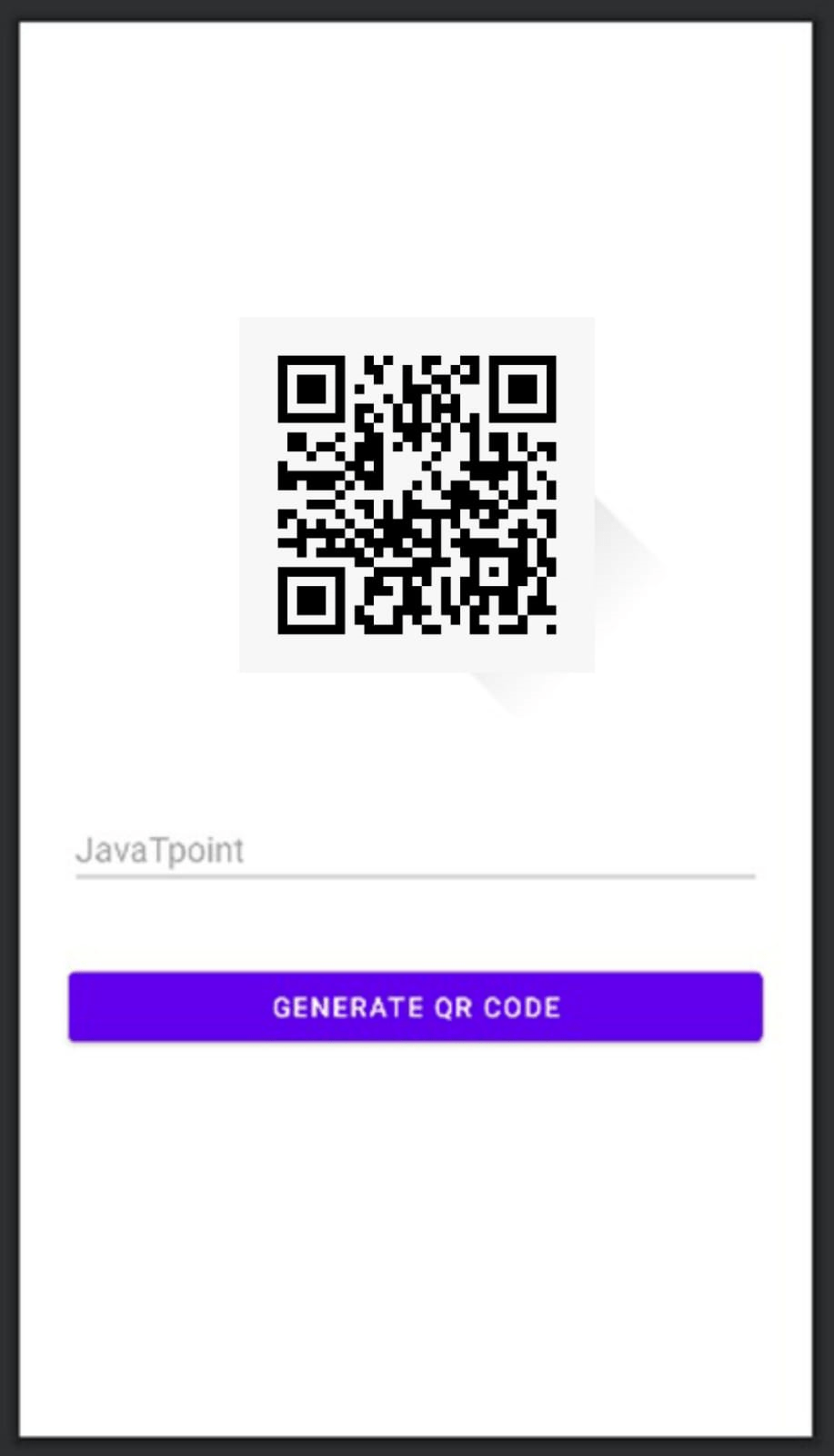
To create a QR Code that displays the data inside it, we'll be building a straightforward programme that acts as a generator of QR Codes. You may get a general concept of what we'll be doing in this tutorial by looking at the sample GIF that is provided below. We are not constructing this project in Java, though.
Step by Step Execution
Step 1: Create a New Project
Instructions on how to achieve this can be found in the article How to Create/Start a New Project in Android Studio. Make sure you choose Java as your programming language.
Step 2: Requirement addition in build.gradle ( Module:app )
You may add the dependent shown below in the dependencies section by going to Gradle Scripts >build.gradle(Module:app).
implementation ‘androidmads.library.qrgenearator:QRGenearator:1.0.3’
To sync the project, choose Sync now in the top right corner.
Step 3: Implement changes to the strings.xml file
The strings.xml file's source code is shown below.
XML Code:
<resources>
	<string name="application_name"> My App</string>
	<string name=" QR_code"> QR_code</string>
	<string name="enter_your_details ">Enter your details </string>
	<string name="generate_the_QR_code">Generate the QR Code</string>
</resources>
Step 4: Using the activity main.xml file
The following code should be referenced in the activity main.xml file. The activity main.xml file's source code is shown below.
<?xml version="1.0" encoding="utf-8"?>
<RelativeLayout
	xmlns:android="http://schemas.android.com/apk/res/android"
	xmlns:tools="http://schemas.android.com/tools"
	android:layout_width="match_parent"
	android:layout_height="match_parent"
	tools:context=".MainActivity">


	<!--Our QR code will be shown
 using this image view. -->
	<ImageView
		android:id="@+id/idIVQrcode1"
		android:layout_width="320dp"
		android:layout_height="320dp"
		android:layout_centerHorizontal="true"
		android:layout_marginTop="50dp"
		android:contentDescription="@string/QR_code" />


	<!--Edit text for entering the text
		to create a QR code-->
	<EditText
		android:id="@+id/idEdt1"
		android:layout_width="match_parent"
		android:layout_height="wrap_content"
		android:layout_below="@id/idIVQrcode1"
		android:layout_marginStart="25dp"
		android:layout_marginTop="35dp"
		android:layout_marginEnd="25dp"
		android:autofillHints=""
		android:hint="@string/enter_your_details"
		android:inputType="text"/>


	<!--Button to generate a QR code -->
	<Button
		android:id="@+id/idBtnGenerateQR1"
		android:layout_width="match_parent"
		android:layout_height="wrap_content"
		android:layout_below="@id/idEdt"
		android:layout_marginStart="25dp"
		android:layout_marginTop="35dp"
		android:layout_marginEnd="20dp"
		android:text="@string/generate_QR_code" />


</RelativeLayout>
Step 5: Accessing and using the MainActivity.java file
The following code should be found in the MainActivity.java file. The MainActivity.java file's source code is shown below. Inside the code, comments are added to help the reader comprehend it better.
Java Code:
import android.graphics.Bitmap;
import android.graphics.Point;
import android.os.Bundle;
import android.text.TextUtils;
import android.util.Log;
import android.view.Display;
import android.view.View;
import android.view.WindowManager;
import android.widget.Button;
import android.widget.EditText;
import android.widget.ImageView;
import android.widget.Toast;
import androidx.appcompat.app.AppCompatActivity;
import com.google.zxing.WriterException;
import androidmads.library.qrgenearator.QRGContents;
import androidmads.library.qrgenearator.QRGEncoder;


public class MainActivity extends AppCompatActivity {


	// variables for the bitmap, button, edittext,
	// imageview, and qrencoder .
	private ImageView qrCodeIV1 ;
	private EditText dataEdt1 ;
	private Button generateQrBtn1 ;
	Bitmap bitmap1 ;
	QRGEncoder qrgEncoder1 ;


	@Override
	protected void onCreate(Bundle savedInstanceState) {
		super.onCreate(savedInstanceState);
		setContentView(R.layout.activity_main);

		// we are initialising all the variables .
		qrCodeIV1 = findViewById(R.id.idIVQrcode1);
		dataEdt1 = findViewById(R.id.idEdt1);
		generateQrBtn1 = findViewById(R.id.idBtnGenerateQR);


		// establishing the button's onclick listener.
		generateQrBtn1.setOnClickListener(new View.OnClickListener() {
			@Override
			public void onClick(View view) {
				if (TextUtils.isEmpty(dataEdt1.getText().toString())) {

					// The method will be executed and a toast message displayed
					// if the edittext inputs are empty .
					Toast.makeText(MainActivity.this, "Enter text for generating a QR Code", Toast.LENGTH_SHORT).show();
				} else {
					// the windowmanager service can be obtained
					// with the line below.
					WindowManager manager1 = (WindowManager) getSystemService(WINDOW_SERVICE);
					// setting up a variable to display by default.					Display display1 = manager1.getDefaultDisplay();
					// establishing a variable for the point that
					// will be shown in the QR code.
					Point point1 = new Point();
					display.getSize(point1);
					// getting height and
					// width of a certain point
					int width1 = point1.x;
					int height1 = point1.y;
					// dimension creation using width and height .
					int dimen1 = width1< height1 ? width1 : height1 ;
					dimen1 = dimen1 * 3 / 4;

					// Setting these dimensions in our qr code
					// encoder will produce our qr code.
					qrgEncoder1 = new QRGEncoder(dataEdt1.getText().toString(), null, QRGContents.Type.TEXT, dimen1);
					try {
					// obtaining our QR Code as a Bitmap.
						Bitmap1 = qrgEncoder.encodeAsBitmap();
					// the bitmap is for setting the inside our image
					// using the.setimagebitmap function to view.
						qrCodeIV1.setImageBitmap(bitmap1 );
					} catch (WriterException e) {
						// In order to handle exceptions,
						// this procedure is used.
						Log.e("Tag", e.toString());
					}
				}
			}
		});
	}
}
Output: