How to show image on an android application

ImageView Widget in Android What you should already KNOW?
You should be familiar with: 1) Creating, building, and running apps in Android Studio 2) Basics of android widgets  
Explanation: Image View widget is used to insert the image into an activity. There are several attributes of the Image View widget. With the help of android:srcCompat attribute we can set the source of the image we want to insert into an activity. Example: Xml File:
<?xml version="1.0" encoding="utf-8"?>
<RelativeLayout xmlns:android="http://schemas.android.com/apk/res/android"
xmlns:app="http://schemas.android.com/apk/res-auto"
xmlns:tools="http://schemas.android.com/tools"
android:layout_width="match_parent"
android:layout_height="match_parent"
tools:context=".MainActivity">

    <ImageView
        android:id="@+id/imageView"
        android:layout_width="wrap_content"
        android:layout_height="wrap_content"
        android:layout_alignParentTop="true"
        android:layout_centerHorizontal="true"
        android:layout_marginTop="169dp"
        app:srcCompat="@mipmap/ic_launcher" />
</RelativeLayout>
In the srcCompat Attribute, physical address of the image is passed. Java file:
package com.youtubevideoplayer.android.imageview;

import android.support.v7.app.AppCompatActivity;
import android.os.Bundle;
import android.view.View;
import android.widget.ImageView;

public class MainActivity extends AppCompatActivity {
   public ImageView imageView;  // instance of ImageView class is declared as public
   public Boolean flag;
    @Override
    protected void onCreate(Bundle savedInstanceState) {
        super.onCreate(savedInstanceState);
        setContentView(R.layout.activity_main);
        imageView=(ImageView)findViewById(R.id.imageView);
        flag=true;

        imageView.setOnClickListener(new View.OnClickListener() {
            @Override
            public void onClick(View v) {
                if(flag==true) {
                    imageView.setImageResource(R.mipmap.ic_launcher_round);//changes the image source
                    flag=false;
                }

                else {
                    imageView.setImageResource(R.mipmap.ic_launcher);//changes the image source
                    flag=true;
                }
            }
        });
    }
}
Image view does not require an java file to be touched (Strictly while working with android studio). But to change the source of the image at the run time of the application, java file is used. Step by step explanation of the java code: 1) Create an instance variable of ImageView class inside the mainActivity class. 2) Assign the ImageView object to the imageView instance like this inside the onCreate() method.
imageView=(ImageView)findViewById(R.id.imageView);
3) Use method setImageResource of ImageView class to change :
imageView.setImageResource(R.mipmap.ic_launcher_round);
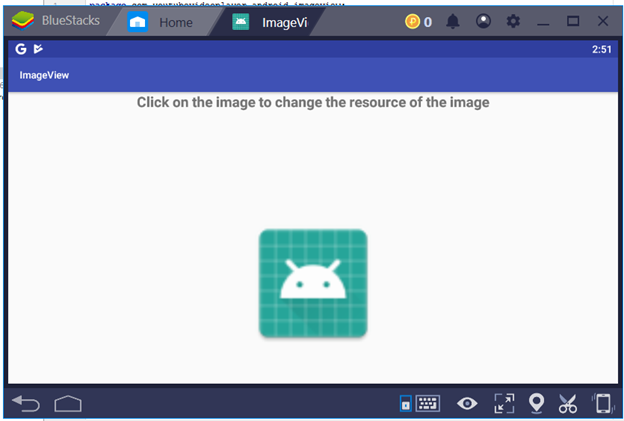
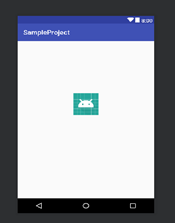
Output Screen:

Related Topics

Broadcast Receiver in Android with Example

When a device wakes up, receives a message, receives an incoming call, switches to aeroplane mode, or initiates any other system-wide action, it is said to have been broadcast in...

5 minutes read.

Android EditText

In Android, EditText is a UI widget utilized to allow the user to input or change the text. While using the EditTextwidget in your Android application, you need to use...

4 minutes read.

What is Android Studio

Android Studio powered by the IntelliJ platform is an integrated development environment (IDE) and is officially recognized for developing androidapplications. Its foundation lies on JetBrains' IntelliJ IDEA and is specialized...

3 minutes read.

Dashboard UI Design in Android

One of the essential components that draw the user’s attentions into the application's operation is the dashboard design. It offers details on the application's general functionality in one location. Imagine...

11 minutes read.

Android Emulator

A tool for creating Android virtual devices (including software and virtual hardware) on your personal desktop is known as Emulator. We can use these virtual devices as the target device...

4 minutes read.

AdapterViewFlipper in Android with Example

The AdapterViewFlipper class, a subclass of the ViewAnimator class, is what we use to switch from two or multiple views when only one is present at a time. The AdapterViewFlipper...

10 minutes read.

Button Widget in Android Tutorial

Explanation: Button is a widget under Buttons section which is used to execute specific code. Example: XML file: <?xml version="1.0" encoding="utf-8"?> <RelativeLayout xmlns:android="http://schemas.android.com/apk/res/android" xmlns:app="http://schemas.android.com/apk/res-auto" xmlns:tools="http://schemas.android.com/tools" android:layout_width="match_parent" android:layout_height="match_parent" tools:context=".MainActivity">     <Button         android:id="@+id/button"         android:layout_width="wrap_content"    ...

1 minute read.

Android Studio's Layout Editor

The Layout Editor allows you to efficiently create layouts by dragging UI elements from the Palette into the visual design editor instead of manually creating the layout XML file by...

8 minutes read.

How to crop Image from Camera and Gallery in Android?

In this tutorial, we'll learn how to crop photos in the Android Gallery and Camera. There is no crop feature in this project, contrary to what was covered in the...

5 minutes read.

Android Studio Resources

To build an outstanding Android application there are many items that you need to use. Aside from the coding of your application, you need to handle various resources such as...

5 minutes read.

Android TextView

Widgets are user interface (UI) elements that help users to interact with Android applications. It is one of many equipments that can be used to improvise the user interface of...

4 minutes read.

Android ScrollView

A ScrollView is a view group that is used to create vertically scrollable views in an android application. Only a single direct child can be contained by ScrollView. For placing...

5 minutes read.

How to show image on an android application

ImageView Widget in Android What you should already KNOW? You should be familiar with: 1) Creating, building, and running apps in Android Studio 2) Basics of android widgets   Explanation: Image View widget is used...

2 minutes read.

Android Project Folder Structure

JetBrains community developed Android Studio, the official IDE (Integrated Development Environment) for Android app development and is freely distributed by Google. After the complete Android Architecture setup, we can construct an...

4 minutes read.

Top Programming Languages for Android Development

For mobile apps, there are so many programming languages. You would need to spend days simply researching if you had to pick one from a list of 30 coding languages...

8 minutes read.

Android RecyclerView

RecyclerView is a ViewGroup brought to AndroidStudio as successor to ListView and GridView. These are all improvements and are included in the latest v7 support package. It was written to...

8 minutes read.

Difference between android developer and web

From a small business to a big firm, every organization in the world of technology requires a digital market presence and only mobile applications and websites/web applications provide for digital...

4 minutes read.

Android Broadcast Receivers

Android applications can send or receive broadcast messages from the Android operating system and other Androidapplications, like the publish-subscribe design pattern. When an event of interest happens,these broadcasts are sent. For...

4 minutes read.

How to insert an email in android application in android version 8

Email Address Insertion It is used to insert email adrress from the user in the android application.The only point of difference between an EditText and an Emailtext is that EmailText consisits...

1 minute read.

Event Handling in Android

Events are a convenient way to gather data about user interactions with interactive elements of your application. Like a button click or a screen touch. A queue of events on...

3 minutes read.