Broadcast Receiver in Android with Example
When a device wakes up, receives a message, receives an incoming call, switches to aeroplane mode, or initiates any other system-wide action, it is said to have been broadcast in the context of Android. These system-wide events are handled by broadcast receivers. When a system or application event occurs, broadcast receivers enable us to register for it so that we can be notified when it does. Broadcast receivers can be broadly divided into two categories:
- Static Broadcast Receivers: These receiver types are listed in the androidmanifest.xml file and continue to function even when the app is dismissed.
- Dynamic Broadcast Receivers: Only the active or minimised version of the app is compatible with these receivers.
Since the majority of broadcasts may only be received by dynamic receivers as of API Level 26, we have included active receivers in the sample project shown below. Intent's static fields can be utilised to broadcast a variety of events because they are defined there. A change in aeroplane mode has been considered a broadcast event, although there are numerous other events that can also be recorded in the broadcast register. Several significant system-wide produced intents are listed below: -
Following is a list of some of the important intents:
- android.intent.action.BATTERY_LOW : It indicates that the smartphone has a low battery.
- android.intent.action.BOOT_COMPLETED : After the machine has fully booted, this is transmitted once.
- android.intent.action.CALL : It is used to make a call to the person listed in the data.
- android.intent.action.DATE_CHANGED : It signals a new date has been set.
- android.intent.action.REBOOT : It demonstrates that the machine has been restarted.
- android.net.conn.CONNECTIVITY_CHANGE : The wifi or mobile network connection has been altered (or reset)
- android.intent.ACTION_AIRPLANE_MODE_CHANGED : This shows whether aeroplane mode is currently on or off.
Using the broadcast receiver in our programme requires two basic steps, which are as follows:
Establishing the Broadcast Receiver
class AirplaneModeChangeReceiver:BroadcastReceiver() {
       override fun onReceive(context: Context?, intent: Intent?) {
            // we have to write the logic of the code here
      }
}
Creating a BroadcastReceiver Account
IntentFilter(Intent.ACTION_AIRPLANE_MODE_CHANGED).also {
                     // Receiver is the intent filter that we have established
                    // and is the broadcast receiver that we have registered.
registerReceiver(receiver,it)
      }
Example:
The example project that demonstrates how to establish a broadcast receiver, register it for a specific event, and use it in an application is provided below.
Step 1: Start a New Project
Step 2: Using the file activity main.xml
The following code should be referenced in the activity main.xml file. The activity main.xml file's source code is shown below.
XML Code:
<?xml version="1.0" encoding="utf-8"?>
<androidx.constraintlayout.widget.ConstraintLayout
	xmlns:android="http://schemas.android.com/apk/res/android"
	xmlns:tools="http://schemas.android.com/tools"
	android:layout_width="match_parent"
	android:layout_height="match_parent"
	tools:context=".MainActivity">
</androidx.constraintlayout.widget.ConstraintLayout>
Step 3: Manipulating the MainActivity file
The following code may be found in the MainActivity file. The MainActivity file's source code is shown below. Inside the code, comments are added to help the reader comprehend it better.
Kotlin Code:
import android.content.Intent
import android.content.IntentFilter
import android.os.Bundle
import androidx.appcompat.app.AppCompatActivity


class MainActivity :AppCompatActivity() {


	// In order to receive notifications of broadcast events as they happen,
	// register the receiver in the primary activity.
	lateinit var receiver1 :AirplaneModeChangeReceiver
	override fun onCreate(savedInstanceState: Bundle?) {
		super.onCreate(savedInstanceState)
		setContentView(R.layout.activity_main)


		receiver1 = AirplaneModeChangeReceiver()


		// Since we are here to respond to the changing of aeroplane mode,
		// intent filtering is useful to decide which apps
		// wish to receive which intents.
		IntentFilter(Intent.ACTION_AIRPLANE_MODE_CHANGED).also {
			// The intent filter that we recently developed
			// is supplied as a parameter when registering the receiver
			// with the registerReceiver() function.
			registerReceiver(receiver1, it)
		}
	}


	// due to the fact that the AirplaneModeChangeReceiver class keeps
	// an instance of Context, and that context is the activity context
	// where the receiver was formed.
	override fun onStop() {
		super.onStop()
		unregisterReceiver(receiver1 )
	}
}
Java Code:
import androidx.appcompat.app.AppCompatActivity;
import android.content.Intent;
import android.content.IntentFilter;
import android.os.Bundle;


public class MainActivity extends AppCompatActivity {


	AirplaneModeChangeReceiver airplaneModeChangeReceiver1 = new AirplaneModeChangeReceiver();


	@Override
	protected void onCreate(BundlesavedInstanceState) {
		super.onCreate(savedInstanceState);
		setContentView(R.layout.activity_main);
	}
	@Override
	protected void onStart() {
		super.onStart();
IntentFilter filter1 = new IntentFilter(Intent.ACTION_AIRPLANE_MODE_CHANGED);
		registerReceiver(airplaneModeChangeReceiver1, filter1 );
	}


	@Override
	protected void onStop() {
		super.onStop();
		unregisterReceiver(airplaneModeChangeReceiver1 );
	}
}
Step 4: Make a brand-new class.
Go to app >> java >> the name of the package (where the MainActivity is present) >> right-click >> New >> Kotlin File/Class and give the files the name AirplaneModeChangeReceiver. The code for the AirplaneModeChangeReceiver file is shown below. Inside the code, comments are added to help the reader comprehend it better.
Kotlin Code:
import android.content.BroadcastReceiver
import android.content.Context
import android.content.Intent
import android.widget.Toast


// AirplaneModeChangeReceiver class extends the class BroadcastReceiver
class AirplaneModeChangeReceiver1 :BroadcastReceiver() {


	// When the user switches to aeroplane mode
	// , this method will be called.
	override fun onReceive(context: Context?, intent: Intent?) {

		// In this scenario, the broadcast's information is contained in
		// the intent, which is changing of aircraft mode.


		// If the value of getBooleanExtra is null, it will immediately return.
		val isAirplaneModeEnabled1 = intent?.getBooleanExtra("state", false) ?: return

		// determining whether or not aeroplane mode is activated
		if (isAirplaneModeEnabled1) {
			// if aeroplane mode is activated, displaying the toast message.
			Toast.makeText(context, "Airplane Mode is Enabled", Toast.LENGTH_LONG).show()
		} else {
			// if aeroplane mode is not enabled,
                        // displaying the toast message.
			Toast.makeText(context, "Airplane Mode is Disabled", Toast.LENGTH_LONG).show()
		}
	}
}
Java Code:
import android.content.BroadcastReceiver;
import android.content.Context;
import android.content.Intent;
import android.provider.Settings;
import android.widget.Toast;


public class AirplaneModeChangeReceiver extends BroadcastReceiver {


	@Override
	public void onReceive(Contextcontext, Intent intent) {


		if (isAirplaneModeOn1 (context.getApplicationContext())) {
			Toast.makeText(context, "AirPlane mode is on", Toast.LENGTH_SHORT).show();
		} else {
			Toast.makeText(context, "AirPlane mode is off", Toast.LENGTH_SHORT).show();
		}
	}


	private static boolean isAirplaneModeOn1 (Contextcontext) {
		return Settings.System.getInt(context.getContentResolver(), Settings.Global.AIRPLANE_MODE_ON, 0) != 0;
	}
}
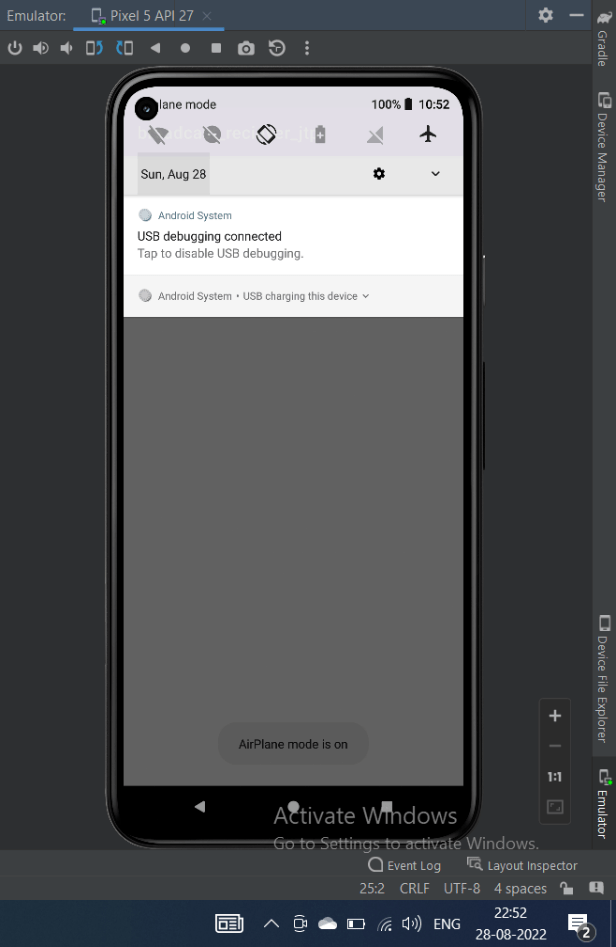
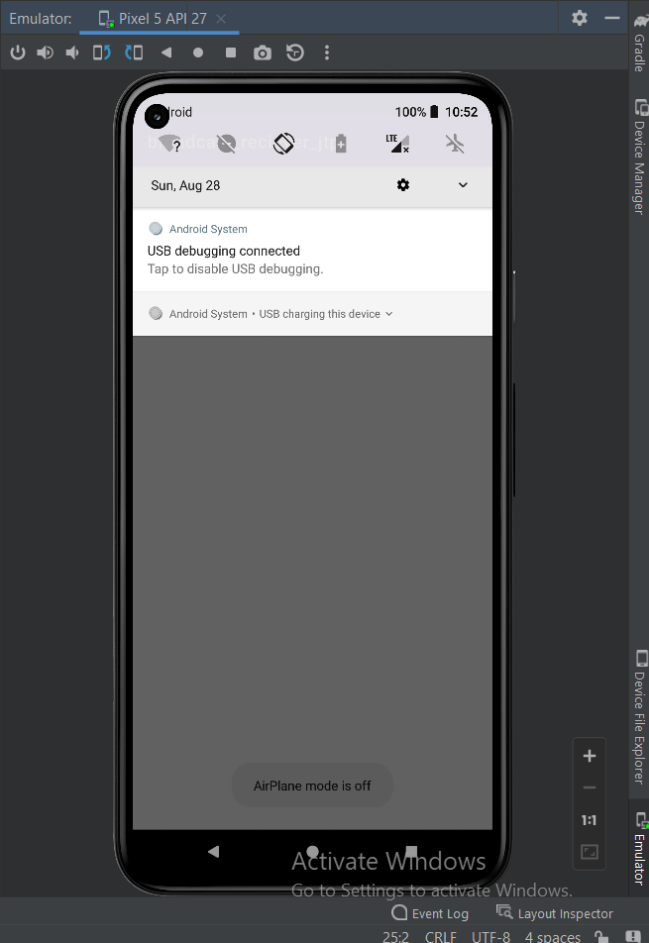
Output: