
Creating a Calendar View App in Android

This article demonstrates how to make an Android application that uses CalendarView to display the Calendar. It also provides the option to pick the current date and view the date. The onSelectedDayChange method is provided by the setOnDateChangeListener Interface.

onSelectedDayChange Mthod

With this method, we obtain the user-selected values for the days, months, and years.

Step 1: You will have a layout XML file and java file when you create a new project.

Step 2: Add the CalendarView and TextView by opening your xml file then give TextView and CalendarView IDs. Following this procedure, the xml file screen appears as seen below.

Step 3: Open the activity.java file and declare the type variables for the CalendarView and TextView, then use findViewById() to retrieve them.

Step 4: Add the setOnDateChangeListener interface, which is available in the CalendarView object's setOnDateChangeListener method, now. This method retrieves the dates (days, months, and years) and sets the dates for display in the TextView.

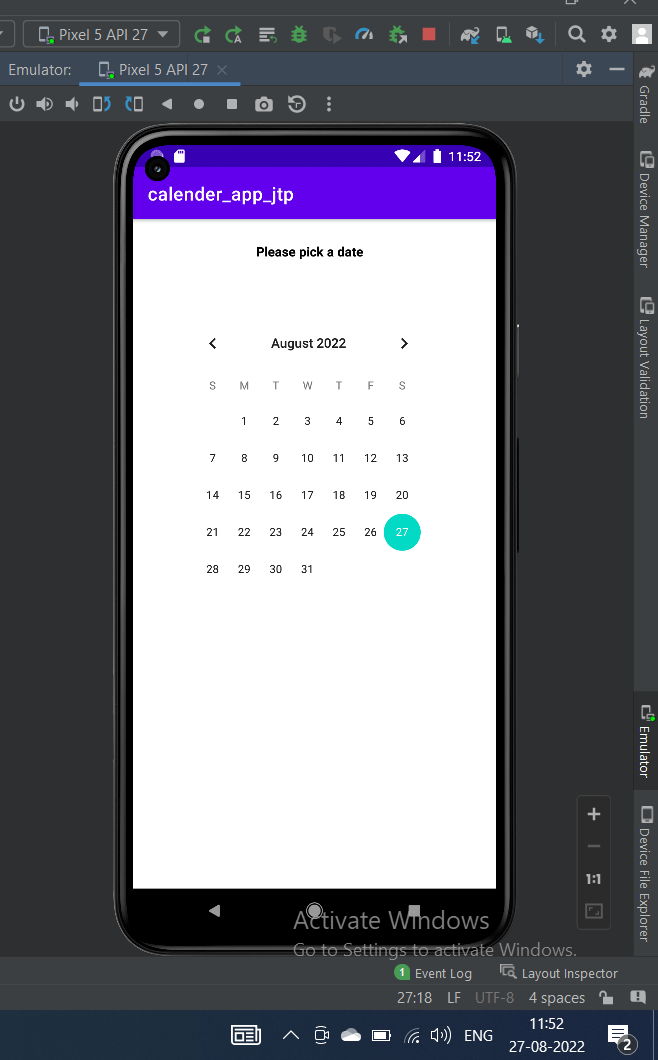
Step 5: The current date will be displayed at the top of the screen after the app has been launched.

XML Code:

<?xml version="1.0" encoding="utf-8"?>
<RelativeLayout
	xmlns:android="http://schemas.android.com/apk/res/android"
	xmlns:app="http://schemas.android.com/apk/res-auto"
	xmlns:tools="http://schemas.android.com/tools"
	android:layout_width="match_parent"
	android:layout_height="match_parent"
	tools:context=".MainActivity">
	<!-- Include a TextView to show the date -->
	<TextView
		android:id="@+id/date_view1"
		android:layout_width="150dp"
		android:layout_height="50dp"
		android:layout_alignParentStart="true"
		android:layout_alignParentEnd="true"
		android:layout_marginStart="133dp"
		android:layout_marginLeft="170dp"
		android:layout_marginTop="25dp"
		android:layout_marginEnd="128dp"
		android:text="Please pick a date"
		android:textColor="@android:color/background_dark"
		android:textStyle="bold" />


	<!-- Add CalendarView to display the Calendar -->
	<CalendarView
		android:id="@+id/calendar1"
		android:layout_width="300dp"
		android:layout_height="300dp"
		android:layout_alignParentStart="true"
		android:layout_alignParentEnd="true"
		android:layout_marginStart="49dp"
		android:layout_marginLeft="22dp"
		android:layout_marginTop="100dp"
		android:layout_marginEnd="62dp">
	</CalendarView>
</RelativeLayout>

Java Code:

package org.geeksforgeeks.navedmalik.calendar;


import android.support.annotation.NonNull;
import android.support.v7.app.AppCompatActivity;
import android.os.Bundle;
import android.widget.Button;
import android.widget.CalendarView;
import android.widget.TextView;


public class MainActivity extends AppCompatActivity {


	// Set the variables for the TextView
	// and CalendarView types
	CalendarView calendar1;
	TextView date_view1;
	@Override
	protected void onCreate(Bundle savedInstanceState)
	{
		super.onCreate(savedInstanceState);
		setContentView(R.layout.activity_main);
		// By ID we can use each componentwhich id is assign in xml file
		// which id is assign in xml file
		// CalendarView and TextView can be 
		// obtained using findViewById()
		Calendar1 = (CalendarView)
			findViewById(R.id.calendar1);
		date_view1 = (TextView)
			findViewById(R.id.date_view1);


		// Calendar Add Listener
		Calendar1.setOnDateChangeListener(new CalendarView
				.OnDateChangeListener() {
					@Override
					// We will obtain the value of 
					// the days, months, and years
					// using the method in this listener
					public void onSelectedDayChange(
						@NonNullCalendarView view,
						int year1,
						int month1,
						int dayOfMonth1)
					{
			// Store the formatted value of the date
			// in a variable of type String
			// Because month indexes begin with
			// 0, add 1 to the month
						String Date1
							= dayOfMonth1 + "-"
							+ (month1 + 1) + "-" + year1;
		// in TextView, enter this date for display
						date_view1.setText(Date1);
	}
	});
	}
}

Output:
Creating a Calendar View App in Android

Related Topics

Android GridView

Theview group that displays items in a two-dimensional scrolling grid is called GridView. The data isadded into this grid layout from anArray List or database. The adapter class isutilized to...

4 minutes read.

Difference between android developer and web

From a small business to a big firm, every organization in the world of technology requires a digital market presence and only mobile applications and websites/web applications provide for digital...

4 minutes read.

How to crop Image from Camera and Gallery in Android?

In this tutorial, we'll learn how to crop photos in the Android Gallery and Camera. There is no crop feature in this project, contrary to what was covered in the...

5 minutes read.

Jetpack Architecture Components in Android

A collection of software elements, libraries, tools, and instructions is called Android Jetpack. It is available to assist in creating reliable Android applications. Jetpack, which was introduced by Google in...

8 minutes read.

Content Providers of Android with Example

An essential part of Android that performs the function of a relational database by storing application data is called a content provider. The function of the content provider in the...

13 minutes read.

Assets folder in Android

You might have noticed that unlike the Eclipse ADT (App Development Tools), the Android Studio does not have an Assets folder, which is mainly used to store the web resources...

3 minutes read.

How to Update Gradle in Android Studio?

The Android Gradle plugin adds a number of features that are unique to develop Android apps to the Gradle build system, which is the foundation of the Android Studio development...

2 minutes read.

Android Date picker example

How to pick date from the user in Android? Write an android example to pick date from the user and display it. Android provides control for the user to pick a date...

3 minutes read.

Android Project Folder Structure

JetBrains community developed Android Studio, the official IDE (Integrated Development Environment) for Android app development and is freely distributed by Google. After the complete Android Architecture setup, we can construct an...

4 minutes read.

ImageView Widget in Android

What you should already KNOW? You should be familiar with: 1) Creating, building, and running apps in Android Studio 2) Basics of android widgets Explanation: Image View widget is used to insert the image...

2 minutes read.

What is Android Studio

Android Studio powered by the IntelliJ platform is an integrated development environment (IDE) and is officially recognized for developing androidapplications. Its foundation lies on JetBrains' IntelliJ IDEA and is specialized...

3 minutes read.

Android Studio Resources

To build an outstanding Android application there are many items that you need to use. Aside from the coding of your application, you need to handle various resources such as...

5 minutes read.

Broadcast Receiver in Android with Example

When a device wakes up, receives a message, receives an incoming call, switches to aeroplane mode, or initiates any other system-wide action, it is said to have been broadcast in...

5 minutes read.

Android Emulator

A tool for creating Android virtual devices (including software and virtual hardware) on your personal desktop is known as Emulator. We can use these virtual devices as the target device...

4 minutes read.

Android Toast

Android is one of the most successful operating systems available in today's world. It is an open-source phone platform, compatible with almost all the devices. There are numerous features and...

3 minutes read.

Android Time picker example

How to pick Time from the user in android? Write an android example to pick Time from the user and display the date to the user. Android provides controls for the user...

3 minutes read.

How to insert an email in android application in android version 8

Email Address Insertion It is used to insert email adrress from the user in the android application.The only point of difference between an EditText and an Emailtext is that EmailText consisits...

1 minute read.

Android Navigation Drawer

A sliding menu used to show important links in the Android Application is called Navigation Drawer. The navigation drawermakes it easier to navigate between the fragments. It is not displayed...

5 minutes read.

Android Styles and Themes

Android styles allow you to design the appearance (for example, colors, size, and fonts) of Android UI components from XML resource files. With this method, you only need to set...

5 minutes read.

Android Studio's Layout Editor

The Layout Editor allows you to efficiently create layouts by dragging UI elements from the Palette into the visual design editor instead of manually creating the layout XML file by...

8 minutes read.