Data-Capture Controls Methods in Selenium WebDriver
Data-Capture Controls Methods:
The data-capture controls are used to determine the text, size, location, and the CSS value of the web element, etc.
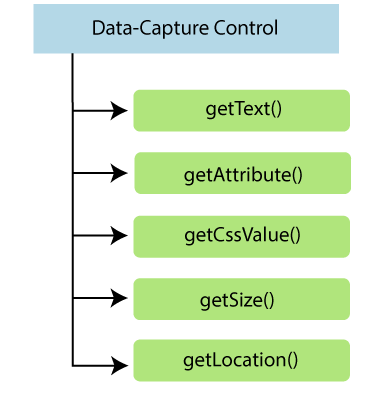
Some of the most commonly used data-capture controls are as follow:
| DataCapture controls | Description | Return Type | Command | Syntax |
| getText() | It is used to capture the visible text from the identified element. | It always returns a String. | getText() : String | element.getText(); |
| getAttribute() | It is used to capture any back-end attribute value from the web element. | It returns the value of an attribute in the form of String. | getAttribute(String Name) : String | element.getAttribute(); |
| getCssValue() | It is used to capture any style related attributed from the element like, color, back ground color, font style, etc. | It return RGBA color code in the form of String. | getCssvalue() : String | element.getCssValue(); |
| getSize() | It is used to capture height and width of the web element. | It always returns the dimension of aclass object. | getSize() : Dimension | element.getSize(); |
| getLocation() | It is used to capture X and Y co-ordinates of the web elements. | It returns the point of aclass object. | getLocation() : Point | element.getLocation(); |
Let us take a sample test script in which will try to cover mostly used data_capture_controls Commands:
For our testing purpose, we are using the login page of yahoo to perform primarily used data capture commands of web element controls.
In this test, we will automate the following test scenarios:
| Steps | Action | Method Used | Input | Excepted Result |
| 1 | Open the Google Chrome Browser | System.setProperty() | The google chrome browser must be opened. | |
| 2 | Navigate to yahoo login page. | get() | www.yahoo.com | The yahoo login page must be displayed. |
| 3 | Verify the visible text of sigh-in checkbox. | getText() | The visible text should be displayed. | |
| 4 | Verify the next button. | getAttribute() | The name of the button should be next. | |
| 5 | Check the color of the next button. | getCssValue() | The color of the button should be blue. | |
| 6 | Verify yahoo logo image. | getSize() | Verify the logo image of the yahoo login page and get the size of the logo image. | |
| 7 | Verify the yahoo logo location. | getLocation() | Get the location of the logo. | |
| 8 | Close the browser | close() | The Browser should be closed. |
Open the Eclipse IDE and open the existing test suite new_test, which we have created in WebDriver Installation section of Selenium WebDriver tutorial.
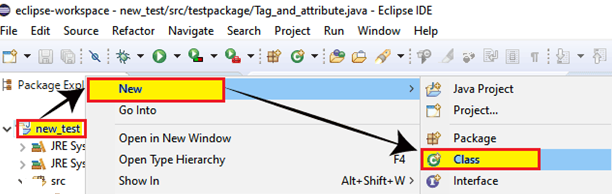
Then, right-click on the new_test folder and create a new Class File from New > Class.
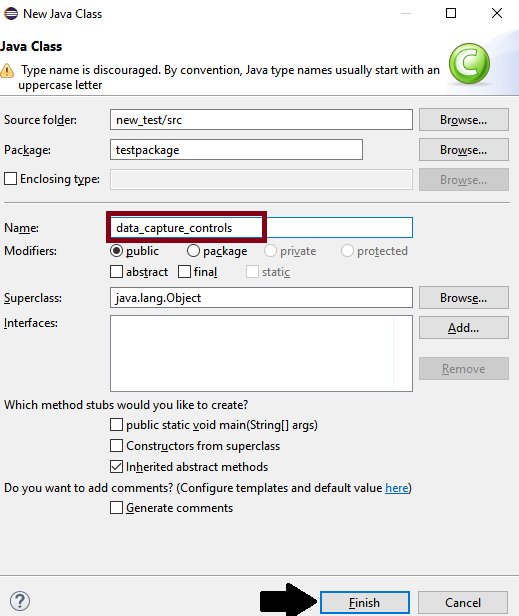
And give the Class name as data_capture_controls and click on the Finish button.
We are creating our test case step by step to give you a complete understanding of data capture Commands in WebDriver.
Step1:
To launch the Google Chrome browser, we need to download the ChromeDriver.exe file and set the system property to the path of ChromeDriver.exe file.
Hence, here is the code for setting the system property for google chrome:
//set the system property of Google Chrome
System.setProperty("webdriver.chrome.driver","C:\Users\JTP\Downloads\chromedriver_win32\chromedriver.exe");
To initialize the Chrome driver using Chrome Driver class:
// create driver object for CHROME browser
WebDriver driver=new ChromeDriver();
Step2:
Launch the website using the get() method.
//navigate to yahoo login page
driver.get("https://login.yahoo.com");
Step3:
Verify the visible text of the sigh-in checkbox using getText() data capture method.
//identify the visible text sigh-in
WebElement wb= driver.findElement(By.id("mbr-login-greeting"));
String acttext=wb.getText();
System.out.println(acttext);
Step4:
Verify the next button using the getAttribute() data capture method.
//identify next button
         WebElement wb1 = driver.findElement(By.id("login-signin"));
//name of the button should be next.
        String actval=wb1.getAttribute("value");
         System.out.println(actval);
         if (actval.contentEquals("Next"))
         {
       System.out.println("button name is verify ==pass");
         }
         else {
         System.out.println("button name is not verifyed == fail");
}
Step5:
Check the color of the Next button using the getCssValue() data capture method.
// color of the button should be blue
        String actcol=wb1.getCssValue("background-color");
       System.out.println(actcol);
Step6:
Verify the yahoo logo image size using the getSize() data capture method.
WebElement iwb= driver.findElement(By.xpath("(//img[@class='logo'])[2]"));
//get the size of logo-image
 Dimension dem=iwb.getSize();
  System.out.println("get the height =>"+ dem.getHeight());
 System.out.println("get the width =>"+ dem.getWidth());
Step7:
Verify the yahoo logo location using the getLocation() data capture method.
//get the location of the logo image
           org.openqa.selenium.Point pt =iwb.getLocation();
           System.out.println("get the x-axis co oridinate =>" +pt.getX());
           System.out.println("get the y- axis co oridinates =>"+ pt.getY());
Step8:
Finally, we are terminating the process and close the browser.
 //Closing browser
driver.close();
Our final test script will look like this:
package testpackage;
import org.openqa.selenium.By;
import org.openqa.selenium.Dimension;
import org.openqa.selenium.WebDriver;
import org.openqa.selenium.WebElement;
import org.openqa.selenium.chrome.ChromeDriver;
   public class data_capture_controls {
         public static void main(String[] args) {
System.setProperty("webdriver.chrome.driver","C:\Users\JTP\Downloads\chromedriver_win32\chromedriver.exe");
// create driver object for CHROME browser
          WebDriver driver=new ChromeDriver();
 //navigate to yahoo login page
         driver.get("https://login.yahoo.com");
  //identify the visible text of sign-in
         WebElement wb= driver.findElement(By.id("mbr-login-greeting"));
         String acttext=wb.getText();
         System.out.println(acttext);
  //identify next button
         WebElement wb1 = driver.findElement(By.id("login-signin"));
 // name of the button should be next.
         String actval=wb1.getAttribute("value");
         System.out.println(actval);
         if (actval.contentEquals("Next"))
         {
         System.out.println("button name is verify ==pass");
    }
         else {
         System.out.println("button name is not verifyed == fail");
         }
    // color of the button should be blue.
         String actcol=wb1.getCssValue("background-color");
        System.out.println(actcol);
         WebElement iwb= driver.findElement(By.xpath("(//img[@class='logo'])[2]"));
 // get the size of logo-image
          Dimension dem=iwb.getSize();
          System.out.println("get the height =>"+ dem.getHeight());
          System.out.println("get the width =>"+ dem.getWidth());
// get the location of the logo image
         org.openqa.selenium.Point pt =iwb.getLocation();
        System.out.println("get the x-axis co oridinate =>" +pt.getX());
        System.out.println("get the y- axis co oridinates =>"+ pt.getY());
//close the browser
         driver.close();
         }
}
- To run the test script in Eclipse, right-click on the window and then click Run as à Java application.
- The test script will be launched in the chrome browser and automate all the test scenarios.
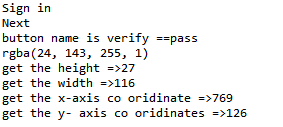
- And the output console window will show the following results for all the print commands.