
×

Selenium WebDriver- Radio button handling

Selenium WebDriver- Radio button handling

In this tutorial, we will be learning about handling the radio button in selenium WebDriver.

Let us take one example to give you a better understanding of Radio button handling, and we will create a sample test script which is as follows;

For our testing purpose, we are using the Facebook home page to perform Radio button handling in selenium WebDriver.

In this test case, we will automate the following test scenarios:

Steps Action Method Used Input Excepted Result
1. Open the Google Chrome Browser. System.setProperty()   The Google chrome browser must be opened.
2. Navigate to the website. get() https://www.facebook.com/ The home page window must be displayed.
3. Identify the female radio button, and Select the female radio button on the Facebook home page. click()   A female radio button should be identified and selected.
4. Closing the browser window. close()   The browser window should be closed.

Open the Eclipse IDE and the existing test suite new_test, which we have created in WebDriver Installation section of the WebDriver tutorial.

Then, right-click on the src folder and create a new Class File from New ? Class.
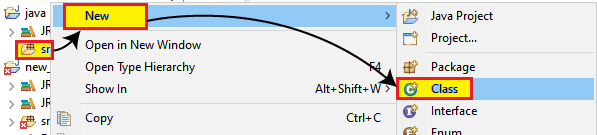
Eclipse IDE and the existing test
  • Give the Class name as Radio_button and click on the Finish button.
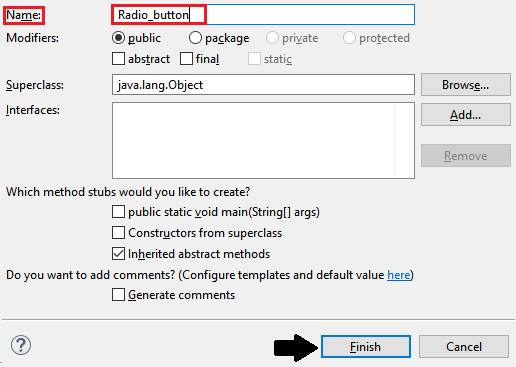
Class name as Radio_button

Step1:

To launch the Google Chrome browser, we need to download the ChromeDriver.exe file and set the system property to the path of ChromeDriver.exe file.

Here is the code for setting the system property of the Google chrome Browser:

System.setProperty("webdriver.chrome.driver","C:\Users\JTP\Downloads\chromedriver_win32 (1)\chromedriver.exe");
// create driver object for CHROME browser
WebDriver driver=new ChromeDriver(); 

Step2:

Now, we will get to the desired URL:

//navigate to the website.
driver.get("https://www.facebook.com"); 

Step3:

To identify the radio button first, right-click on the female radio button and select the Inspect element field which is as shown below,
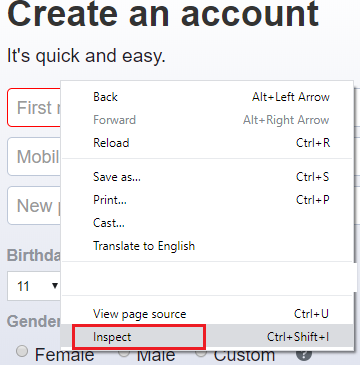
right-click on the female radio button

The developer tool window will be launched, with all the specific codes used in the development of the particular radio button and click on the chropath and copy the value of relative XPath which is as shown below,
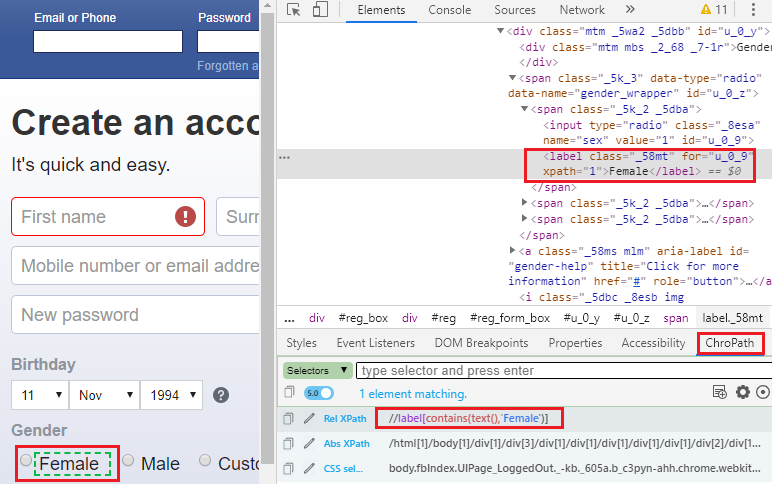
 click on the chropath and copy the value of relative XPath

Here the sample code,

//identify and click on the radio button
 try {
 driver.findElement(By.xpath("//label[contains(text(),'Female')]")).click(); 
 System.out.println("radio button is clicked");
 Thread.sleep(2000);
 } 
 catch(Exception e)
 {
 System.out.println(e);
 } 

Step4:                                                                                  

Finally, we close the browser window.

 //close the browser
driver.close();

After completing all the given steps, our final text script will look like this:

package testpackage;
import java.util.concurrent.TimeUnit;
import org.openqa.selenium.By;
import org.openqa.selenium.WebDriver;
import org.openqa.selenium.chrome.ChromeDriver;
public class Radio_button {
public static void main(String[] args) throws InterruptedException{ System.setProperty("webdriver.chrome.driver","C:\Users\JTP\Downloads\chromedriver_win32 (1)\chromedriver.exe");
// Create driver object for CHROME browser 
WebDriver driver=new ChromeDriver();
//maximize the window size
driver.manage().window().maximize(); 
driver.manage().timeouts().pageLoadTimeout(20,TimeUnit.SECONDS);
//delect all the cookies
driver.manage().deleteAllCookies();
//navigate to the url
driver.get("https://www.facebook.com/"); 
//identify and click on the radio button
try {
driver.findElement(By.xpath("//label[contains(text(),'Female')]")).click(); 
System.out.println("radio button is clicked");
Thread.sleep(2000);
} 
catch(Exception e) 
{
System.out.println(e);
}
//Close the  browser  
driver.close();  
}
}
  • To run the test script in Eclipse, right-click on the window and then click Run as ? Java application and the test script will be launched in the chrome browser, and automate all the test scenarios.
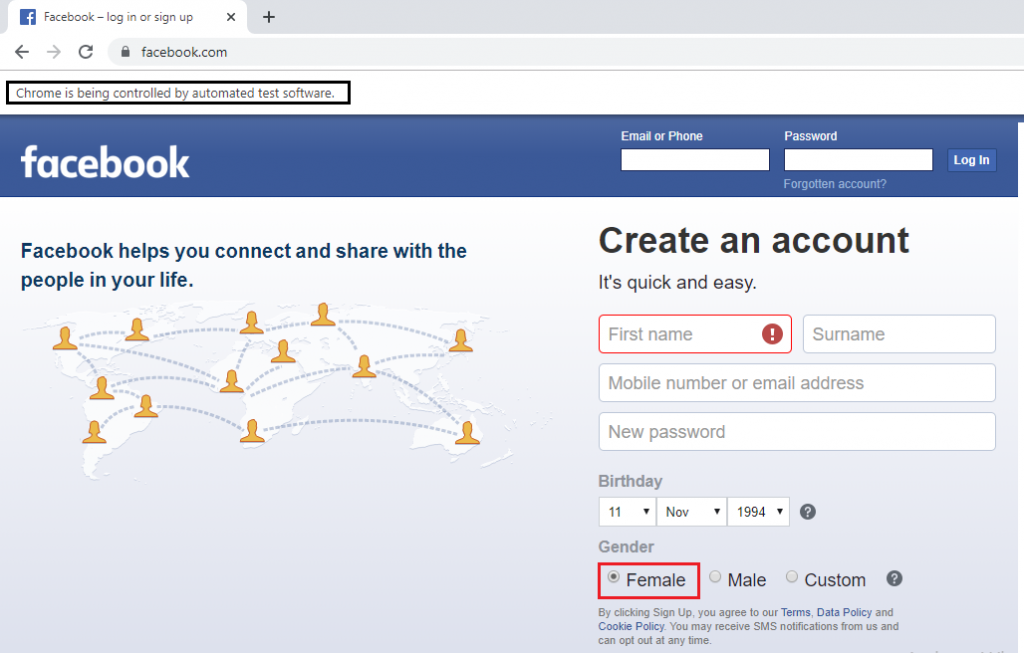
our final text script will look like

Related Topics

Selenium IDE Commands

Selenium –IDE Commands (SELENESE): Selenese commands are the set of commands used in Selenium IDE. Selenese command has two parameters target and value. Selenese command tests the existence of UI elements based on their HTML tags,...

3 minutes read.

CSS Selector: ID/Class and Attribute in Selenium IDE

CSS SELECTOR: ID/Class and Attribute The Id, class, and attribute of CSS selector are used to identify the web element to access the web pages.  Syntax for Id/Class and Attribute: css= <./#> {[attribute=Value of...

2 minutes read.

Selenium WebDriver-CSS Selector: Tag and Attribute

Selenium WebDriver-CSS Selector: Tag and Attribute We will locate the web element with the help of Tag and attribute CSS selector in this section of the tutorial. Where Tag and attribute are...

5 minutes read.

Link Text Locator in Selenium IDE

LINK TEXT Link textlocator is used to identify only the weblink element based on the name of the link. Whenever multiple links are there, it will not work; it will work only...

1 minute read.

Difference between Selenium WebDriver and Selenium RC

Difference between Selenium WebDriver, and Selenium RC: Selenium WebDriver and selenium RC (Remote Control) both are different in any manners which we see later in this tutorial, let us see the...

3 minutes read.

Mouse and Keyboard Controls in Selenium WebDriver

Mouse and Keyboard Controls in Selenium WebDriver In this tutorial, we will learn about how to handle mouse and keyboard event using action class in selenium WebDriver. Action Class in Selenium WebDriver: Action...

13 minutes read.

WebDriver-Class Name Locator

WebDriver-Class Name Locator In this tutorial, we will learn about the Class name locator of selenium WebDriver. The Class Name locator is used to identify any element in UI based on the...

4 minutes read.

Selenium WebDriver - Firefox or Gecko (Marionette) browser

Selenium web driver-Firefox or Gecko (Marionette) browser In this tutorial, we are going to learn how to run the Selenium WebDriver test script in the Firefox Browser using the Gecko Driver. Before going...

4 minutes read.

Drag and Drop Event Handling

Drag and Drop Event Handling: In this tutorial, we will learn how to handle the drag and drop event in selenium WebDriver using the action class. Before going further in this tutorial...

6 minutes read.

CSS Selector: Inner text in Selenium IDE

CSS Selector: Inner text The inner text is used to identify and create a CSS Selector using a string pattern of the HTML tag which is displayed on the web page. Syntax...

1 minute read.

Selenium-IDE Locators

Selenium-IDE Locators: Before we start learning about Selenium –IDE Locators, firstly we have to learn about UI elements. UI Elements -UI elements are the elements which are displayed on the web application....

1 minute read.

Selenium Assertion

Selenium Assertion: In this section, we will learn about the Assertion in Selenium WebDriver. An Assertion is a feature available in TestNG, which is used to verify the expected result of...

7 minutes read.

CSS Selector: Attribute in Selenium IDE

CSS Selector: Attribute Locating the attribute of a CSS selector, we would access the Password textbox, which is present in the login form of Facebook. The Password textbox has a type attribute...

1 minute read.

Selenium WebDriver Tutorial

Seleniun WebDriver Introduction Selenium WebDriver is the essential tool of Selenium Tool Suite because it can directly communicate the browser without any server.  Selenium WebDriver is a browser automation framework that accepts...

3 minutes read.

Selenium Testing

Selenium is a functional testing tool and compatible with non–functional testing tool. Selenium is free and not required any licensing. There are specified types of testing that can be automated using Selenium:-   Functional Testing: Checking every component...

3 minutes read.

WebDriver-Partial Link Text locator

WebDriver-Partial Link Text locator In selenium WebDriver, there is an additional way to find a web link element with the help of partial link text locator. The partial link text is used...

4 minutes read.

Advantages and Disadvantages of Selenium-IDE

Advantages and Disadvantages of Selenium-IDE Advantages of Selenium IDE: UI based record and playback tool. Easy to understand & developed a test script. Selenium-IDE test script export into web driver code & Selenium–RC It is...

1 minute read.

Selenium WebDriver-Alert Popup

Selenium WebDriver-Alert Popup  An alert popup is one of the small message boxes, which used to give some information to the user that displays on the browser. The Alert popup will be...

6 minutes read.

WebDriver-Link Text locator

WebDriver-Link Text locator The Link text locator is used to identify only web link elements based on the value of the link. The Link text locators cannot be used for other than...

4 minutes read.

Selenium Wait

In this tutorial, we will understand how we can avoid synchronization issues while executing the test script in a selenium WebDriver. Before going further in this tutorial, first, we will understand that...

10 minutes read.