Selenium WebDriver-CSS Selector: Substring Matching
CSS Selector: Substring Matching Selenium WebDriver
In this tutorial, we will learn how to identify the web element using the substring method.
A Sub-string contains three methods for identifying the web element uniquely.
The sub-string methods are as follows:-
- Contains (*)
- Starts with (^)
- Ends with ($)
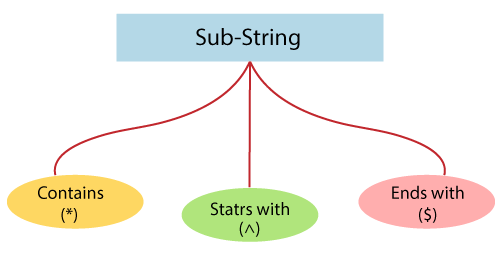
Let us discuss these following method to give you a complete understanding:
Contains (*):
The Contains method is used to identify the web element using * (i.e., asterisk) symbol.
The Syntax of contains method:
Tagname[attribute*=’partial Attribute value’]
Where,
[*]=the asterisk symbol is used to identify that the particular attribute contains any value or not.
Let us take one example to give you a better understanding of Contains() method using * symbol, and we created a sample test script which is as follows;
| Steps | Actions | Input | Expected Result |
| 1. | Open the Google Chrome browser. | The Google Chrome browser should be opened. | |
| 2. | Navigate to the Rediff login page. | https://mail.rediff.com/cgi-bin/login.cgi | The Rediff login page must be displayed. |
| 3. | Identify the username text box and pass the value. | xyz11@radiff.com | The username text box should be identified, and the value should be entered. |
| 4. | Identify the password text box and pass the value. | admin@12 | The Password text box should be identified, and the value should be entered. |
| 5. | Identify and click on the go button. | The go button should be clicked. | |
| 6. | Close the browser. | The browser should be closed. |
- Firstly, we have to Launch Eclipse and open the existing test suite new_test, which we have created in earlier session of the WebDriver tutorial.
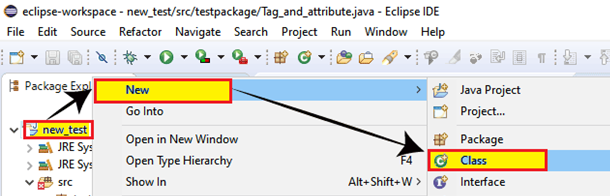
- Then, right-click on the new_test folder and create a new Class File from New à Class.
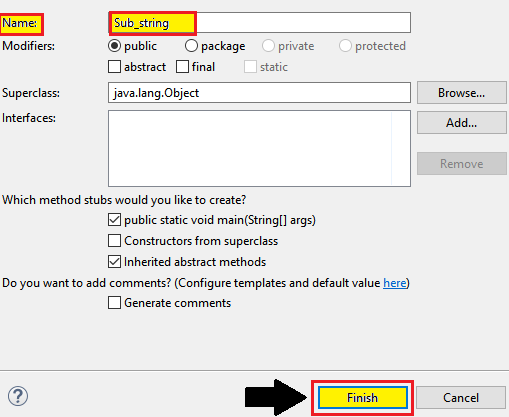
- And give your Class name as Sub_string and click on the Finish button.
Step1:
- To access the Google Chrome browser first, we need to download the chrome driver and set the system property for the chrome driver.
- We have already discussed this in the previous sessions of the tutorial.
- And you can also refer to the given link "Working with Chrome browser” for a better understanding that how we downloaded it and set the System property for it.
//SystemPropertyforchromeDriver
System.setProperty("webdriver.chrome.driver","C:\Users\JTP\Downloads\chromedriver_win32\chromedriver.exe");
//create an object forChrome Driver
WebDriverdriver=newChromeDriver();
Step2:
- After that, we will navigate to the given URL.
The sample code for the navigation of the desired URL:
//navigate to the URL
driver.get(“https://mail.rediff.com/cgi-bin/login.cgi”);
Step3:
For locating the username text box of the Rediff login page,
- First, right-click on the username text box and select the Inspect Element.
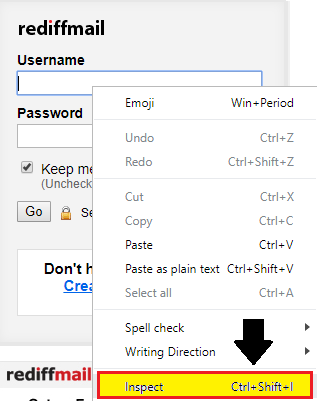
- The developer tool window will be launched, with all the specific codes used in the development of the username text box.
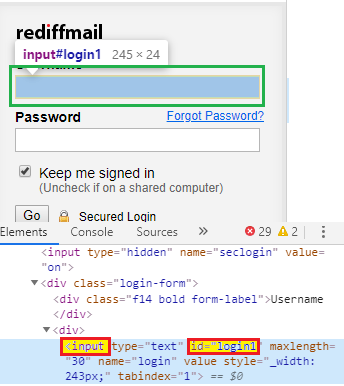
Where the tag name value is input, and the value of its id attribute is login1.
While using the Contains() method, we will take the partial value of the id attribute, i.e.,“logi.”
Here the sample code,
driver.findElement(By.cssSelector("input[id*='logi']")).sendKeys("admin");
Step4:
For locating the password text box of the Rediff login page,
- Right-click on the password text box, and select the Inspect Element field.
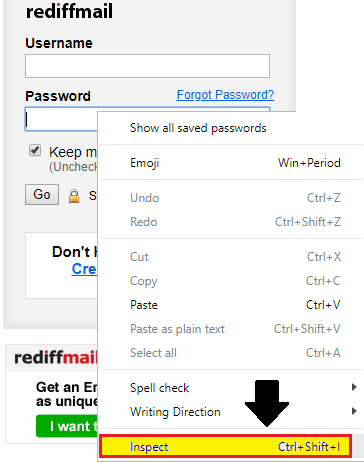
- The developer tool window will be launched with all the specific codes used in the development of the password text box.
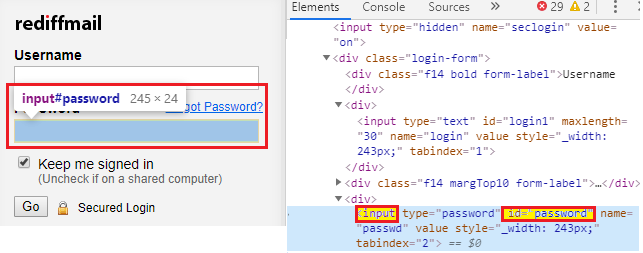
Where the tag name value is input, and the value of its id attribute is password.
While using the Contains() method,we will take the partial value of the id attribute, i.e., “passwo.”
Here the sample code,
driver.findElement(By.cssSelector("input[id*='passwo]")).sendKeys("admin");
Step5:
To identify the Go button of the Rediff login page,
- First, we will right-click on the Go button and select the Inspect Element.
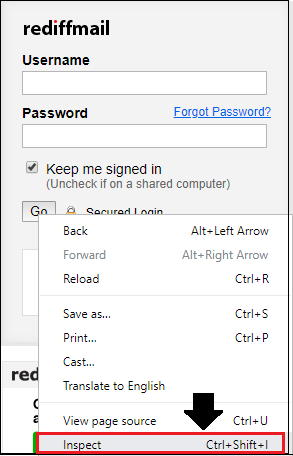
- The developer tool window will be launched with all the specific codes used in the development of the Go button.
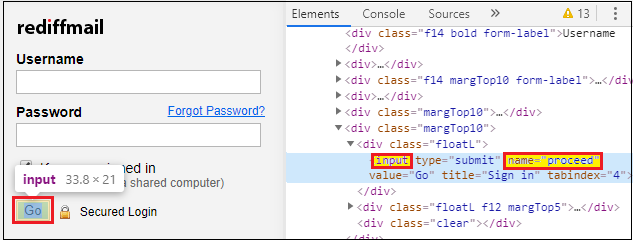
Where the tag name value is input, and the value of its name attribute is proceed.
While using the Contains() method,we will take the partial value of its name attribute, i.e., “proc.”
Here the sample code,
driver.findElement(By.cssSelector("input[name*='proc']")).click();
Step6:
In the last step, we are closing the existing browser.
//Close the browser
driver.close();
Our final test script look like this:
package testpackage;
import java.util.concurrent.TimeUnit;
import org.openqa.selenium.By;
import org.openqa.selenium.WebDriver;
import org.openqa.selenium.chrome.ChromeDriver;
public class Sub_string {
public static void main(String[] args) {
//set the system property for chrome driver
System.setPropert("webdriver.chrome.driver", "C:\Users\JTP\Downloads\chromedriver_win32\chromedriver.exe");
//creating the object for chrome driver
WebDriver driver = new ChromeDriver();
//maximize the browser size
driver.manage().window().maximize();
//navigate to the URL
driver.get("https://mail.rediff.com/cgi-bin/login.cgi");
//Identify the username textbox and pass the value
driver.findElement(By.cssSelector("input[id*='logi']")). sendKeys("admin11@rediff.com");
System.out.println("username value is entered");
//Identify the password text box and pass the value
driver.findElement(By.cssSelector("input[id*='passwo']")).sendKeys("admin");
System.out.println("password value is entered");
//identify the go button
driver.findElement(By.cssSelector("input[name*='proc']")).click();
System.out.println("go button is cliked");
//close the browser
driver.close();
}
}
To run the test script in Eclipse, right-click on the code and then select Run as ? Java Application.
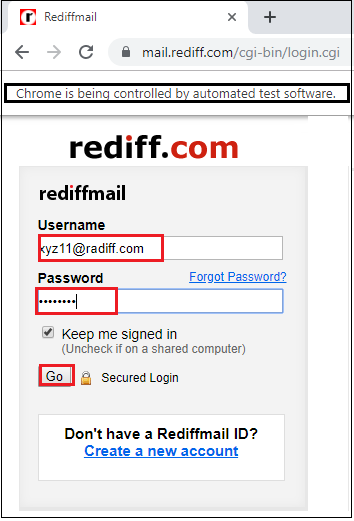
The above test script will launch the Google Chrome browser and automate all the test scenarios, as shown below:
Starts with (^):
The Starts-with is used to identify the web element using ^ (i.e., carat) symbol.
The Syntax of starts-with:
Tagname[attribute^ =’Attribute starting value’]
Where
[^]=the carat symbol is used to identify the web element with its starting value.
Let us take one example to give you a better understanding of the starts-with method using ^ symbol, we created a sample test script which is as follows;
| Steps | Actions | Input | Expected Result |
| 1. | Open the Google Chrome browser. | The Google Chrome browser should be opened. | |
| 2. | Navigate to the Facebook login page. | https://www.facebook.com | The Facebook login page must be displayed. |
| 3. | Identify the First-name text box and pass the value. | First-name=Hello | The First-name text box should be identified, and the value should be entered. |
| 4. | Identify the Surname text box and pass the value. | Surename=world | The Surname text box should be identified, and the value should be entered. |
| 5. | Close the browser. | The browser should be closed. |
Follow the same Step1 as we did in the Contains() method.
Step2:
After that, we will navigate to the given URL.
The sample code for the navigation of the desired URL:
//navigate to the URL
driver.get(“https://www.facebook.com”);
Step3:
For locating the First-name text box of the Facebook login page,
- First, right-click on the First-name text box and select the Inspect Element field.
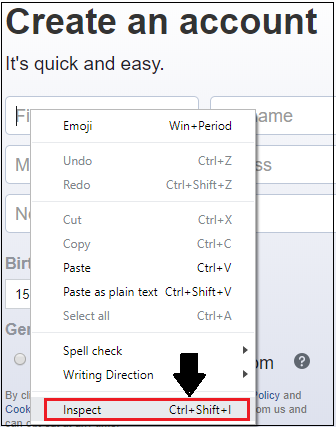
- The developer tool window will be launched with all the specific codes used in the development of the First-name text box.
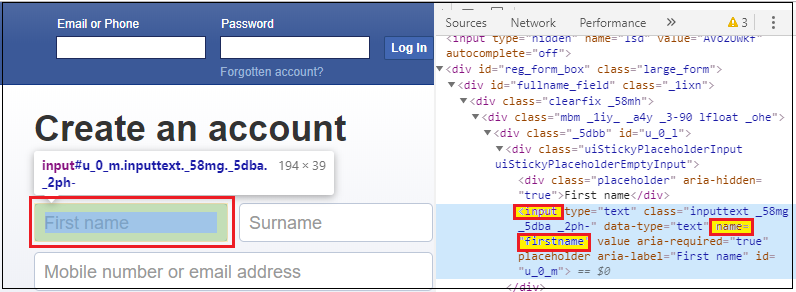
Where the tag name value is input and the value of its name attribute is firstname.
While using the starts-with method, we will take the starting value of the name attribute, i.e., “first.”
Here the sample code,
driver.findElement(By.cssSelector("input[name^='first']")).sendKeys("hello");
Step4:
For locating the surname text box of the Facebook login page,
- Right-click on the surname text box and select the Inspect Element field.
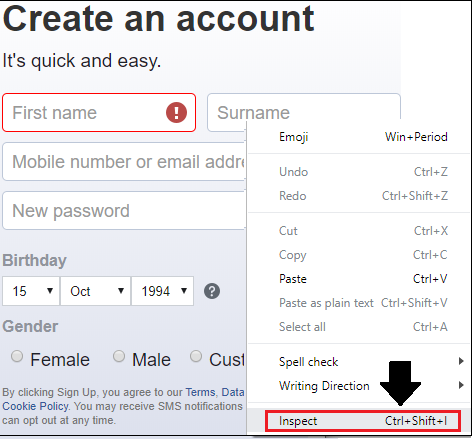
- The developer tool window will be launched with all the specific codes used in the development of the surname text box.
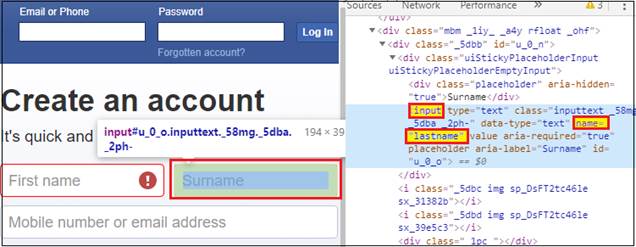
Where the tag name value is input and the value of its name attribute is lastname.
While using the starts-with method,we will take the starting value of the id attribute, i.e., “last.”
Here the sample code,
driver.findElement(By.cssSelector("input[name^='last']")).sendKeys("world");
Step5:
In the last step, we are closing the existing browser.
//Close the browser
driver.close();
Our final test script look like this:
package testpackage;
import java.util.concurrent.TimeUnit;
import org.openqa.selenium.By;
import org.openqa.selenium.WebDriver;
import org.openqa.selenium.chrome.ChromeDriver;
public class Sub_string {
public static void main(String[] args) throws InterruptedException {
//set the system property for chrome driver
System.setProperty("webdriver.chrome.driver", "C:\Users\JTP\Downloads\chromedriver_win32\chromedriver.exe");
//creating the object for chrome driver
WebDriver driver = new ChromeDriver();
//maximize the browser size
driver.manage().window().maximize();
//navigate to the url
driver.get("https://www.facebook.com");
//Identify the first name textbox and pass the value
driver.findElement(By.cssSelector("input[name^='first']")).sendKeys("hello");
Thread.sleep(3000);
System.out.println("firstname value is
entered");
//Identify the surname text box and pass the value
driver.findElement(By.cssSelector("input[name^='last']")).sendKeys("world");
Thread.sleep(3000);
System.out.println("surname value is
entered");
//close the browser
driver.close();
}
}
To run the test script in Eclipse, right-click on the code, and then select Run as ? Java Application.
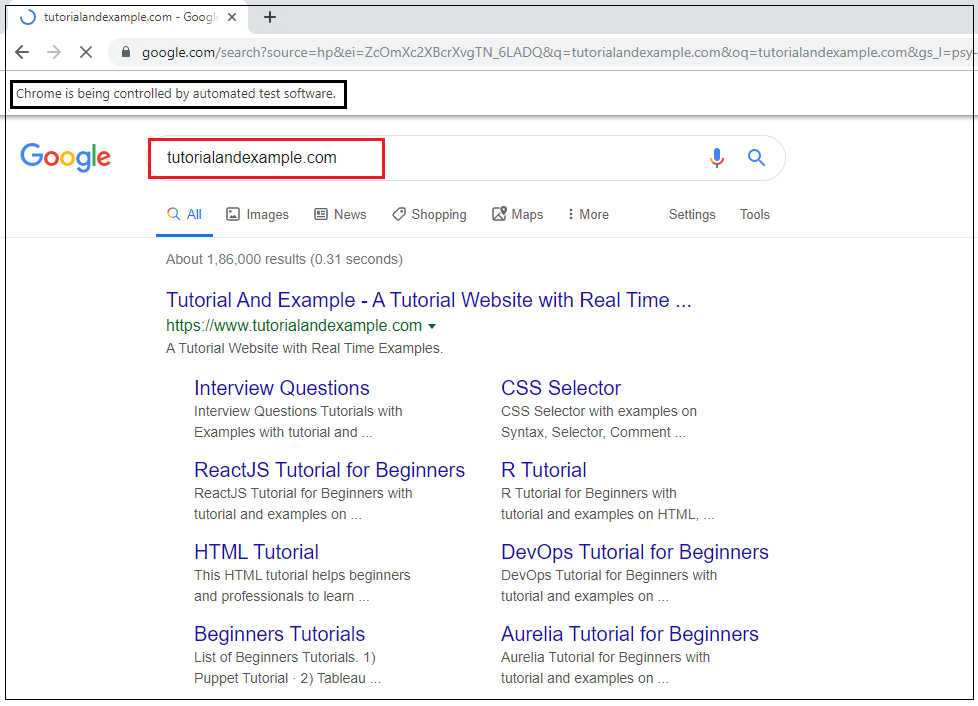
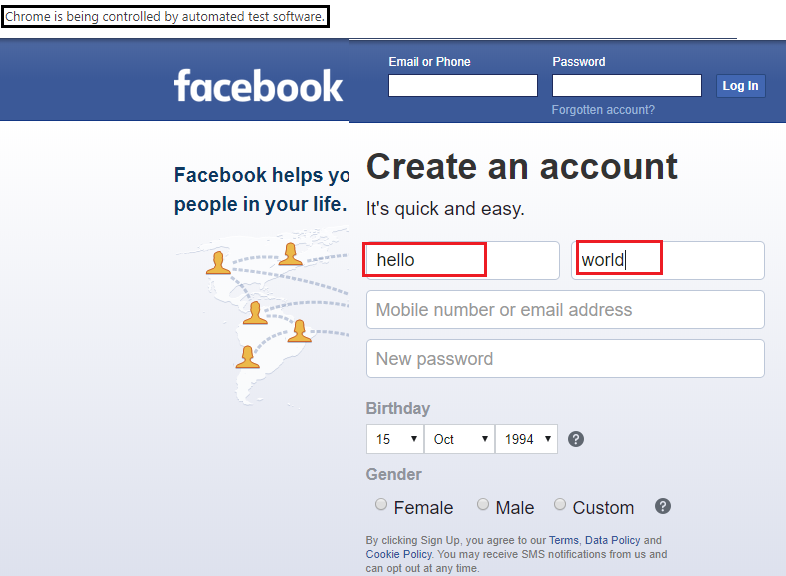
The above test script will launch the Google Chrome browser, and automate all the test scenarios, as shown below:
Ends with ($):
The ends-with is used to identify the web element using $ (i.e., dollar) symbol.
The Syntax for ends with:
Tagname[attribute$ =’value’]
Where
[$]=the dollar symbol is used to identify the web element with its ending value.
To give you a better understanding of ends-with method using $ symbol, we created a sample test script which is as follows;
| Steps | Actions | Input | Expected Result |
| 1. | Open the Google Chrome browser. | The Google Chrome browser should be opened. | |
| 2. | Navigate to the Google search home page. | https://www.google.com | The Google search home page must be displayed. |
| 3. | Identify the Google search text box and pass the value. | Tutorialandexample.com | The Google search text box should be identified, and the value should be entered. |
| 4. | Identify and click on the google search button. | The Google search button should be identified, and the button should be clicked. | |
| 5. | Close the browser. | The browser should be closed. |
Follow the same step1 of contains() method.
Step2:
- After that, we will navigate to the given URL.
The sample code for the navigation of the desired URL:
//navigate to the URL
driver.get(“https://www.google.com”);
Step3:
For locating the Google search text box of the Google home page,
- First, right-click on the Google search text box and select the Inspect Element field.
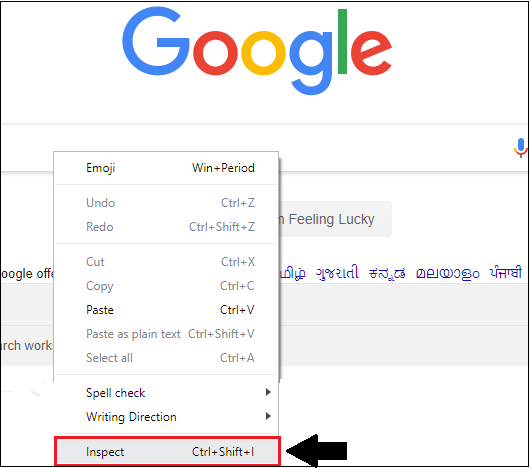
- The developer tool window will be launched with all the specific codes used in the development of the Google search text box.
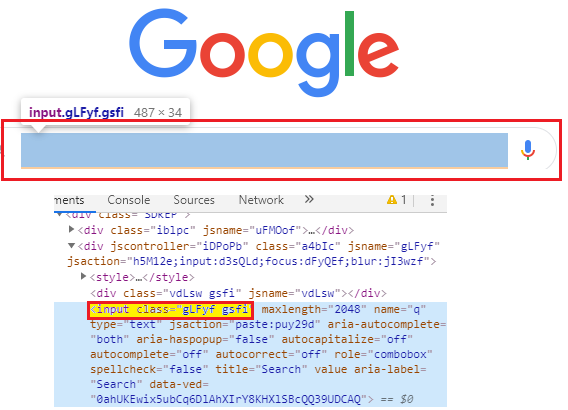
Where the tag name value is input, and the value of its class attribute is gLFyf gsfi.
While using the ends-with method, we will take the ending value of the class attribute, i.e., “fi.”
Here the sample code,
driver.findElement(By.cssSelector("input[class$='fi']")).sendKeys("tutorialandexample.com");
Step4:
For locating the Google Search button of the Google home page,
- Right-click on the Google search button and select the Inspect Element field.
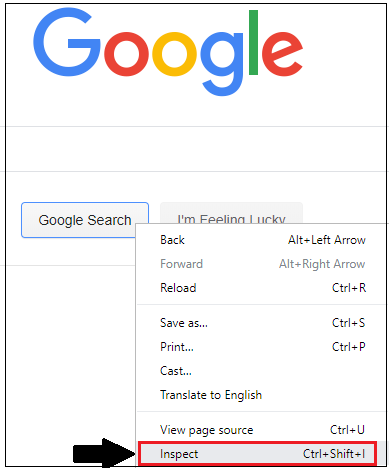
- The developer tool window will be launched with all the specific codes used in the development of the Google search button.
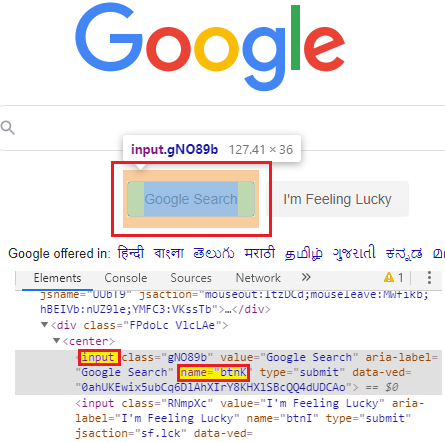
Where the tag name value is input, and the value of its name attribute is btnK.
While using the ends-with method,we will take the ending value of the name attribute, i.e.,“nK.”
Here the sample code,
driver.findElement(By.cssSelector("input[name$='nK']")).click();
Step5:
In the last step, we are closing the existing browser.
//Close the browser
driver.close();
Our final test script look like this:
package testpackage;
import java.util.concurrent.TimeUnit;
import org.openqa.selenium.By;
import org.openqa.selenium.WebDriver;
import org.openqa.selenium.chrome.ChromeDriver;
public class Sub_string {
public static void main(String[] args) throws InterruptedException {
//set the system property for chrome driver
System.setProperty("webdriver.chrome.driver", "C:\Users\JTP\Downloads\chromedriver_win32\chromedriver.exe");
//creating the object for chrome driver
WebDriver driver = new ChromeDriver();
//maximize the browser size
driver.manage().window().maximize();
//navigate to the url
driver.get("https://www.google.com");
//Identify the google search text box and pass the value
driver.findElement(By.cssSelector("input[class$='fi']")).sendKeys("tutorialandexample.com");
Thread.sleep(3000);
System.out.println(" the value is passed");
//Identify and click on the Google search button
driver.findElement(By.cssSelector("input[name$='nK']")).click();
Thread.sleep(3000);
System.out.println(" search button is clicked ");
//close the browser
driver.close();
}
}
To run the test script in Eclipse, right-click on the code and then select Run as ? Java Application.
The above test script will launch the Google Chrome browser and automate all the test scenarios, as shown below,