×

Characteristics of Selenium IDE

Characteristics of Selenium IDE

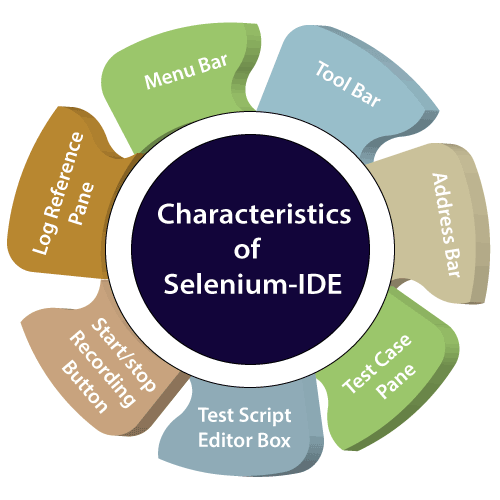
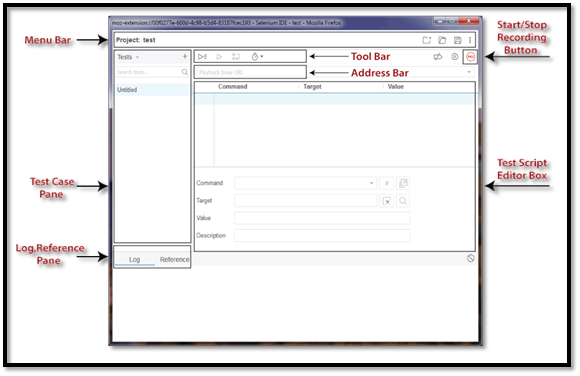
Selenium IDE is separated into different parts, each having their features and functionalities. The seven various components of Selenium IDE are as follows:
Characteristics of Selenium IDE
components of Selenium IDE
  • MENU BAR:

The menu bar is at the topmost portion of the Selenium IDE interface. The most commonly used modules of menu bar include:

  • Project Name/ Create New Project:

Here you can give name /rename project, and you can create a new project as well

Create New Project
  • Open Project:

We can open any existing projects from our device.
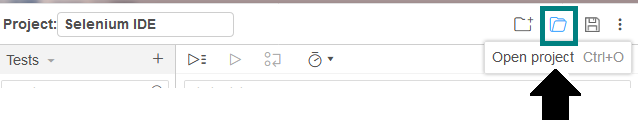
open any existing projects
  • Save Project:

We can save the entire project that we are currently working on.

save the entire project
  • ADDRESS BAR:

It is a drop down menu, where we can write a base URL. In other words, we can say that the base URL address bar also remembers the earlier visited websites.

base URL address bar also remembers
  • TOOL BAR:

The Toolbar having a power to control the execution like controlling the speed of executioncan run one command at one time, run the current test, and run all the existing tests at one time. The modules of Toolbar are as follows:

  • Speed Control Option:

 You can change the execution speed (fast and slow) of your test cases.
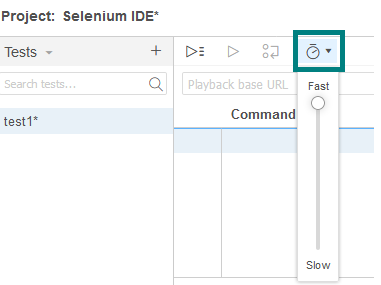
change the execution speed
  • Step over Current Command:

We can step over through a test case by running it one command at a time. Used for debugging the test cases.
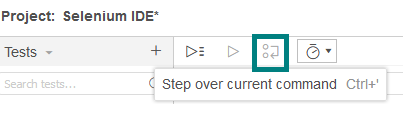
step over through a test case
  • Run Tests:

We can run the currently selected test or one test at one time. 
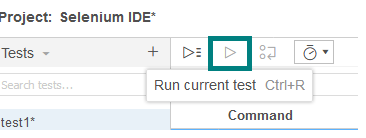
run the currently selected test
  • Run all tests:

We can run the complete test suit with the help of run all tests modules.
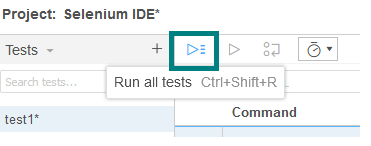
run the complete test suit

TEST CASE PANE:

 It contains all the test cases that are recorded by selenium-IDE. It provides the list of all documented test cases. While running the test case, we can also check the status of a test case as run or fail. If the test case runs successfully, it will give status as runs=1 or if its fail given the status as failure=1.
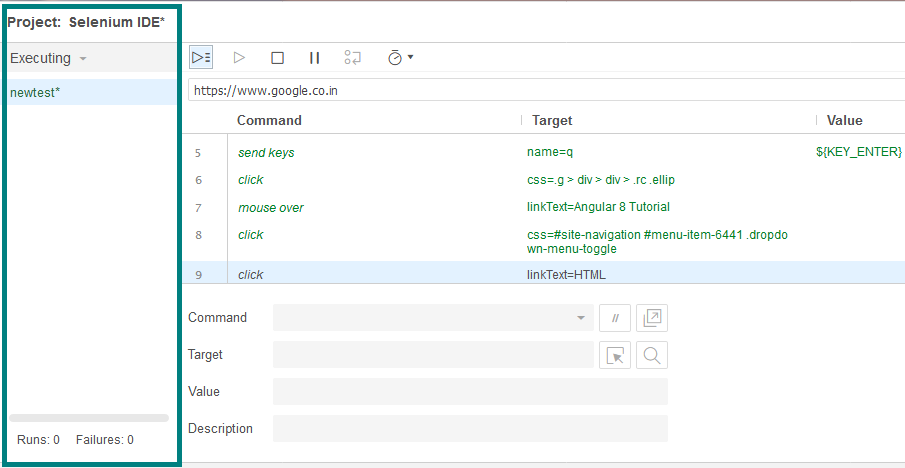
test cases that are recorded by selenium-IDE

It is also having features like navigation panel which allow users to operate between test cases and test suites.
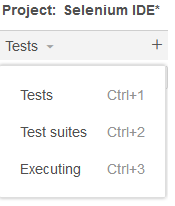
features like navigation panel
  • Test Script Editor Box:

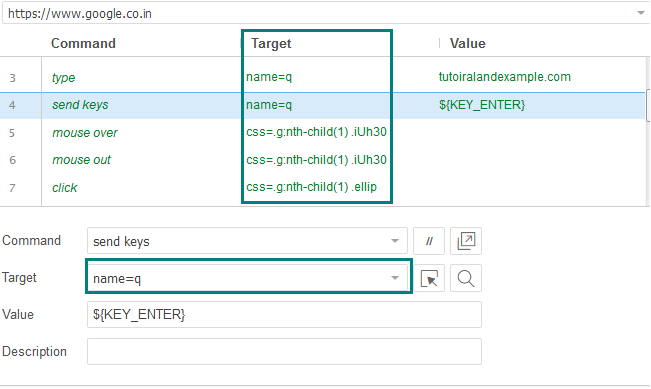
It displays all of the test scripts and user interactions that were recorded by the IDE. All the user interaction presented in the same order which they performed. Test script Editor Box is divided into three columns: Command, Target, and Value.
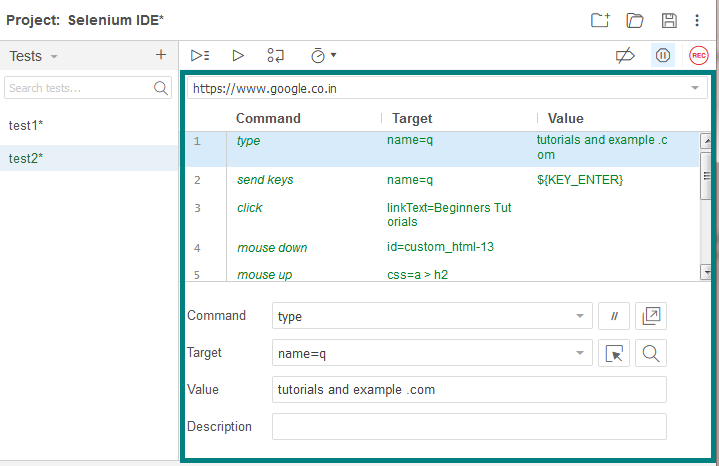
Test script Editor Box is divided into three columns Command, Target, and Value.
  • Target:

TargetLocator is the concept or a feature that is available in all the selenium tools.

 It is used to identify any element in GUI based on element HTML source code, these are k sensitive.

There are six locators available in selenium-IDE:

  • ID
  • NAME
  • X PATH
  • CSS SELECTOR
  • LINK TEXT
  • DOM
identify any element in GUI based on element HTML source code
  • Value:

Value column is an optional field. And use when we need to send some actual parameters.

For example, if you are entering the email address or password in a textbox, then the value will contain the actual credentials.
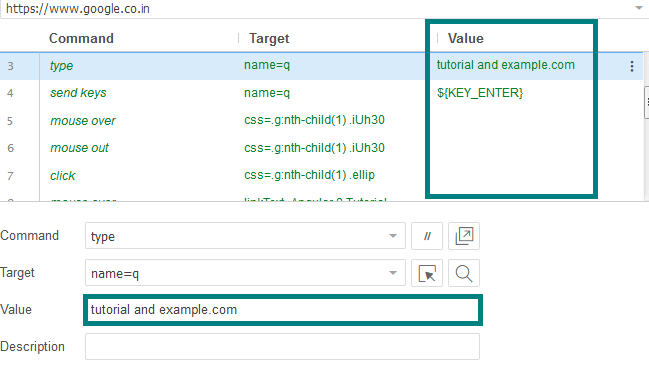
Value column is an optional field.
  • Start Recording Button:

After clicking the recording button, it will record all of the user’s actions with the browser.
clicking the recording button
  • Stop Recording Button:

Stops all the execution, which is performed by the users.
Stops all the execution
  • Log, Reference Pane:
  •  The Log Pane:

 The log pane shows the run-time messages during test case execution.

It will also show the real-time updates of the actions performed by the selenium-IDE, and categorize into four types: information, error, debug, and warning.
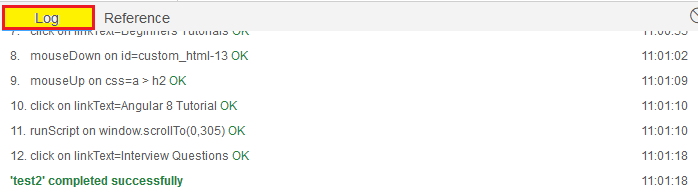
log pane shows the run-time messages
  • The Reference Pane:

The Reference pane displays the full detail of the currently selected command in the text editor.

Reference pane displays the full detail of the currently selected command

Related Topics

Selenium WebDriver-CSS Selector: Tag and Class

Selenium WebDriver-CSS Selector: Tag and Class We will locate the web element with the help of tag and class CSS selector in this section of the tutorials Where Tag and class are...

4 minutes read.

CSS Selector: Class in selenium IDE

CSS Selector: Class Identify a web element with the help of Class as a CSS Selector is like using id attribute. The only difference between Class and id is in their...

2 minutes read.

WebDriver-Tag Name Locator

Selenium WebDriver-Tag Name Locator The tag name locator is used along with the findElements() method to identify multiple similar elements in the UI. It is used to locate the web element with...

3 minutes read.

Data-Capture Controls Methods in Selenium WebDriver

Data-Capture Controls Methods: The data-capture controls are used to determine the text, size, location, and the CSS value of the web element, etc. Some of the most commonly used data-capture controls are...

7 minutes read.

Selenium WebDriver- Checkbox handling

Selenium WebDriver- Checkbox handling In this tutorial, we will be learning about handling the checkbox in selenium WebDriver. Let us take one example to give you a better understanding of Checkbox handling,...

4 minutes read.

WebDriver-Link Text locator

WebDriver-Link Text locator The Link text locator is used to identify only web link elements based on the value of the link. The Link text locators cannot be used for other than...

4 minutes read.

Selenium Tool Suite

The selenium tool suite is a combination of multiple software tools, and the entire tools having a different approach to support automation testing. Selenium test tool suites are as follows- Selenium...

2 minutes read.

Selenium-IDE Installation in Mozilla Firefox

A beginners guides to Selenium-IDE Installation Since Selenium IDE is designed only for Firefox and Chrome plug-in, we are assuming that you have already installed the Mozilla Firefox browser in your...

1 minute read.

Name Locator in Selenium IDE

NAME LOCATOR: It is used to find the name in the web element. If we have multiple web elements of the same name, then the first matched element would be returned. Open the...

3 minutes read.

Selenium WebDriver-XPath Locator

Selenium WebDriver-XPath Locator The locators can make the object identification of all the selenium tools. There are eight locators available in selenium web driver, but most of the time we go for...

14 minutes read.

Mouse and Keyboard Controls in Selenium WebDriver

Mouse and Keyboard Controls in Selenium WebDriver In this tutorial, we will learn about how to handle mouse and keyboard event using action class in selenium WebDriver. Action Class in Selenium WebDriver: Action...

13 minutes read.

CSS Selector: Attribute in Selenium IDE

CSS Selector: Attribute Locating the attribute of a CSS selector, we would access the Password textbox, which is present in the login form of Facebook. The Password textbox has a type attribute...

1 minute read.

WebDriver-Partial Link Text locator

WebDriver-Partial Link Text locator In selenium WebDriver, there is an additional way to find a web link element with the help of partial link text locator. The partial link text is used...

4 minutes read.

First test case of Selenium-IDE

First Test Case of Selenium-IDE: In this part, we are discussing how to create a basic test case in Selenium-IDE: The entire test script execution process in Selenium -IDE can be divided...

4 minutes read.

Selenium WebDriver - IE [Internet Explorer] browser

Selenium WebDriver - IE [Internet Explorer] browser In this segment, we will understand how to run a test script with the help of the IE (Internet Explorer) browser. It is a standalone...

4 minutes read.

Selenium WebDriver- Radio button handling

Selenium WebDriver- Radio button handling In this tutorial, we will be learning about handling the radio button in selenium WebDriver. Let us take one example to give you a better understanding of...

3 minutes read.

Drag and Drop Event Handling

Drag and Drop Event Handling: In this tutorial, we will learn how to handle the drag and drop event in selenium WebDriver using the action class. Before going further in this tutorial...

6 minutes read.

CSS Selector Locator in Selenium IDE

It used to identify the web element based on HTML tag, id, class, and attributes. To describe the look and formatting of a document written in the markup language are known...

1 minute read.

Selenium IDE Tutorial for Beginners

Selenium IDE Introduction Selenium IDE stands for Integrated Development Environment. Selenium-IDE is released in 2006 and developed by SHINYA [JAPAN] THOUGHTWORK Company. Selenium IDE implemented as a Firefox plug-in, and concedes the record, edit, and debug tests....

2 minutes read.

Selenium WebDriver installation

Installation Steps of Selenium WebDriver In this tutorial, we will see the process of selenium webdriver installation. Selenium WebDriver installation process is done in four Stages: Java Installation (version 8 or higher version) Eclipse...

4 minutes read.