
×

Selenium WebDriver - Google Chrome Browser

Selenium WebDriver - Google Chrome Browser

In this tutorial, we will learn how to run our Selenium Test Scripts in the Google Chrome Browser.

To implement the WebDriver protocol with the help of an executable file, which is called as the ChromeDriver.exe.

The above executable file starts the server in our system that is responsible for running our test scripts in the Selenium WebDriver.

And we will create one sample test case in the same test suite (new_test), which we create in the previous tutorials.

Step1:

  • Firstly, right-click on the src folder and create a new Class File from New ? Class.
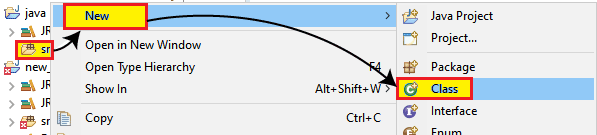
Selenium web driver - Google Chrome Browser
  • And give our Class name as test_chrome and click onthe Finish button.
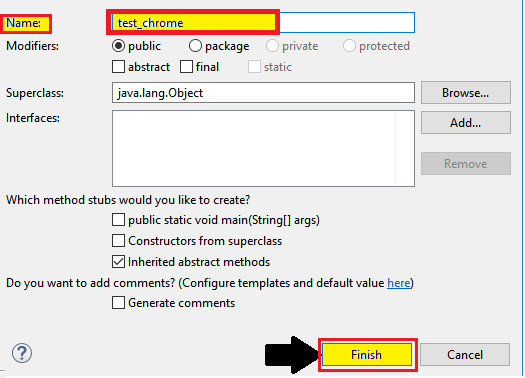
Selenium web driver - Google Chrome Browser 1

Step2:

Now, go to the selenium community and download the Chrome driver server. In the Selenium community, we will find the third party driver division. And click on the link beside the Google Chrome driver.

                                              Or

Directly open the below link, it will navigate you to the download page of Chrome driver in your browser.

https://sites.google.com/a/chromium.org/chromedriver/downloads

Step3:

If you click on the above link, it will redirect you to the Current releases page where you can download the operating system, which you are working currently on.

Selenium web driver - Google Chrome Browser 2
  • Click on the chromedriver_win32.zip link and download it for the Windows platform.
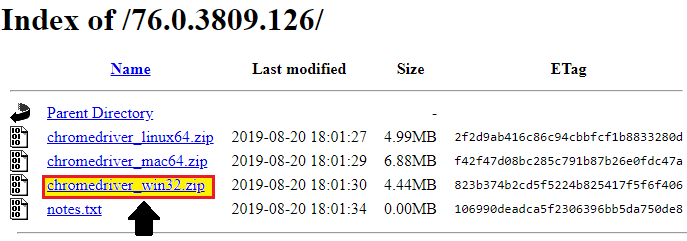
Selenium web driver - Google Chrome Browser 3
  • Download the zip file into your local system, and unzip the folder, it will generate chromedriver.exe file automatically.

Selenium web driver - Google Chrome Browser 4

Step4:

Run the server before launching the Chrome browser, with the help of System.property,

Syntax:

System.SetProperty(“key”, ”value”);

To set the system property for the Chrome driver in real-time where

Key = “webdriver.chrome.driver”

And the path of our ChromeDriver.exe file to invoke the ChromeDriver class.

Value=”C:\Users\JTP\Downloads\chromedriver_win32\chromedriver.exe"

Note: Make sure that, while copying a path for the chroedriver.exe file, it should always be in a double slash (//).

Sample code for system property:

// System Property for Chrome Driver
System.setProperty("webdriver.chrome.driver","C:\Users\JTP\Downloads\chromedriver_win32\chromedriver.exe");  
// create an object for ChromeDriver class
WebDriver driver=new ChromeDriver();   

Let us see one example where we will try to automate the following scenarios in the Google Chrome browser.

Steps Action Method Used Input Excepted Result
1. Open the Google Chrome Browser. System.setProperty()   The Google Chrome browser must be opened.
2. Navigate to the Given URL of the website. get() https://www.tutorialandexample.com The home page window must be displayed.
3. Maximize the browser.       The browser window should be maximized.
4. Identify the Angular 8 tutorials from the latest tutorial section.     The angular 8 tutorials should be identified in the latest tutorial section.
5. Close the Browser. close()   The browser should beterminated.

Here is the sample code for the above example.

package testpackage;
import org.openqa.selenium.By;
import org.openqa.selenium.WebDriver;
import org.openqa.selenium.chrome.ChromeDriver;
public class test_chrome {
public static void main(String[] args) {
System.setProperty("webdriver.chrome.driver","C:\Users\JTP\Downloads\chromedriver_wi32\chromedriver.exe");
// create driver object for Chrome browser
WebDriver driver=new ChromeDriver();
// Launch the Website
driver.navigate().to("https://www.tutorialandexample.com");  
//Maximize the browser window
driver.manage().window().maximize();  
 System.out.println("window size is maximized");
// Click on the angular 8 tutorial link
driver.findElement(By.xpath("//a[contains(text(),'Angular 8 Tutorial')]")).click();
System.out.println("angular 8 tutorial page is opened");
//close the browser
driver.close();
System.out.println("existing browser is closed");
}
}

Now, right-click on the Eclipse code and select Run as ? Java Application.

The output of the above test script would be displayed in the Google Chrome browser.

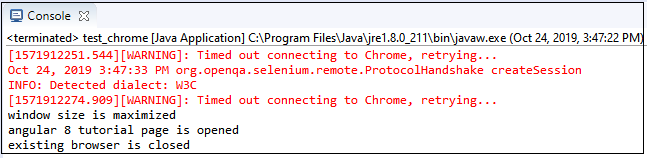
The output of all print command of the above test script would be displayed in the Eclipse console window.
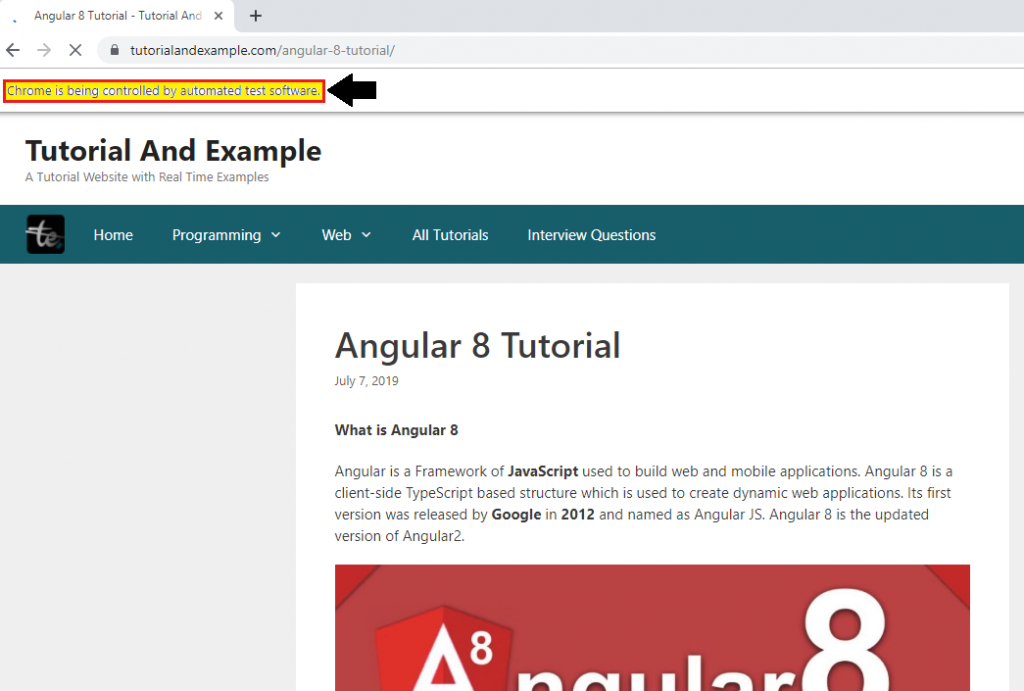
Selenium web driver - Google Chrome Browser 5

The output of all print command of the above test script would be displayed in the Eclipse console window.
Selenium web driver - Google Chrome Browser 6


Related Topics

Selenium-IDE Locators

Selenium-IDE Locators: Before we start learning about Selenium –IDE Locators, firstly we have to learn about UI elements. UI Elements -UI elements are the elements which are displayed on the web application....

1 minute read.

Selenium WebDriver- Radio button handling

Selenium WebDriver- Radio button handling In this tutorial, we will be learning about handling the radio button in selenium WebDriver. Let us take one example to give you a better understanding of...

3 minutes read.

Link Text Locator in Selenium IDE

LINK TEXT Link textlocator is used to identify only the weblink element based on the name of the link. Whenever multiple links are there, it will not work; it will work only...

1 minute read.

Selenium WebDriver Tutorial

Seleniun WebDriver Introduction Selenium WebDriver is the essential tool of Selenium Tool Suite because it can directly communicate the browser without any server.  Selenium WebDriver is a browser automation framework that accepts...

3 minutes read.

Selenium WebDriver - Browser Controls Commands

Selenium WebDriver - Browser Controls Commands WebDriver includes operations like opening a browser, fetch the title, and closing the browser, etc. Some of the most commonly used Browser controls commands for Selenium WebDriver...

6 minutes read.

Selenium WebDriver- Microsoft Edge Browser

Selenium WebDriver- Microsoft Edge Browser: In this tutorial, we will learn how to launch the Microsoft Edge browser in the Selenium WebDriver. Before we start automating our test script with Microsoft Edge...

4 minutes read.

Selenium Tool Suite

The selenium tool suite is a combination of multiple software tools, and the entire tools having a different approach to support automation testing. Selenium test tool suites are as follows- Selenium...

2 minutes read.

CSS Selector: Class in selenium IDE

CSS Selector: Class Identify a web element with the help of Class as a CSS Selector is like using id attribute. The only difference between Class and id is in their...

2 minutes read.

Selenium WebDriver-CSS Selector: Tag Class and Attribute

Selenium WebDriver-CSS Selector: Tag, Class, and Attribute We will locate the web element with the help of Tag, class, and attribute CSS selector locator in this section of the tutorial. Where Tag,...

5 minutes read.

CSS Selector: ID/Class and Attribute in Selenium IDE

CSS SELECTOR: ID/Class and Attribute The Id, class, and attribute of CSS selector are used to identify the web element to access the web pages.  Syntax for Id/Class and Attribute: css= <./#> {[attribute=Value of...

2 minutes read.

Name Locator in Selenium IDE

NAME LOCATOR: It is used to find the name in the web element. If we have multiple web elements of the same name, then the first matched element would be returned. Open the...

3 minutes read.

Selenium Wait

In this tutorial, we will understand how we can avoid synchronization issues while executing the test script in a selenium WebDriver. Before going further in this tutorial, first, we will understand that...

10 minutes read.

CSS Selector: Sub String in Selenium IDE

CSS Selector: Sub String CSS Selector Sub-string is used to match a partial string to locate a particular web element. There are three ways to match a substring using a CSS Selector. Match...

2 minutes read.

WebDriver Interface | Class Diagram

WebDriver interface/class diagram: The interface of WebDriver includes the following stages, which is as follows: Search Context Web driver Remote web driver Driver class Search Context  The first interface of the web driver class is search Context,...

2 minutes read.

Verification Controls Methods in Selenium WebDriver

Verification Controls Methods  The verification controls methods are used to check whether the web element is displayed, enabled, and selected. Some of the most commonly used verification controls are as follow: Verification controls Description Return...

4 minutes read.

Selenium Testing

Selenium is a functional testing tool and compatible with non–functional testing tool. Selenium is free and not required any licensing. There are specified types of testing that can be automated using Selenium:-   Functional Testing: Checking every component...

3 minutes read.

Data-Capture Controls Methods in Selenium WebDriver

Data-Capture Controls Methods: The data-capture controls are used to determine the text, size, location, and the CSS value of the web element, etc. Some of the most commonly used data-capture controls are...

7 minutes read.

Operational Controls Methods in Selenium WebDriver

Operational Controls Methods The Operational controls are used to perform all the actions on the web elements like click on the button, pass the value in the text box, and click...

4 minutes read.

Id Locator in Selenium IDE

Id Locator Id locator is used to find the web element by the help of id of that element because ID is likely to be unique for each web element. Target Format: Id=id of the...

2 minutes read.

Selenium WebDriver &ndash; Window handling

Selenium WebDriver – Window handling In this tutorial, we will understand how we can handle the window, multiple windows, and pop-ups in selenium WebDriver. We have different types of window, and pop-ups...

7 minutes read.