
×

First test case of Selenium-IDE

First Test Case of Selenium-IDE:

In this part, we are discussing how to create a basic test case in Selenium-IDE:

The entire test script execution process in Selenium -IDE can be divided into the following steps:

  • Recording (record the user interactions with the browser)
  • Playing back (executing the recorded script)
  • Save the test case suite
  • Export the test script

Now, we will look into the implementation of the above three steps.

Recording:

  • Launch the Firefox browser.
  • Click on the Selenium icon, which was present on the top right corner of the Firefox browser.
  • The browser will launch the default interface of Selenium-IDE, and asking you to create a project.
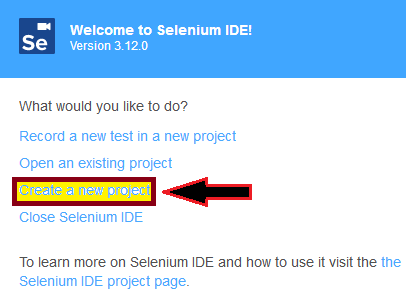
default interface of Selenium-IDE
  • Give a project name, e.g., first_test_case
  • Give a test name, e.g.-tutorialandexample_test.
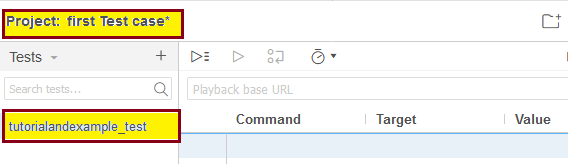
Give a test name
  • Click on the Start Recording Button, which is present at the top right corner on the Selenium-IDE interface.
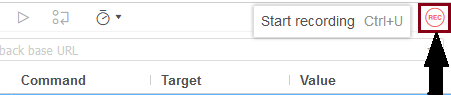
Start Recording Button
  • After click on the start recording button, one pop-up window will be shown where you have to give a base URL. e.g., https://www.google.com/ and again click on the start recording button.
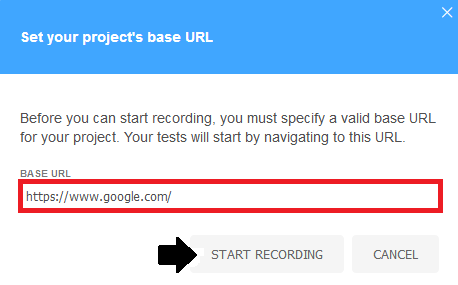
one pop-up window will be shown
  • It will redirect you to the Google search page, where you can type tutorial and example.com and click on the first link.
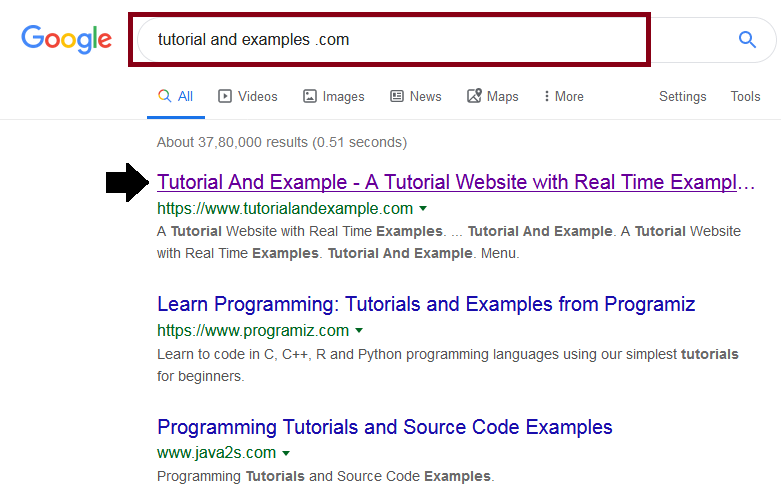
you can type tutorial and example.com and click on the first link
  • It will redirect to the home page of tutorial and examples .com.
  • Go to selenium –IDE and click on the stop recording button, it will stop your action with browser immediately. 
  • And the text editor box has recorded all the action performs on the browser.
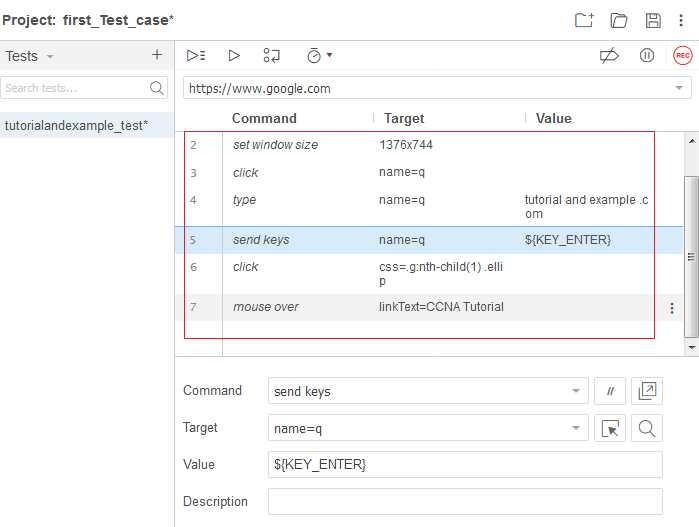
text editor box has recorded all the action

Now, we are going to the next step, which includes executing the recorded script.

Playing Back:

  • Click on Run Current test button, which is present on the toolbar menu of the Selenium-IDE.
  • It will execute all the interactions with the browser and gives you an overall summary of the completed test scripts.
  • Executed test scripts summary will be displayed on the log pane.
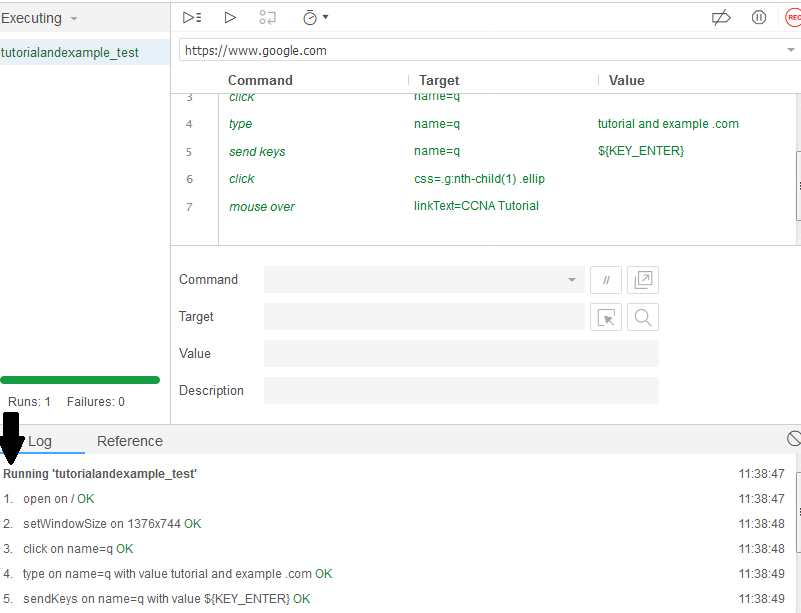
Executed test scripts summary

Now, we are coming to our next segment, where we can learn about how we can save the project.

Save Project:

  • Click on the save project button present on the extreme right corner of the menu bar.
  • Save the test case suite as First_Test_case.
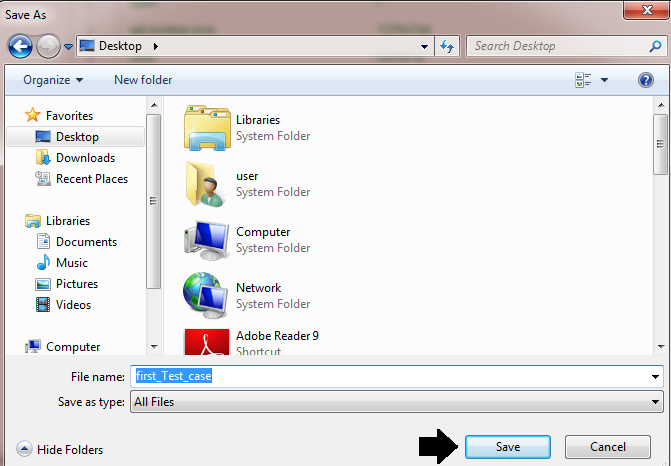
Save the test case suite as First_Test_case
  • The test case suite can be found at the location provided in the above steps. Notice that the test script saved as .side format.

test case suite can be found at the location

Export Test Script

There is no export option in the latest version of Selenium IDE because there is no file menu present in the IDE interface.

 But it is available in the test suit box which is shown in the below snapshot:
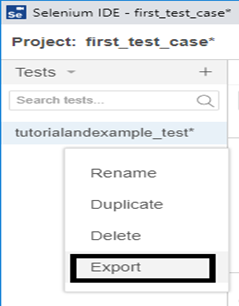
latest version of Selenium IDE

To export our test case in different languages in selenium ide, follow below steps:

For our better understating that how we export our test script in a different language, we are considering the above example

  • First right click on the existing test case tutorialandexample_test and click on the export button.
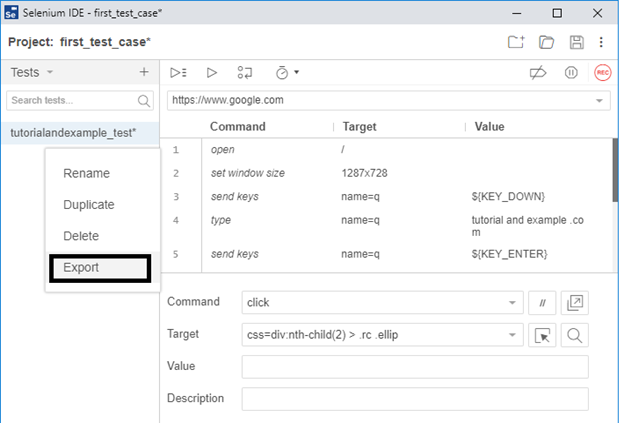
selenium ide first test case
  • After click on the export button, one pop-up window will be opened and ask you to select one of the programming languages.
  • Select one of the options and click on the export button.
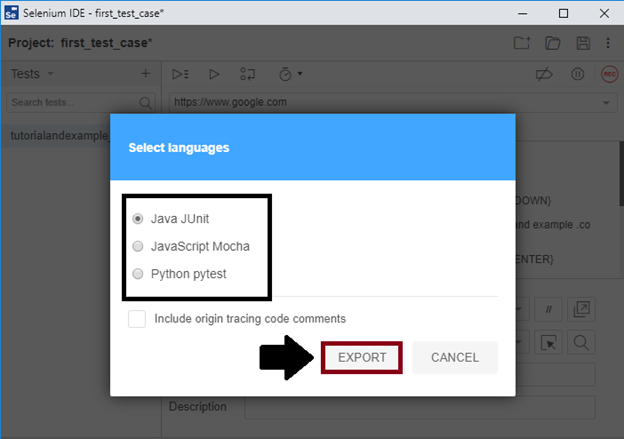
Select one of the options and click on the export button
  • Export your test case file in your local system and save it with a particular name.
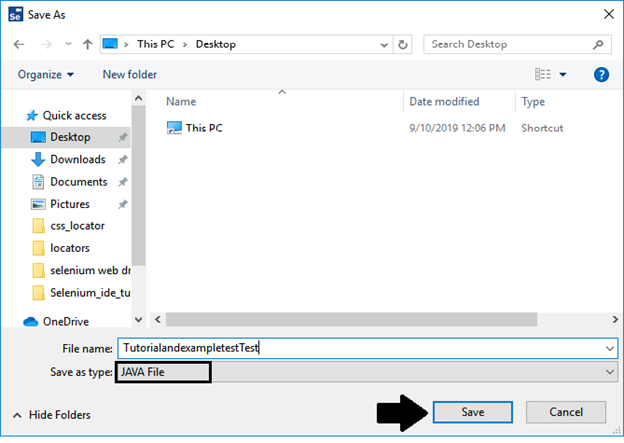
Export your test case file in your local system
  • After saving the exported file in our local system, we will open that file. You can open that exported file, go to your Selenium IDE interface and click on the particular file.
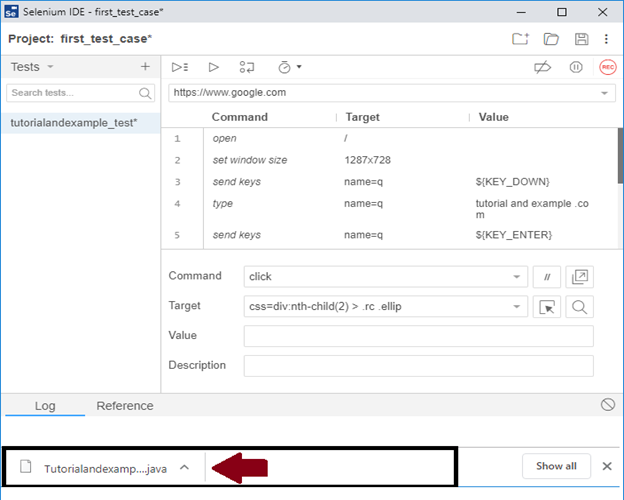
After saving the exported file in our local system
  • When we click on the saved file, one pop-up window will appear and ask you to open your file in a different text editor.
  • Select one of the text editors and click on the ok button.
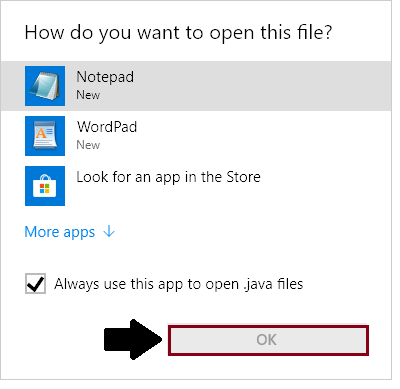
Select one of the text editors and click on the ok button
  • Your test script will look like this in java language.
// Generated by Selenium IDE
import org.junit.Test;
import org.junit.Before;
import org.junit.After;
import static org.junit.Assert.*;
import static org.hamcrest.CoreMatchers.is; 
import static org.hamcrest.core.IsNot.not;
import org.openqa.selenium.By;
import org.openqa.selenium.WebDriver;
import org.openqa.selenium.firefox.FirefoxDriver;
import org.openqa.selenium.chrome.ChromeDriver;
import org.openqa.selenium.Dimension;
import org.openqa.selenium.WebElement; 
import org.openqa.selenium.interactions.Actions;
import org.openqa.selenium.support.ui.ExpectedConditions;
import org.openqa.selenium.support.ui.WebDriverWait;
import org.openqa.selenium.JavascriptExecutor;
import org.openqa.selenium.Alert;
import org.openqa.selenium.Keys; 
import java.util.*;
public class TutorialandexampletestTest {
 private WebDriver driver;
 private Map vars;
 JavascriptExecutor js;
 @Before
 public void setUp() {
 driver = new ChromeDriver(); 
 js = (JavascriptExecutor) driver;
 vars = new HashMap();
 }
 @After
 public void tearDown() {
 driver.quit(); 
 }
 @Test
 public void tutorialandexampletest() {
 driver.get("https://www.google.com/");
 driver.manage().window().setSize(new Dimension(1287, 728));
 driver.findElement(By.name("q")).sendKeys(Keys.DOWN);
 driver.findElement(By.name("q")).sendKeys("tutorial and example .com");
 driver.findElement(By.name("q")).sendKeys(Keys.ENTER);
 { 
 WebElement element = driver.findElement(By.cssSelector("div:nth-child(2) > .rc .iUh30"));
 Action builder = new Actions(driver);
 builder.moveToElement(element).perform();
 }
 {
 WebElement element = driver.findElement(By.tagName("body")); 
 Action builder = new Actions(driver);
 builder.moveToElement(element, 0, 0).perform();
 }
 driver.findElement(By.linkText("CCNA Tutorial")).click();
 driver.findElement(By.cssSelector("div:nth-child(2) > .rc .ellip")).click();
 }
} 

Related Topics

WebDriver-Id Locator

WebDriver-Id Locator: The Id Locator is used to identify any web element in UI with the help of the ID attribute. The First preference is always goes to ID locator while inspecting...

4 minutes read.

CSS Selector: ID/Class and Attribute in Selenium IDE

CSS SELECTOR: ID/Class and Attribute The Id, class, and attribute of CSS selector are used to identify the web element to access the web pages.  Syntax for Id/Class and Attribute: css= <./#> {[attribute=Value of...

2 minutes read.

Selenium Wait

In this tutorial, we will understand how we can avoid synchronization issues while executing the test script in a selenium WebDriver. Before going further in this tutorial, first, we will understand that...

10 minutes read.

Selenium WebDriver-CSS Selector locator

Selenium WebDriver-CSS Selector locator A CSS selector is used to identify the web element based on their “# id” and “. Class”, Html tags, and attributes. A CSS stands for Cascading Style...

1 minute read.

Selenium WebDriver-Locators

Selenium WebDriver-Locators The WebDriver uses the same set of locating strategies like selenium -IDE for specifying the location of the web element. Each locating strategy has its command in Java to locate...

1 minute read.

Difference between Selenium WebDriver and Selenium RC

Difference between Selenium WebDriver, and Selenium RC: Selenium WebDriver and selenium RC (Remote Control) both are different in any manners which we see later in this tutorial, let us see the...

3 minutes read.

Selenium WebDriver-CSS Selector: Tag and ID

Selenium WebDriver-CSS Selector: Tag and ID We will locate the web element with the help of tag and id CSS selector in this section of the tutorials Where Tag and id are...

4 minutes read.

WebDriver Interface | Class Diagram

WebDriver interface/class diagram: The interface of WebDriver includes the following stages, which is as follows: Search Context Web driver Remote web driver Driver class Search Context  The first interface of the web driver class is search Context,...

2 minutes read.

WebDriver-Class Name Locator

WebDriver-Class Name Locator In this tutorial, we will learn about the Class name locator of selenium WebDriver. The Class Name locator is used to identify any element in UI based on the...

4 minutes read.

Selenium IDE Tutorial for Beginners

Selenium IDE Introduction Selenium IDE stands for Integrated Development Environment. Selenium-IDE is released in 2006 and developed by SHINYA [JAPAN] THOUGHTWORK Company. Selenium IDE implemented as a Firefox plug-in, and concedes the record, edit, and debug tests....

2 minutes read.

Selenium WebDriver- Microsoft Edge Browser

Selenium WebDriver- Microsoft Edge Browser: In this tutorial, we will learn how to launch the Microsoft Edge browser in the Selenium WebDriver. Before we start automating our test script with Microsoft Edge...

4 minutes read.

CSS Selector: Class in selenium IDE

CSS Selector: Class Identify a web element with the help of Class as a CSS Selector is like using id attribute. The only difference between Class and id is in their...

2 minutes read.

Selenium WebDriver - Browser Controls Commands

Selenium WebDriver - Browser Controls Commands WebDriver includes operations like opening a browser, fetch the title, and closing the browser, etc. Some of the most commonly used Browser controls commands for Selenium WebDriver...

6 minutes read.

Data-Capture Controls Methods in Selenium WebDriver

Data-Capture Controls Methods: The data-capture controls are used to determine the text, size, location, and the CSS value of the web element, etc. Some of the most commonly used data-capture controls are...

7 minutes read.

Selenium Tutorial

What is Selenium? Selenium is a functional testing tool and compatible with the non-functional testing tools also. Selenium is free and does not require any licensing. Functional tests script executed by...

6 minutes read.

Selenium IDE Commands

Selenium –IDE Commands (SELENESE): Selenese commands are the set of commands used in Selenium IDE. Selenese command has two parameters target and value. Selenese command tests the existence of UI elements based on their HTML tags,...

3 minutes read.

Selenium WebDriver-CSS Selector: Tag Class and Attribute

Selenium WebDriver-CSS Selector: Tag, Class, and Attribute We will locate the web element with the help of Tag, class, and attribute CSS selector locator in this section of the tutorial. Where Tag,...

5 minutes read.

Name Locator in Selenium IDE

NAME LOCATOR: It is used to find the name in the web element. If we have multiple web elements of the same name, then the first matched element would be returned. Open the...

3 minutes read.

Selenium WebDriver Commands

Selenium WebDriver Commands: As we learn previously in the Selenium-IDE tutorial, Selenium commands are the set of commands that are used to run a Selenium test script. But whereas, Selenium WebDriver had...

2 minutes read.

Selenium WebDriver - Firefox or Gecko (Marionette) browser

Selenium web driver-Firefox or Gecko (Marionette) browser In this tutorial, we are going to learn how to run the Selenium WebDriver test script in the Firefox Browser using the Gecko Driver. Before going...

4 minutes read.