
×

Auto Fill and Flash fill

Fill Features

Excel provides an amazing feature to fill the data automatically, if the available data is present in the form of any pattern. Instead of entering your data manually, you can use Fill features to fill cells with data that follows some pattern. The commonly used Fill Features are AutoFill and Flash Fill.

  1. Auto Fill

A useful Excel feature which allows creating a series of numbers of character or rows of data based on the values from other cells. Excel assumes and compares the selected data and tries to guess the following values that will be inserted. This feature allows you to create the excel spreadsheets more efficiently and quickly fill the selected cells with a series of data.

The following are the steps for harnessing the Auto Fill features:

  1. Open a new sheet and name it as “Auto Fill”. Add the initial data that is needed. Go to cell A1 and enter 2, 4 in A2, 6 in A3, and 8 in A4. It represents the even numbers.
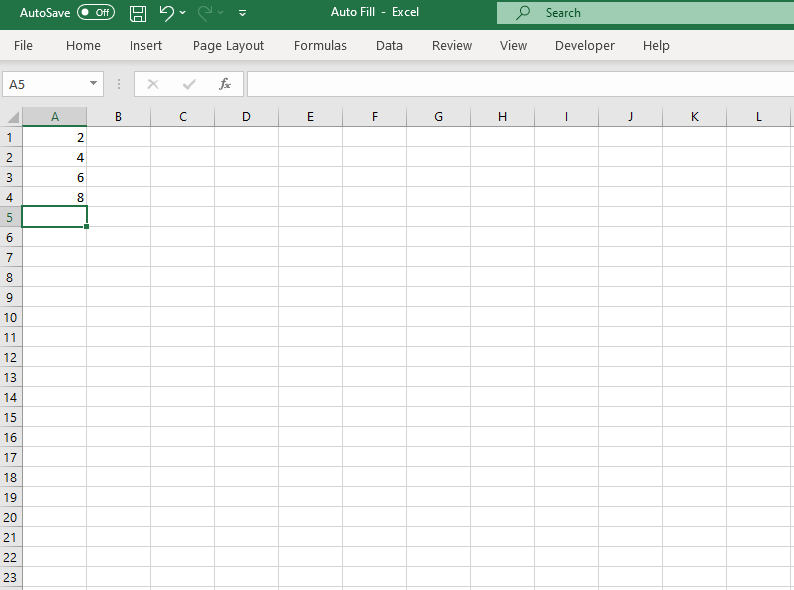
Open a new sheet and name it as “Auto Fill”.
  • Select the top 4 rows and move the cursor to the bottom right corner. You will notice that it has turned into a small black cross. This is called the File Handle. Drag it to down till 20throw cursor. You can drag the cursor across the cells to as many as you require.
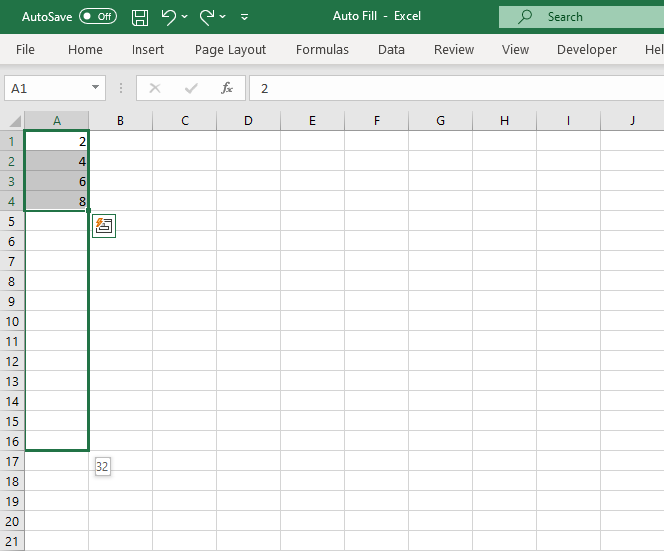
You can drag the cursor across the cells to as many as you require.
  • You will notice that Excel has automatically recognized the pattern and fills the pattern of even number quickly. It saves time and efficient. Similarly, you can try it for formulas, months, days, odd numbers, different patterns, etc.,

Note: This feature is suited for copying formats and formulas. In fixed data, unlike months, weekdays, etc., if you exceed the number of cells needed, data will be repeated.

2. Flash Fill

The Excel Flash Fill option recognizes a pattern in your data and fills in data for you to save your time and effort. To use flash fill, the user must enter a couple of examples of the output and must keep the active cell in the column you want to be filled in. Flash Fill gets updated instantly as soon as Excel recognizes the pattern in the date that the user is entering.

Shortcut Used: CTRL + E

The following are the steps for enabling the Auto Fill features:

  1. First, we must create few entries and establish the basic pattern so as we can guide Excel to establish the pattern. In the below example, we have created few name entries and have fetched only the first name of those entries in column B. Fill up to 3-4 entries.
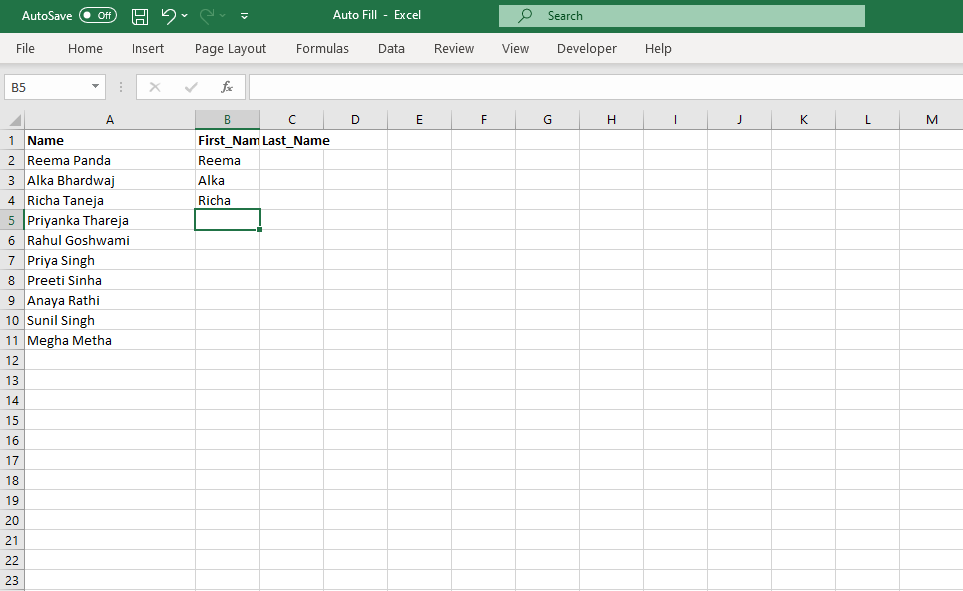
we must create few entries and establish the basic pattern so as we can guide Excel to establish the pattern.
  • Keep the cursor in the cell from where you want to fill the data. Under Data, click on the Flash Fill option. Or you can also press the shortcut for Flash Fill, i.e., CTRL +E.
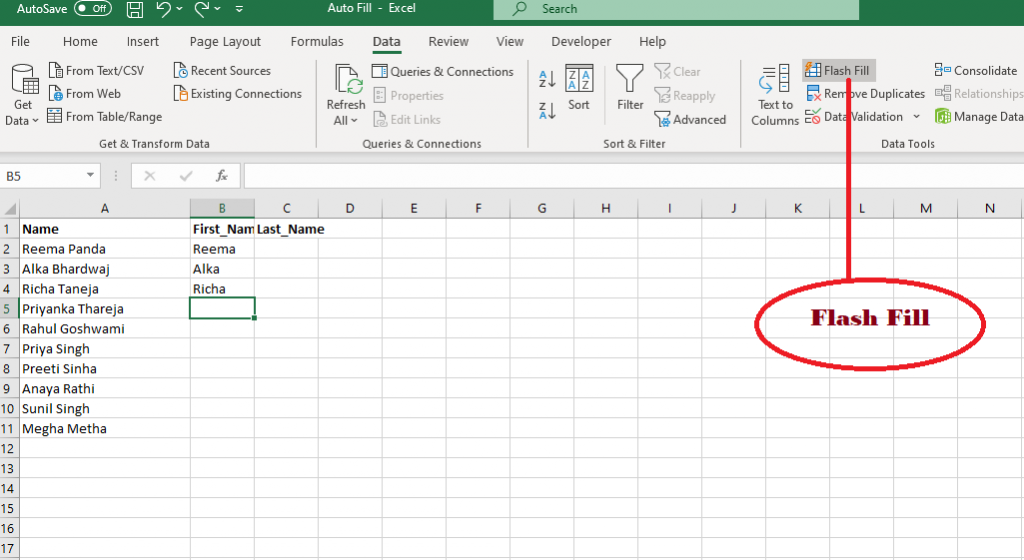
you can also press the shortcut for Flash Fill, i.e., CTRL +E.
  • You will notice that the desired output has been fetched in the same pattern, and all the First Name entries have been filled in Column B.
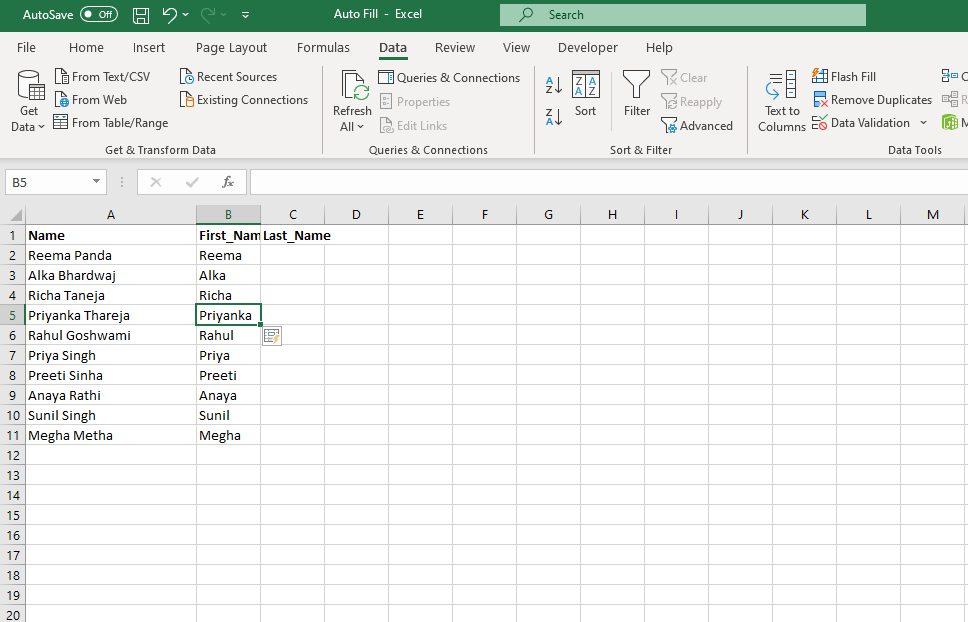
First Name entries have been filled in Column B.
  • Similarly, now you can try with Last_Name. Just right few entries, and you will notice Excel is automatically suggesting the other values for you.
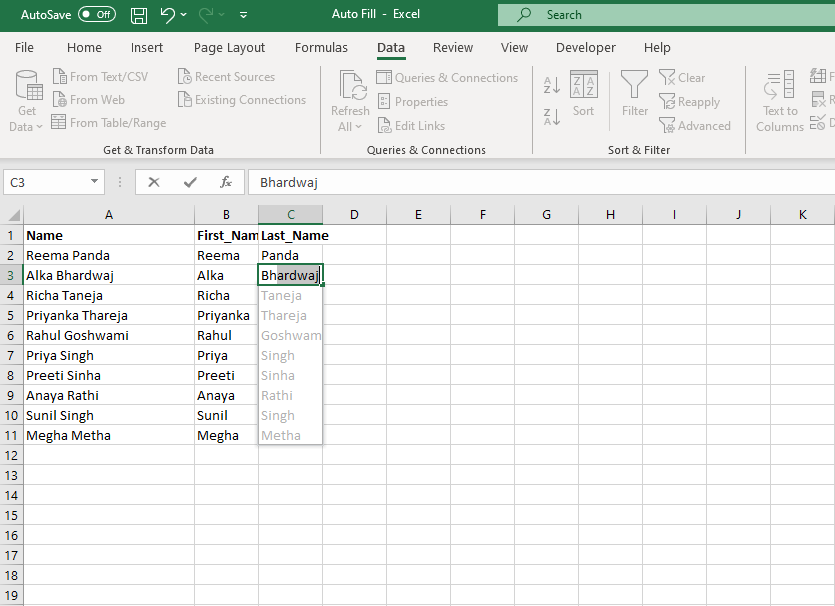
you will notice Excel is automatically suggesting the other values for you.
  • Click on Enter and you will notice all the values have been automatically filled.
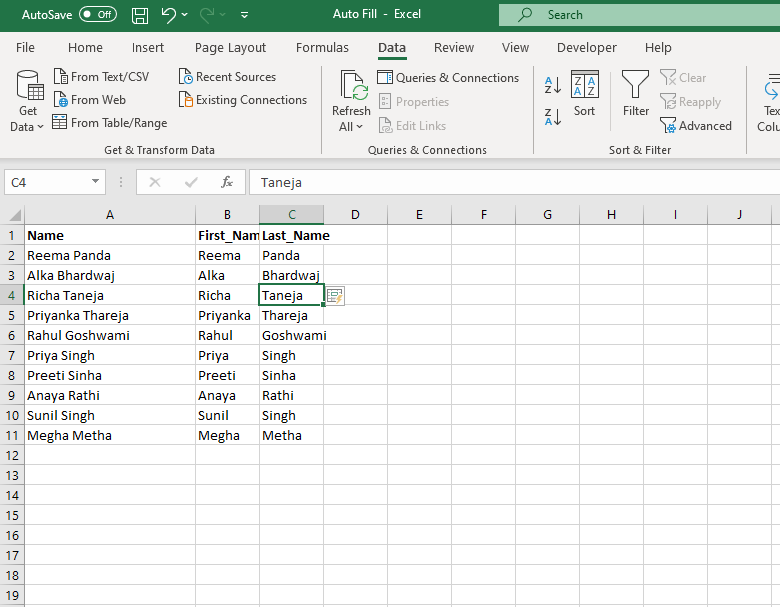
Click on Enter and you will notice all the values have been automatically filled.

Note: Sometimes, Excel does not realize the pattern. In that case, instead of 3-4 basic entries, you must perform a few more entries such that it can adapt the pattern quickly.


Related Topics

How to make use of the Excel Autofit in Excel

In Microsoft Excel, Autofit can be used to adjust and then fix the column and the respective row height to till the maximum limit until and unless it has the...

7 minutes read.

Formats in Excel

What are the formats? Formats are different options that one uses to change the appearance of data (maybe text, number, etc..) in an excel file. They do not change the value of the...

3 minutes read.

How to make use of the Wildcard in Excel

In this modern world, it is known that the wildcard characters in Microsoft Excel are considered to be the most essential and unrated features of Microsoft Excel. Besides all these,...

8 minutes read.

How to import Microsoft Access data into the Microsoft Excel

Microsoft Access is primarily considered vital and the primary tool for individuals who want to create and manage the respective type of Database efficiently. This tutorial will discuss how to import...

5 minutes read.

Excel File using Password

How to Protect an Excel File using Password? Nowadays Microsoft Excel is widely used by large organizations to small organizations for their personal and professional usage. They share files to various...

2 minutes read.

Formatting in Excel

Formatting in Excel Formatting in Excel is used to alter and change the appearance of your data in a standardized form. It also helps you to give a professional look to your reports, worksheets,...

7 minutes read.

Text to Columns

Text to Columns This Excel feature is used to split the cell content name of one cell into multiple columns based on a delimiter, such as a space or a special character or based...

2 minutes read.

Excel EDATE() Function

Excel EDATE() Function The EDATE() function in excel returns the serial number of the date that is the indicated number of months before or after the start date. Syntax EDATE(Start_Date, Month) Parameter Start_Date(required)- This parameter represents...

1 minute read.

Custom Sort Order in Excel

Microsoft Excel Worksheet is widely used for office, personal and various usages. The data present in the worksheet is a combination of numbers and alphabets. If the worksheet contains more...

3 minutes read.

Excel Themes

Microsoft Excel contains various features to enhance the appearance of the worksheet like text color, font size and general outlook of the objects. The users are provided with multiple theme...

3 minutes read.

Spell Check in Excel

Spell Check in Excel Microsoft Excel facilities the complete features for examining the work with text. It provides the basic properties for the proper functioning of text, including the spell-check property. The...

5 minutes read.

Pivots Table in Excel

What is a Pivot? A pivot table is a tool to create summary reports from data-sets irrespective of their sizes but is helpful even if the data is more than just...

5 minutes read.

Excel AND() Function

The AND() function in excel tests the multiple sets of conditions and returns TRUE if all supplied conditions met the criterion, FALSE otherwise. You need to have a minimum of 2 conditions...

2 minutes read.

Excel TEXT() Function

The TEXT () function in excel converts a supplied numerical value into the text of a specific format. Syntax TEXT(Value, Format_text) Parameter Value (required)- This parameter represents the value for which we need to...

1 minute read.

Text to columns in Excel

Microsoft Excel is widely used in startups to large companies. The data are entered in required rows and columns, and sometimes the data entered in one cell needs to enter...

4 minutes read.

Averageif Function in Excel

Average If in HTML In Mathematics, Average function is used to find the arithmetic mean of the given data. It is defined as the dividing the sum total of given data...

7 minutes read.

Trendline in Excel

A Trendline is a line imposed on a graph to predict the direction of the data. It connects the series of data together to showcase the data best fit. The...

3 minutes read.

Excel HOUR() Function

Excel HOUR() Function The HOUR() function in excel converts a serial number to an hour (0 - 23). Syntax HOUR(SERIAL_NUMBER) Parameter SERIAL_NUMBER (required)- This parameter represents the date or time from which you want to extract...

1 minute read.

Excel SMALL() Function

The SMALL() function in excel returns the k-th smallest value in a data set. Syntax SMALL(Array, kth small number from the list) Parameter Array (required)- This parameter represents the list of numbers from which nth smallest...

1 minute read.

Excel WEEKDAY() Function

The WEEKDAY () function in excel returns number from 1 (Sunday) to 7 (Saturday) identifying the day of the week based on its date. This function Default return is - Sunday would be...

1 minute read.