×

How to create drop down in excel?

How to create drop down in excel?

Drop-down lists are mostly used to facilitate data entry operations. They are commonly used in interactive websites or applications. Microsoft has expanded his Excel's data validation feature to make manageable lists with the help of drop-down feature within your worksheets. Microsoft users use this feature to limit the selection choice, create a list of valid choices that can be used to select the specified field and to control the visibility list. This feature is very intuitive for the user and is an excellent approach to provide the user with a pre-defined list from where he can select his own options. This feature also enables the efficiency of data entry and reduces the risk of typing errors. In Excel, they are mostly used in user forms or in creating Excel dashboards.

There are three kinds of dropdown list that can be created in Microsoft Excel:

  1. Simple drop-down Lists
  2. Dynamic drop-down Lists
  3. Dependent drop-down Lists

Simple drop-down Lists

Simple drop-down lists are useful for creating fields that need certain information and require long or complex data where you want to control the user responses. To create a simple drop-drop list follow the given steps:

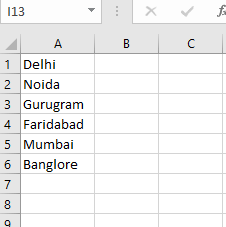
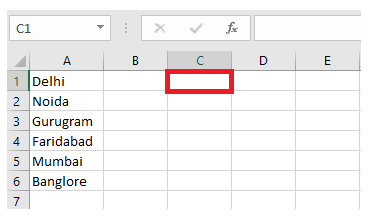
  1. In the excel sheet, type all the required data that you want to list down in your drop-down list.
How to create drop down in excel?
  • Place your cursor where you want to display the drop-down list. For an instance, here we have selected the C1 cell.
How to create drop down in excel?
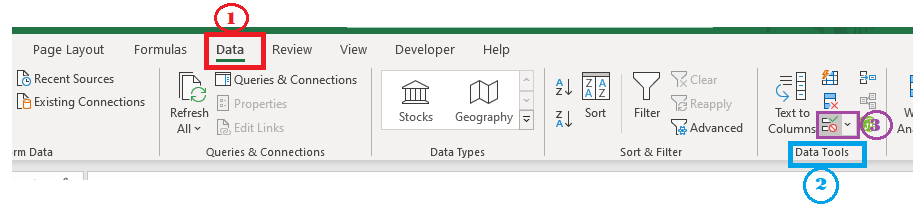
  • Click on Data ribbon toolbar-> select data validation.
How to create drop down in excel?
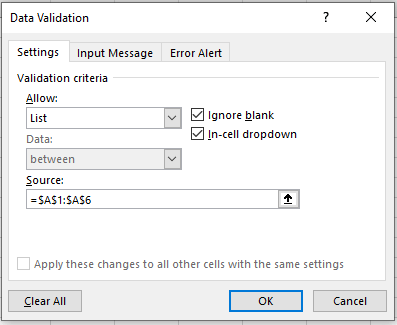
  • The data validation dialog box will appear.  The validation criteria have two parameters i.e., Allow and source.
  • In the allow parameter select the require type i.e list.
  • the source parameter is used to mention the data range (data you want to display in the drop-down list).
  • Click on OK
How to create drop down in excel?
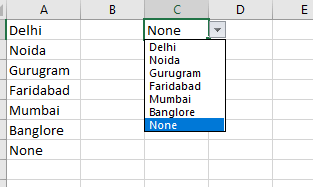
  • You will notice that the drop-down list has been created in the selected cell.
How to create drop down in excel?
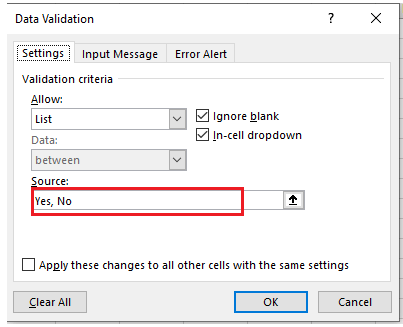
  • One can directly type the values in the source data instead of writing them separately in excel and then latterly using the reference range.
How to create drop down in excel?
  • Result for the above source data is given below.
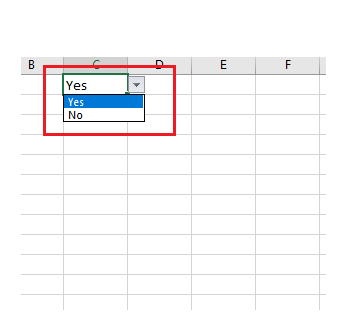
How to create drop down in excel?

Dynamic drop-down Lists

Dynamic drop-down lists are very convenient to use as it allows the user to select the data without making any changes to the source. It is similar to the simple drop-down validation. However, when you make any amendments in the source data t, the dynamic drop-down list changes automatically to accommodate that action, whereas in the case of simple drop-down list you have to manually refresh the drop-down validation feature. Hence, you need not to amend or refresh the drop-down data validation every time to get the updated drop-down list.

It is created with the help of Excel function. Below are the given steps to create a dynamic drop-down list:

  1. In the excel sheet, type all the required data that you want to list down in your drop-down list.
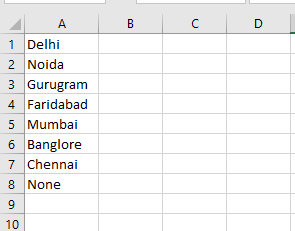
How to create drop down in excel?
  • Place your cursor to the cell where you want to display the drop-down list. For an instance, here we have selected the C1 cell.
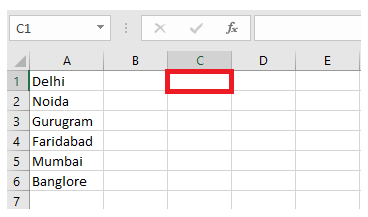
How to create drop down in excel?
  • Click on Data ribbon toolbar-> select data validation.
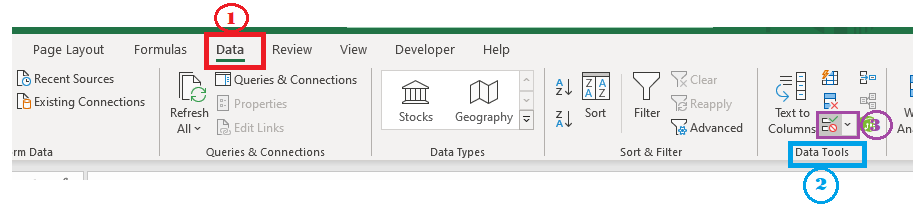
How to create drop down in excel?
  • The data validation dialog box will appear.  The validation criteria have two parameters i.e., Allow and source.
  • In the allow parameter select the require type i.e list.
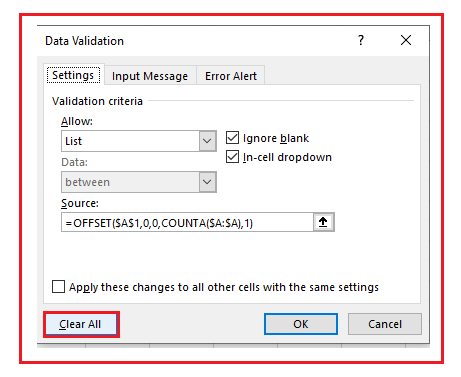
  • In the source parameter mention your formula to fetch data range: =OFFSET($A$1,0,0,COUNTA($A:$A),1)
  • Click on OK

Explanation of Formula:  The excel offset function consists of 5 parameters. Reference: Sheet1!$A$1, rows set to offset: 0, columns set to offset: 0, height: COUNTA(Sheet1!$A:$A) and width: 1. COUNTA function is used to count the number of values in column A on Sheet1 that are not empty.

Whenever the user adds any data in the excel list the COUNTA automatically increases. Thus, expanding the range returned by the OFFSET function and updating the drop-down list.
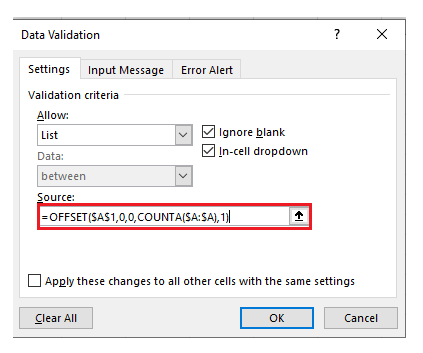
How to create drop down in excel?
  • You will notice that the drop-down list has been created in the selected cell.
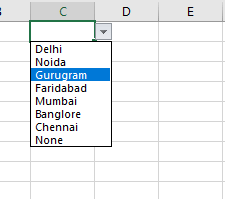
How to create drop down in excel?
  • Now, let’s add another a new item to the end of the excel list in order to check whether the list will be updated automatically or not.
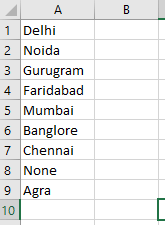
How to create drop down in excel?
  • You will notice that the new item has been automatically updated in the drop-down list as shown below.
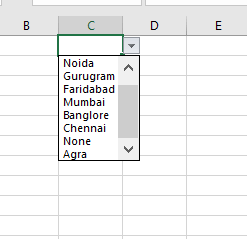
How to create drop down in excel?

Steps to remove drop-down list from Excel

  1. Select the cell where you have placed the drop-down list. Unlike here we have selected C1 cell.
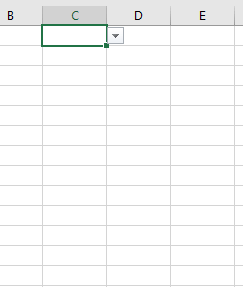
How to create drop down in excel?
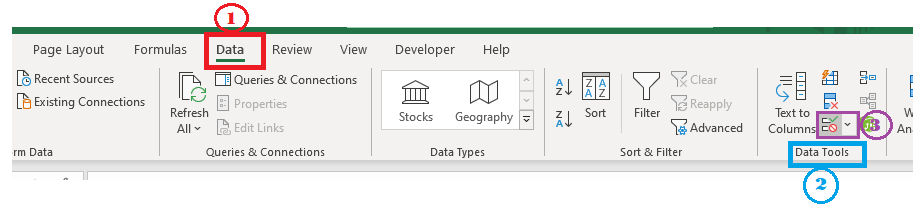
  • Click on Data ribbon toolbar-> select data validation.
How to create drop down in excel?
  • The data validation dialog box appears.
  • At the below of the dialogue box, you will find Clear All option. Click on the option.
  • Click on OK
How to create drop down in excel?
  • You will notice that the drop-down list has been removed from the Excel sheet.

Dependent drop-down Lists

In Excel the Dependent drop-down list are the replica of submenus in office applications. The data in the main drop-down list further displays another set of options categorically. This feature enables the user to select a category from the main menu drop-down list (such as Beverages), then it shows all the products related to the main product from the submenu. Thus, it adds on an advantage and is very helpful for dividing the products into handy categories (commonly used in ordering and inventory purposes). That is why the retails and wholesale companies prefer to excel dependent drop-down list to manage their product lines.

Following are the steps to execute the dependent drop-down list in your excel sheet:

  1. In the excel sheet, type all the required data along with their subcategories that you want to list down in your drop-down list.
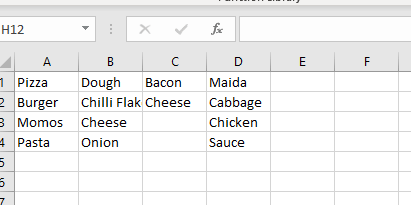
How to create drop down in excel?
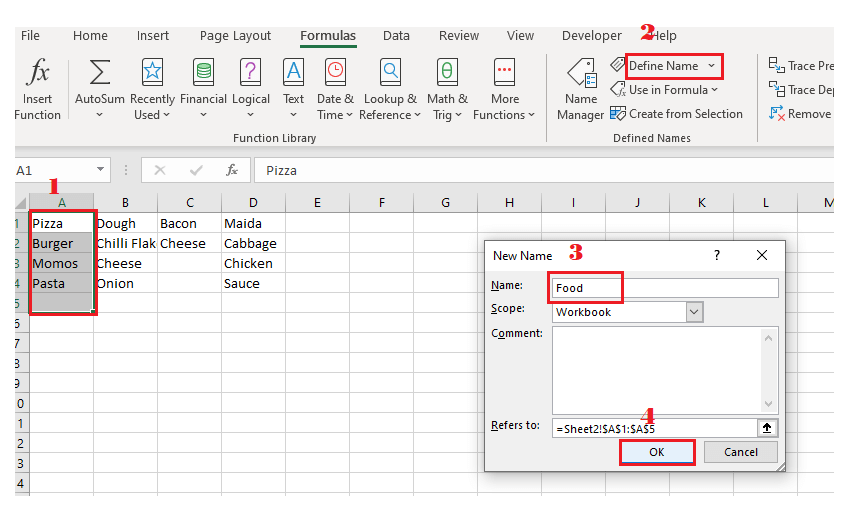
  • Specify you the define name group for specific data range.
  • Select the data range.
  • Under the formula tab ->Defined Names-> select Define Name
  • A dialog box will appear. Specify your name and click on Ok.
How to create drop down in excel?
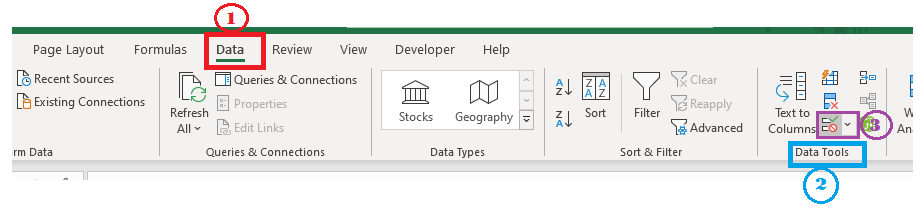
  • Select the cell where you want to display the drop-down list. Click on Data ribbon toolbar-> select data validation.
How to create drop down in excel?
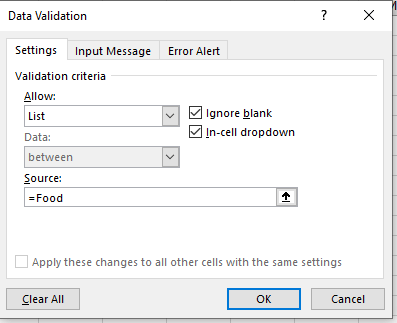
  • A dialog box will appear. The validation criteria have two parameters i.e., Allow and source.
  • In the allow box, select the list data type.
  • In the source parameter type =Food
How to create drop down in excel?
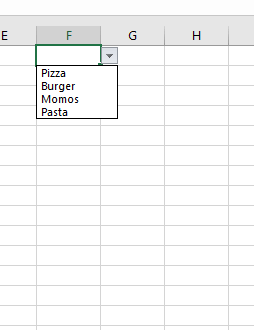
  • You will notice in F1 cell, your dependent drop-down list has been created.
How to create drop down in excel?

Related Topics

Excel MOD() Function

Excel MOD() Function The MOD() function in excel returns the remainder after a number is divided by a divisor Syntax MOD(number, divisor) Parameter Number(required)- This parameter represents the number which you want to divide. Divisor(required)- This parameter represents...

1 minute read.

Calculating the Last Day of the Month in Excel

In Microsoft Excel, various functions exist to calculate the date and time from the current date to the past and future. Among multiple tasks in this tutorial, let's see how...

3 minutes read.

Thermometer Chart in the Microsoft Excel

It was known that the thermometer chart is basically based on a single data point and that in turn could be used to show the achievement percentage. It primarily depends...

7 minutes read.

Excel COUNT() Function

Excel COUNT() Function The COUNT() function counts the number of cells in a range that contain numbers. Syntax COUNT([value1], [value [2], ...) Parameter value1(required)- This parameter represents the first cell in the range. value2, …(optional)- It represents the...

1 minute read.

Application Interface and Key Components

The essential key components of Excel are as follows: Ribbon TabQuick Access ToolbarFormula BarActive CellColumnsRows Name BoxSheet TabsZoom ControlStatus Bar Ribbon Tab: The ribbon includes tabs labeled Home, Insert, Page Layout, Formulas, Data, Review,...

3 minutes read.

Excel Nested IF’s Function

Excel Nested IF’s Function This function in excel helps in checking multiple conditions together by using IF conditions within the IF condition. Syntax if(Logical_Test, [value_if_true], if(Logical_Test, [value_if_true] , [value_if_false])) Parameter Logical_Test (required)- This parameter represents the condition which...

2 minutes read.

Operators in Excel

In MS Excel, operators are used to defining the operation you want to perform on the used elements or between variables. There are four types of operators: Arithmetic operators, Comparison...

4 minutes read.

Excel COUNTBLANK() Function

Excel COUNTBLANK() Function The COUNTBLANK() function in excel counts the number of blank cells within a range. Syntax COUNTBLANK ([value1], [value [2], ...) Parameter value1(required)- This parameter represents the first cell in the range. value2, …(optional)- It represents...

1 minute read.

Histogram in Excel

What is Histogram in Excel? “ A histogram is a graphical tool familiar for summarizing discrete or continuous data, where the data are measured on an interval scale.”  Karl Pearson described this...

5 minutes read.

Excel TIME() Function

Excel TIME() Function The TIME() function in excel returns the serial number of a particular time. Syntax TIME(HOUR, MINUTE, SECOND) Parameter HOUR (required)- This parameter represents the hour for your time. MINUTE (required)- This parameter represents the...

1 minute read.

Square Root Function in Excel

The concept of Mathematical calculations includes a large number of numbers and calculations are based on the numbers present in the data. Likewise, Square Root is a function used to...

3 minutes read.

Excel VALUE() Function

The VALUE() function in excel converts the specific text representing a number (i.e., a number, date, or time format) into a numerical value. Syntax VALUE(Text) Parameter Text(required)- This parameter represents the string that you want...

1 minute read.

SumIF Formula in Microsoft Excel

SUMIF Formula in Microsoft Excel is considered the primary and vital formula individuals can use to remove their workload. In this tutorial, we will discuss and learn about the SUMIF Formula...

7 minutes read.

Pivots Table in Excel

What is a Pivot? A pivot table is a tool to create summary reports from data-sets irrespective of their sizes but is helpful even if the data is more than just...

5 minutes read.

Cells and Ranges in Excel

Cells and Ranges Each cell is identified by its cell address, which is a combination of the column and row on which that cell is situated. A group of cells together are called ‘Range’. When...

5 minutes read.

Calculating Age in Excel

Microsoft Excel provides separate functions for various mathematical operations. Nowadays, Microsoft Excel is widely used by large and various organizations. Using formulas one can calculate the statistical functions quickly and...

2 minutes read.

Excel HOUR() Function

Excel HOUR() Function The HOUR() function in excel converts a serial number to an hour (0 - 23). Syntax HOUR(SERIAL_NUMBER) Parameter SERIAL_NUMBER (required)- This parameter represents the date or time from which you want to extract...

1 minute read.

Formats in Excel

What are the formats? Formats are different options that one uses to change the appearance of data (maybe text, number, etc..) in an excel file. They do not change the value of the...

3 minutes read.

Excel Axes

What is Excel Axes? Axes are a horizontal or vertical line containing units of measure. There are two types of axes X and Y axes. X is a horizontal and Y...

3 minutes read.

Excel INT() Function

Excel INT() Function The INT() function in excel is used to round a number down to the nearest integer. It removes decimal points from any number value & return rounded down number value in...

1 minute read.