
×

Charts in Excel

Charts

Definition of Charts

A chart is used to show numbers or data in a spreadsheet visually. It is the visual representation of your data. It is a tool that can be used in Excel to communicate data graphically. Different elements, such as columns or lines can be used to display a series of numeric data in a graphical format. It is useful to see the meaning behind the numbers and can show the comparison and trends much more accessible and easier. It enables the end user to look at the chart and interpret the results or observe the trends easily.

How to insert a chart?

Step: 1

  1. Select data you want to put on a chart
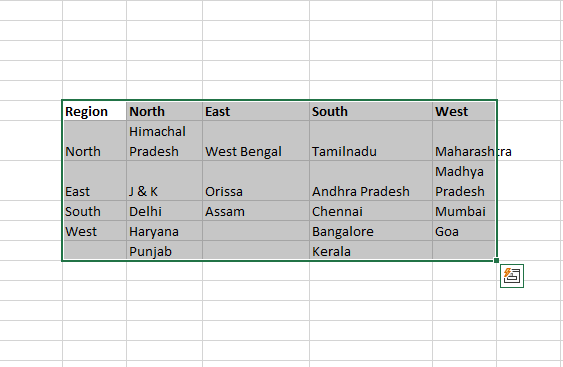
Select data you want to put on a chart
  • Go to ‘Insert’ and then click on the chart which you want to insert
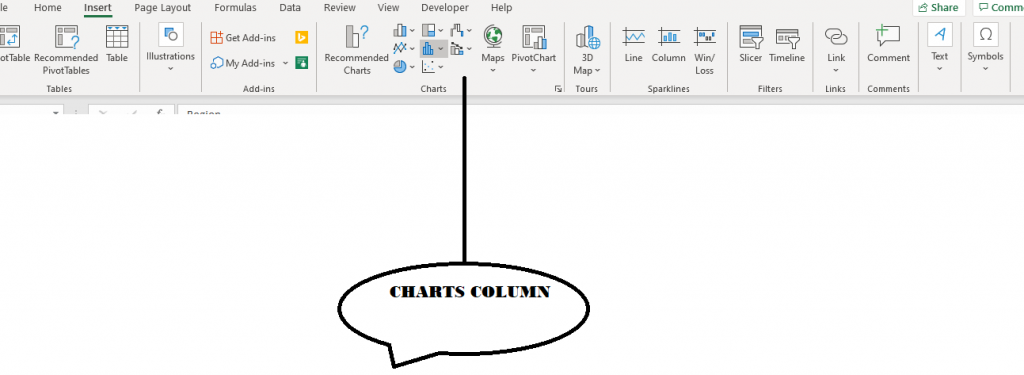
chart which you want to insert

Step: 2

1.       Select the chart which you want to insert

2.       Once the chart appears on the spreadsheet, do a right-click and click on ‘Select Data’

3.       Click on Chart Range and select the data which you want to see in the chart and click on OK

Parts of Charts

  1. Horizontal Axis (X-axis) - It consists of different values of the variable for which we are plotting data on the graph.
  2. Primary Vertical Axis (Y-axis.)-It consists of a scale based on different data points we are plotting on the graph.
  3. Secondary Vertical Axis – This is not present in all the graphs and is used when we are plotting 2 different variables on the graph and there is huge value different between the 2 variables – for ex we are plotting age and salary – age will be in 10’s multiples whereas Salary in 1,000’s – so if we plot them on the same Y-axis, age graph/line/data-points will not be visible at all.
  4. Data Points – These are the values which we are plotting on the graphs like age, salary.
  5. Chart Title – It gives the title of the chart. Once can change it, link it to a cell and even format it beautifully.
  6. Legend - Legend is sort of a key. It tells the user about the values that have been plot on the graphs.
  7. Data Label – When you plot values on a graph, you may also want to see values of each of these data-points. These values are called Data Labels.

Chart Types

Column Chart

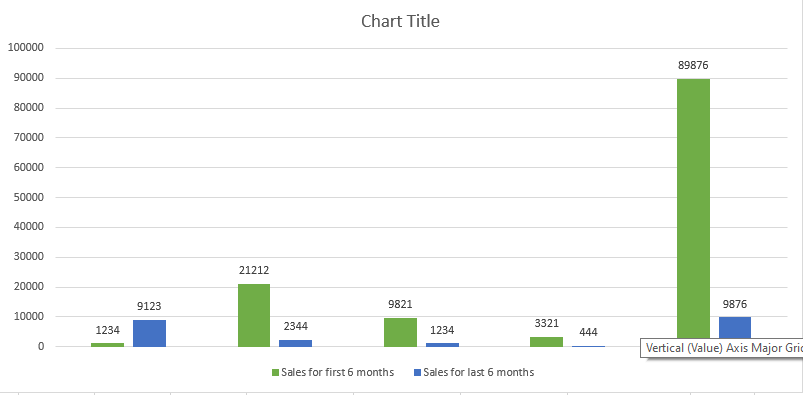
This is one of the most widely used chart types. Each data value (or data-point) is plotted as a vertical column/rectangle. The height of each column corresponds to the value of a data-point. Y-axis (primary vertical axis) provides us the scale for these values.

Column charts are often used to compare discrete items.
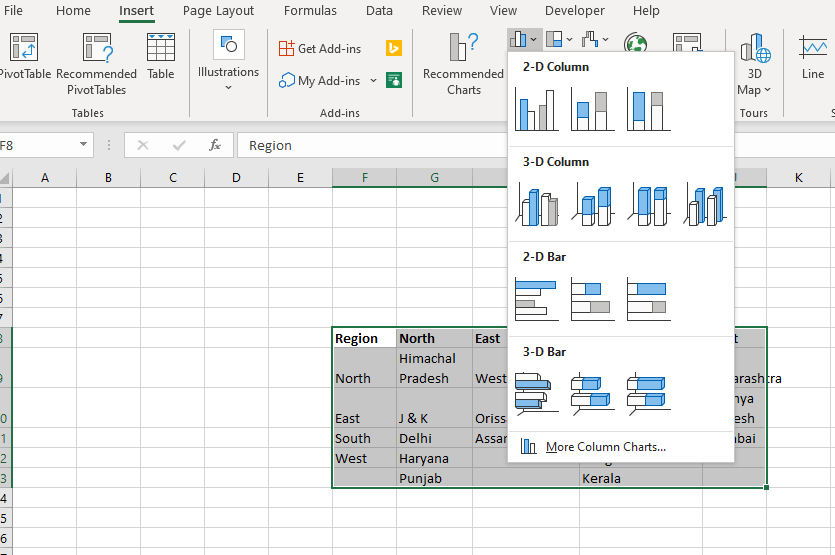
Column Chart

Column charts are also of several types -

Clustered Column

If there are 2 (or more than) variables which need to be plotted on a graph, then you will have 2 (or more) columns for each of the X-axis values – suppose we have total sales and profit for the entire 2016 for Company A – we can plot monthly sales and profit to see in which months the sales dipped and in which months the profit was less. We can also use this to understand if there is a correlation between sales and profit
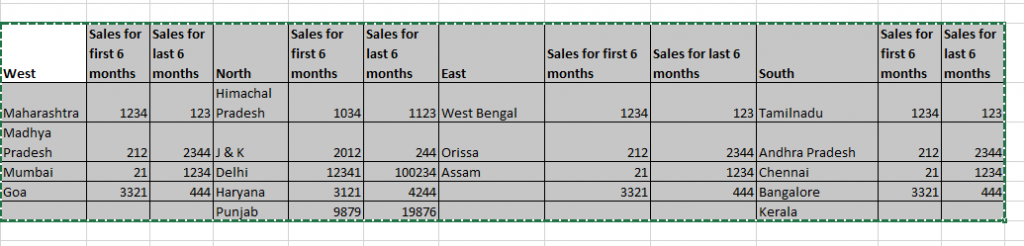
Clustered Column
Column charts

As can be seen the quarter ending months (Mar’16, Jun’16, Sep’16 and Dec’16) have really high sales as compared to previous 2 months of the quarter. We can also see that the profit goes down when the sales go down.

Stacked Column

If there are 2 (or more than) variables which contribute to another variable, we can use Stacked Columns to see how they contribute to the overall variable over time – if you look in the table above which lists sales and profit of Company A, there are 2 products AB and BC which lead to the overall profit. By using stacked columns chart we can see which product leads to more profit across months and if there is any change in the profit being contributed by a product over the entire year

100% Stacked Column

This is like Stacked Columns just that it calculates percentages that each value contributes to the total. We can also see the percentage changes over time. In the below chart, we have plotted the percentage of profit being contributed by Product AB and BC. Do note that you do not have to calculate percentages yourself, Excel will automatically calculate it and plot the percentages.


Related Topics

SUM Functions in Excel

The BODMAS formula plays a vital role in the concept of mathematics. BODMAS rule follows the Bracket of Division, Multiplication, Addition and Subtraction. This rule is followed for a correct...

6 minutes read.

Nearest Multiple in Excel

In Excel, the values in Multiplication can be round up, down and to nearest Multiplication number using Excel default function. This makes the calculation to be performed in an easier...

3 minutes read.

Locate Maximum Values in Excel

Excel is a combination of numeric values and numbers. To retrieve the result, Excel provides various formulas and functions. Sometimes the user needs to find the largest value from the...

5 minutes read.

How to apply Advanced Filter in Excel

It was known that the advanced filter in Microsoft Excel is termed to be the next level filter option that is available in the particular "Data Menu Tab", which is...

7 minutes read.

Division in Excel

Excel worksheet are widely used for calculation purposes. Mathematics calculations include addition, subtraction, multiplication, division etc. Performing this calculation manually takes time and sometimes leads to error. To get the...

5 minutes read.

Decimals in Excel

Microsoft Excel is widely used for calculation purposes for various applications. The calculation consists of numbers which include whole numbers, decimals, integers etc. To perform quick calculations, the numbers should...

5 minutes read.

How to use TODAY function in Excel

What is TODAY Function in Excel? Today function is one of the types of Worksheet function (WS) in Excel.Today Function belongs to the Date and Time functions.It is used to calculate...

3 minutes read.

Excel COUNT() Function

Excel COUNT() Function The COUNT() function counts the number of cells in a range that contain numbers. Syntax COUNT([value1], [value [2], ...) Parameter value1(required)- This parameter represents the first cell in the range. value2, …(optional)- It represents the...

1 minute read.

Histogram in Excel

What is Histogram in Excel? “ A histogram is a graphical tool familiar for summarizing discrete or continuous data, where the data are measured on an interval scale.”  Karl Pearson described this...

5 minutes read.

How to create drop down in excel?

How to create drop down in excel? Drop-down lists are mostly used to facilitate data entry operations. They are commonly used in interactive websites or applications. Microsoft has expanded his Excel's data validation feature...

5 minutes read.

Formats in Excel

What are the formats? Formats are different options that one uses to change the appearance of data (maybe text, number, etc..) in an excel file. They do not change the value of the...

3 minutes read.

Excel TEXT() Function

The TEXT () function in excel converts a supplied numerical value into the text of a specific format. Syntax TEXT(Value, Format_text) Parameter Value (required)- This parameter represents the value for which we need to...

1 minute read.

Text to columns in Excel

Microsoft Excel is widely used in startups to large companies. The data are entered in required rows and columns, and sometimes the data entered in one cell needs to enter...

4 minutes read.

Auto Fill and Flash fill

Fill Features Excel provides an amazing feature to fill the data automatically, if the available data is present in the form of any pattern. Instead of entering your data manually, you can use...

3 minutes read.

Excel LEFT() Function

The LEFT () function in excel returns the leftmost characters from a text value. This function is used for data manipulation. Syntax LEFT(Text, [num_chars]) Parameter Text (required)- This parameter represents the string from which you want to...

1 minute read.

How to generate random numbers in Excel

In this tutorial, we will discuss the following things in detail that are as follows: Introduction about Random Numbers used in Microsoft Excel. Discuss how to generate the Random Numbers in Microsoft...

6 minutes read.

Excel COUNTBLANK() Function

Excel COUNTBLANK() Function The COUNTBLANK() function in excel counts the number of blank cells within a range. Syntax COUNTBLANK ([value1], [value [2], ...) Parameter value1(required)- This parameter represents the first cell in the range. value2, …(optional)- It represents...

1 minute read.

What if Analysis Data Table in Excel

What is What-If Analysis? Suppose you have a cell A15 which is formula driven i.e. has a formula and the formula is based on values in different cells (A1, A2, A3, A4), what-if...

4 minutes read.

Charts in Excel

Charts Definition of Charts A chart is used to show numbers or data in a spreadsheet visually. It is the visual representation of your data. It is a tool that can be used in...

3 minutes read.

How to print titles in Excel

In Microsoft Excel, if a particular task is completed in the worksheet, the user wants to print the worksheet. While performing this job, the row and column headings will display...

3 minutes read.