
×

What is a name box in Excel?

The name box in Microsoft Excel specifies a name for a single cell or a table. The name box is present in the top left corner, left to the formula box. For every cell in the excel sheet, a default name is given by row number and column alphabet. For example, the name in the name box is “B3”. Here B3 is an active class in the below picture.

What is a name box

Where is the Name Box in Excel?

The name box is in the Excel sheet's top left corner. This name box is present to the left of the formula box.

Uses of Name Box in Excel

The name box has many uses in the Excel sheet other than specifying the active cell address. Now let us discuss the name box uses.

1. We can go to a specific cell with a single name.

When dealing with large data sets, it becomes difficult to locate and arrive at the required cell as it may consume much time to search by scrolling down the entire sheet. The steps for locating the cell are as follows:

Step 1: Click on the Name Box.

What is a name box

Step 2: Write the address of the cell.

What is a name box

Step 3: Hold down the enter key on the keyboard.

What is a name box

2. Selecting multiple cells at a time

We can select multiple cells using the shortcut Shift + Ctrl+ Right arrow," which selects all the cells in a row until it finds an empty cell.
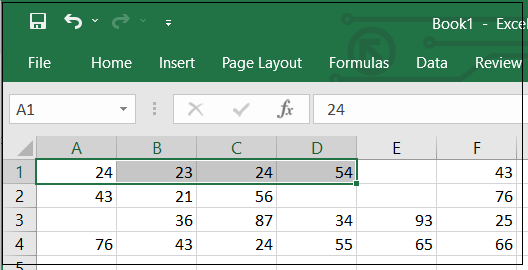
What is a name box

The shortcut "Shift + Ctrl + Down arrow” selects all the cells in a column until

an empty cell.

What is a name box

Therefore, when we find the empty cells in a sheet, we cannot select the required cells using the above formulae. Then we have to use the cell address range to select the required number of cells in a sheet.

For example, in the below sheet, in the name box, the cell address range "A1:F4" is typed, and "Enter" is pressed, which selects the specified range of cells.
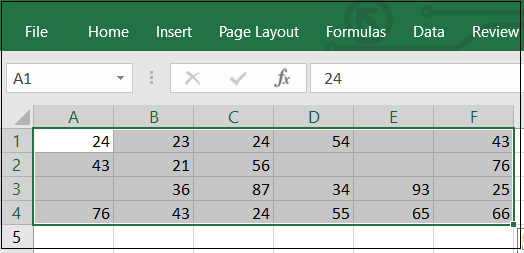
What is a name box

3. Selecting the range of cells from Active Cell

If the active cell is A2, the user wants to select the cells ranging from A2 to D4. Then, rather than "A2:D4" in the name box from the active cell, mention the last address selected in the name box.

What is a name box

Then press the "Shift + Enter” keys on the keyboard.

What is a name box

4. Selecting any two cells

In the above situation, we have selected a range of cells from the active cell. Now, select the two cells we mentioned in the name box by pressing the "Ctrl + Enter" keys instead of Shift + Enter.

For example, the above active cell is A2, and the mentioned cell is D4.

Therefore, it selects A2 and D4 cells by pressing the Ctrl+ Enter keys.

What is a name box

5. Selecting Multiple Range of Cells

We have now discussed the selection of cells from active and individual cells. So, let us see how to select the range of cells.
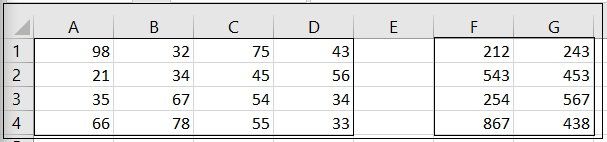
What is a name box

In the above data, we have two data ranges which consist of A1 to D4 and

other is from F1 to G4. To select these two ranges from the data,

follow the given steps.

Step 1: Type the two data ranges in the “name box” separated by a comma in

between, as shown in the below picture.

What is a name box

Step 2: Now press “Ctrl + Enter” or “Enter" to select the required range of

multiple cells.
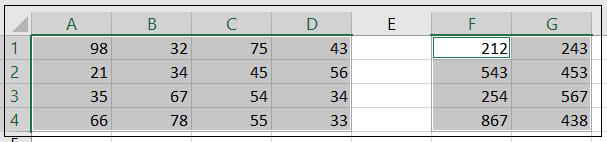
What is a name box

6. For selecting the entire column

By using the name box also, we can select the entire range of cells in a column. For this, we must type the address of the column as "column: column" syntax. And press enter key on the keyboard.

Example: If the user desires to select the entire D column, then enter "D:D" as the column address.

What is a name box What is a name box

7. Selecting the whole row

To select the entire row in an excel sheet, type the address of that row in the name box.

The syntax is "row: row". Press enter key on the keyboard.

For example, if in the name box, the address is “4:4”.

What is a name box

8. Count formula with the name box

Suppose we require the total count of students from the student’s table in the excel sheet. Then use the range name in the count formula, which we type in the formula box. In the formula, also by typing only some characters of the range name, the name is displayed by itself, as in the below figure.

What is a name box What is a name box

9. Sum with Name Box

The users can do the sum by using the name box, like above, and type the range's name in the SUM formula in the formula box.

What is a name box What is a name box

Note: When we select multiple cells or the entire row or column, the name box also shows the rows and columns selected at the moment. But the next moment, when we release the cursor and press anywhere outside the name box, the leftmost top cell from the range is selected.

Some points that the user should follow for the Name Box in Excel

  • The spaces should be somewhere other than the range's name that we input in the Name Box.
  • The name should be something other than punctuation.
  • The name in the excel sheet is case insensitive by default, which means that if we give "bag" or "BAG," it is the same.
  • The name can start only with an alphabet, backslash("\"), or an underscore("_"). It will give an error if other characters are used at the start of the name.
  • The name must be unrepeatable(unique) because excel will not allow duplicate names.
  • The name can also be a single character, like a single alphabet. For example, "z" is also considered as the name.

Related Topics

Shortcut Keys in Excel

Shortcut Keys in Excel Shortcut keys in Excel are used to simplify the work and save time by pressing a few keys.  These keys are used for navigating and working with Excel spreadsheets quickly and easily. Basic Selection:...

9 minutes read.

Dependent Combo box in Excel VBA

Adding the particular dependent box in the created User form with the help of the Microsoft Excel VBA is considered essential and crucial in Microsoft Excel. Here, in this tutorial, we...

7 minutes read.

Paste Options in Excel

Excel spreadsheet is a combination of numeric values, alphabets which is used for calculation purposes. While performing the calculations, there is a need to repeat the data for further process....

6 minutes read.

Excel COUNT() Function

Excel COUNT() Function The COUNT() function counts the number of cells in a range that contain numbers. Syntax COUNT([value1], [value [2], ...) Parameter value1(required)- This parameter represents the first cell in the range. value2, …(optional)- It represents the...

1 minute read.

Notes in Excel

Notes in Excel Notes are used to include additional information to the cell and explain formulas calculation, any modification made to the cell, providing necessary information on data that is entered or to provide any...

3 minutes read.

SUM Functions in Excel

The BODMAS formula plays a vital role in the concept of mathematics. BODMAS rule follows the Bracket of Division, Multiplication, Addition and Subtraction. This rule is followed for a correct...

6 minutes read.

Division in Excel

Excel worksheet are widely used for calculation purposes. Mathematics calculations include addition, subtraction, multiplication, division etc. Performing this calculation manually takes time and sometimes leads to error. To get the...

5 minutes read.

Excel INDEX () Function

Excel INDEX () Function The INDEX() function in excel returns a value from a list of tables based on the intersection of a row and a column position. This function is used with the...

2 minutes read.

Excel AVERAGE() Function

Excel AVERAGE() Function The AVERAGE() function returns the average of its arguments, which can be number or names, arrays, or references that contain numbers. It ignores text values and blank cells. Syntax AVERAGE(Number1,Number2, ...) Parameter Number1(required)- This parameter...

1 minute read.

Excel MINUTE() Function

Excel MINUTE() Function The MINUTE() function in excel converts a serial number to minute (0 - 59). Syntax MINUTE (SERIAL_NUMBER) Parameter SERIAL_NUMBER (required)- This parameter represents the date or time from which you want to extract...

1 minute read.

How to use Index and Match in Excel?

The Index and Match function is a familiar and frequently used function in Excel. It is one of the most powerful functions and is easy to use. By default, Excel...

6 minutes read.

Text to Columns

Text to Columns This Excel feature is used to split the cell content name of one cell into multiple columns based on a delimiter, such as a space or a special character or based...

2 minutes read.

Reverse List in Excel

What is Reverse list in Excel? Microsoft Excel is widely used for calculation purposes like statistical and analytical for predicting and getting the result. Sometimes for calculation purposes, the user needs...

5 minutes read.

Excel OR() Function

The OR() function in excel tests the multiple sets of conditions and returns TRUE if any of the arguments are TRUE and FALSE if all the arguments supplied do not meet the...

2 minutes read.

Excel ROUNDUP() Function

Excel ROUNDUP() Function The ROUNDUP() function in excel returns a number rounded up to the nearest possible value and away from zero. Syntax ROUNDUP(Number, num_digits) Parameter Number(required)- This parameter represents the number which you want to...

1 minute read.

Excel SMALL() Function

The SMALL() function in excel returns the k-th smallest value in a data set. Syntax SMALL(Array, kth small number from the list) Parameter Array (required)- This parameter represents the list of numbers from which nth smallest...

1 minute read.

Excel EOMONTH() Function

Excel EOMONTH() Function The EOMONTH() function in excel returns the serial number of the last day of the month before or after a specified number of months. Syntax EOMONTH (Start_Date, Month) Parameter Start_Date(required)- This parameter...

1 minute read.

Excel OFFSET () Function

Excel OFFSET () Function The OFFSET() function in excel returns range of cells that is a specified number of rows and columns from an initial specified range. Syntax OFFSET (reference, rows, cols, [height], [width]) Parameter reference(required)-...

2 minutes read.

Gauge Chart in Excel

A Gauge Chart in Microsoft Excel is considered the meter type chart of a group dial chart, which is eventually similar to the speedometer that has the pointer towards the...

7 minutes read.

Adding Column in Excel

Excel spreadsheet is a combination of rows and columns. After creating the table, there is a need to insert additional row or columns. To organize a better worksheet for calculations,...

5 minutes read.