CSS Page-break-after Attribute
Page-break-after Attribute
As its name implies, the page-break-before property is applied to include page break after any element, at the time of printing a document. It adds the page break after any specified item at the time of printing a document. We do not apply this CSS attribute on the elements which are absolutely positioned (position: absolute;) or any empty <div> tag that can’t produce any box.
It illustrates that any page break can be permitted after the box of an element or not. The CSS properties like page-break-before, page-break-inside, page-break-after support us to specify the document’s behavior when printed.
Syntax:
page-break-after: auto | always | left | right | avoid | initial | inherit;
A brief explanation of these property values in a tabular form is as follows:
Property Values
| Values | Description |
| auto | This value is used as a default value. It adds the page break after any item if required. |
| always | It forces the page break after any specified item always. |
| avoid | This property value avoids the page break after any item whenever possible. |
| left | A few page breaks are forced by the left value after any item so that the next page can be illustrated as the left side page. |
| right | A few page breaks are forced by the right value after any item so that the next page can be represented as the right side page. |
| initial | The initial value sets the page-break property to the default value. |
| inherit | When this property value is described, the corresponding item applies its parent item page break after attribute computed value. |
Let’s take the above value’s example one by one.
Example: auto
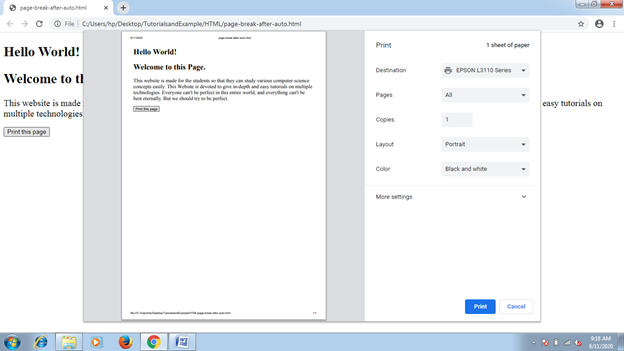
This value is used as a default value. It includes the page break after any item automatically, if necessary. In the following example, we will use a button and two <div> components. The button will be responsible for page printing. We will examine the value effect after clicking over the button.
<!DOCTYPE html>
<html>
<head>
<style type= "text/css">
div
{
 font-size: 20px;
 page-break-after: auto;
}
</style>
</head>
<body>
<div>
<h2> Hello World! </h2>
<h2> Welcome to this Page. </h2>
</div>
<div>
This website is made for the students so that they can study various computer science concepts easily. This Website is devoted to give in-depth and easy tutorials on multiple technologies. Everyone can't be perfect in this entire world, and everything can't be best eternally. But we should try to be perfect.
</div>
<br>
<button onclick= "fun()">Print this page</button>
<script>
function fun()
{
 window.print();
}
</script>
</body>
</html>
Output:
Example: always
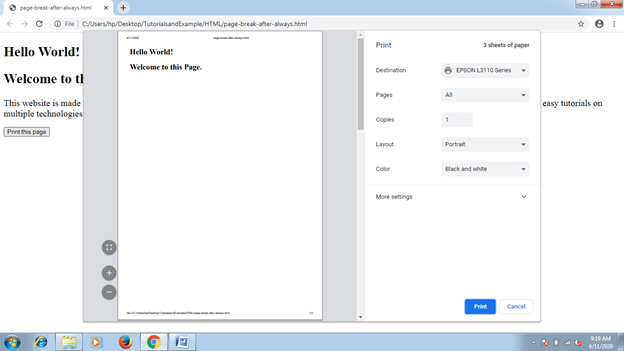
It forces to include the page break always. However, it is necessary or not. We will use the button for page printing. To examine the effect, we must click over the button.
<!DOCTYPE html>
<html>
<head>
<style type= "text/css">
div
{
 font-size: 20px;
 page-break-after: always;
}
</style>
</head>
<body>
<div>
<h2> Hello World! </h2>
<h2> Welcome to this Page. </h2>
</div>
<div>
This website is made for the students so that they can study various computer science concepts easily. This Website is devoted to give in-depth and easy tutorials on multiple technologies. Everyone can't be perfect in this entire world, and everything can't be best eternally. But we should try to be perfect.
</div>
<br>
<button onclick= "fun()">Print this page</button>
<script>
function fun()
{
 window.print();
}
</script>
</body>
</html>
Output:
Example: left
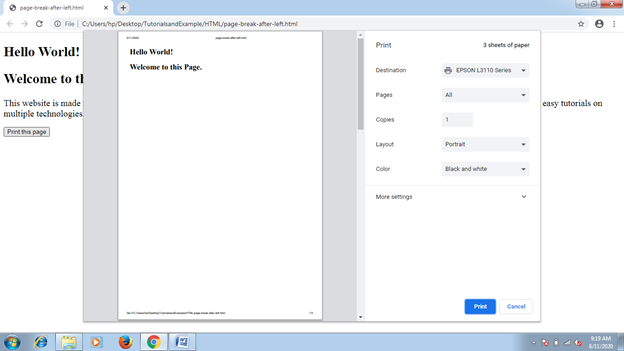
The left value forces to include either one single or two-page breaks. Thus, the next-page formatting can be like the left side page.
<!DOCTYPE html>
<html>
<head>
<style type= "text/css">
div
{
 font-size: 20px;
 page-break-after: left;
}
</style>
</head>
<body>
<div>
<h2> Hello World! </h2>
<h2> Welcome to this Page. </h2>
</div>
<div>
This website is made for the students so that they can study various computer science concepts easily. This Website is devoted to give in-depth and easy tutorials on multiple technologies. Everyone can't be perfect in this entire world, and everything can't be best eternally. But we should try to be perfect.
</div>
<br>
<button onclick= "fun()">Print this page</button>
<script>
function fun()
{
 window.print();
}
</script>
</body>
</html>
Output:
Example: right
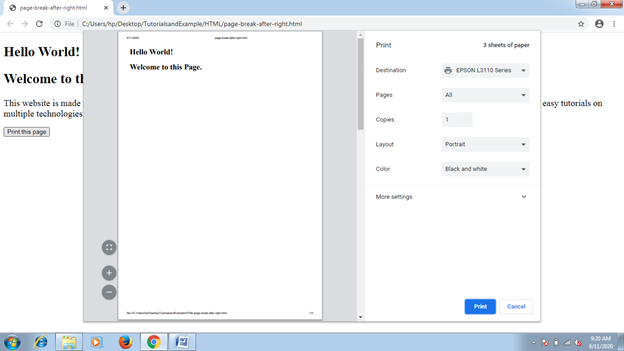
The right value forces to include either one single or two page breaks, thus, the next-page formatting can be like the right side page.
<!DOCTYPE html>
<html>
<head>
<style type= "text/css">
div
{
 font-size: 20px;
 page-break-after: right;
}
</style>
</head>
<body>
<div>
<h2> Hello World! </h2>
<h2> Welcome to this Page. </h2>
</div>
<div>
This website is made for the students so that they can study various computer science concepts easily. This Website is devoted to give in-depth and easy tutorials on multiple technologies. Everyone can't be perfect in this entire world, and everything can't be best eternally. But we should try to be perfect.
</div>
<br>
<button onclick= "fun()">Print this page</button>
<script>
function fun()
{
 window.print();
}
</script>
</body>
</html>
Output: