
×

Square Root Function in Excel

The concept of Mathematical calculations includes a large number of numbers and calculations are based on the numbers present in the data. Likewise, Square Root is a function used to double the given value. The applications of square root function include finance, distance and lengths, probability density functions, science and technology, banking, standard deviation, circle radius, etc. It simply covers all the topics in mathematics.

Methods to Calculate Square Root 

Microsoft Excel provides default formulas and functions to calculate the square root of the function. Apart from square root one can calculate cube roots, fourth roots and other roots using formulas. Manual calculation is possible only for small values, not for large numbers.

Let’s have a brief look about what are the functions used in Excel.

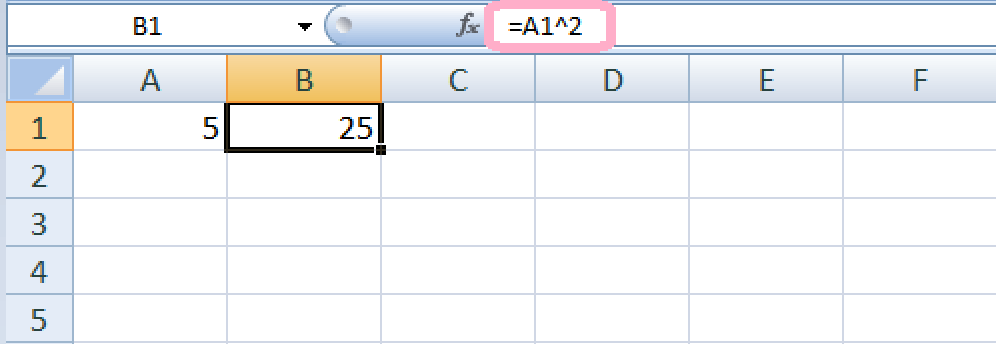
1. Finding the square  of the given numbers

To find the square root of the given number,

STEP 1: Enter the value in cell A1.

STEP 2: Enter the formula in cell B1 as A1^2.
Square Root Function in Excel

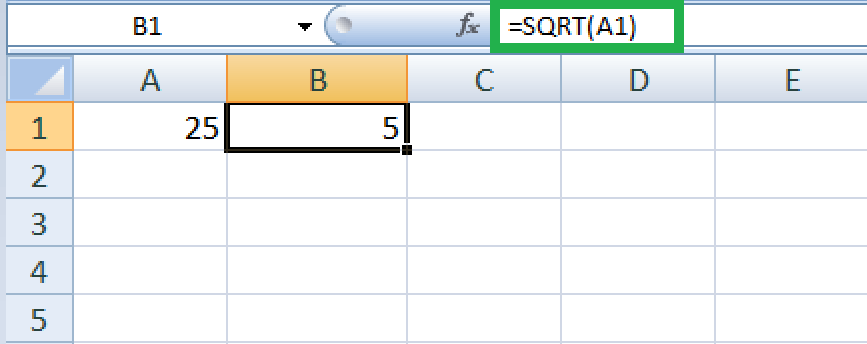
2. Using SQRT Function

Using Sort Function, one can find the square root of a given number.

STEP 1: Enter the value in cell A1.

STEP 2: Enter the formula in cell B1 as =SQRT (A1).
Square Root Function in Excel

3. Alternative method for SQRT Function

Another alternative method to find the SQRT Function is using an exponent. Usually in while performing calculations manually and practically, the symbol to use is radical symbol called ((v).

In Excel the radical symbol cannot be used, hence caret character (^) is used which is present at the number 6 on keyboards. This symbol is also termed as power, exponent and operator.

STEP 1:  Enter the value in cell A1.

STEP 2: Enter the formula in cell B1 as =A1^ (1/2)

Square Root Function in Excel

4. SQRT Function for a Negative Number

SQRT function won’t apply for negative values, because square root of a negative number does not exist among the set of real numbers. There is no way to square a number which gives a negative result.

Square Root Function in Excel

In the above method, NUM error is occurred because of negative values.

To solve this error, ABS function is used to remove the negative sign from the value.

In the cell B1 enter the formula as =SQRT (ABS (A1))

Square Root Function in Excel

In the above method, the SQRT of a negative value is founded using ABS function.

5. How to calculate the nth root of a number?

Excel doesn’t contain default functions to calculate the nth root of the number. To calculate this, increase the power of n as shown in the below steps.

STEP 1:  Enter the value in cell A1.

STEP 2: Enter the formula in cell B1 as =A1^ 3.

Square Root Function in Excel

Here in the above method 10 is raised to third power.

6. How to find the cube root?

To find the cube root of the given number,

STEP 1:  Enter the value in cell A1.

STEP 2: Enter the formula in cell B1 as =A1^ (1/3).

Square Root Function in Excel

7. How to find the sixth root of the number?

To find the root of the number,

STEP 1:  Enter the value in cell A1.

STEP 2: Enter the formula in cell B1 as =A1^ (1/6).

Square Root Function in Excel

8. Finding the Square Root of a number using IF condition?

For bigger formulas sometimes if condition is used to check the square root of the number. For example,

Square Root Function in Excel

9. Finding the square root with POWER function

Here some of the various formulas to find the square root of the number.

Square Root Function in Excel

From the above tabular column, it displays the identical result as 5. Hence it is user’s choice for formula preference.

Summary

From the above tutorial, the various methods to find the square and cube root is described. One can use the default function in Excel to perform the calculation in square root topics which is much faster and efficient!


Related Topics

Excel EOMONTH() Function

Excel EOMONTH() Function The EOMONTH() function in excel returns the serial number of the last day of the month before or after a specified number of months. Syntax EOMONTH (Start_Date, Month) Parameter Start_Date(required)- This parameter...

1 minute read.

Excel IF() Function

Excel IF() Function: The IF() function in excel checks whether a condition is true or not and returns one value if the condition is TRUE and another value if it's...

2 minutes read.

Excel ROUND() Function

Excel ROUND() Function The ROUND() function in excel rounds the numbers to specified digits. Syntax ROUND(Number,num_digits) Parameter Number(required)- This parameter represents the number which you want to round up. num_digits(required)- This parameter represents the number of decimal places to which...

1 minute read.

Count Characters in Excel

Microsoft Excel is used to perform calculations for multiple purposes. The data entered in the worksheet is a combination of numeric and alphabets. Sometimes there is a need to check...

4 minutes read.

Excel ROUNDUP() Function

Excel ROUNDUP() Function The ROUNDUP() function in excel returns a number rounded up to the nearest possible value and away from zero. Syntax ROUNDUP(Number, num_digits) Parameter Number(required)- This parameter represents the number which you want to...

1 minute read.

Reverse List in Excel

What is Reverse list in Excel? Microsoft Excel is widely used for calculation purposes like statistical and analytical for predicting and getting the result. Sometimes for calculation purposes, the user needs...

5 minutes read.

Converting Units in Excel

The numeric values present in Excel consist of various types such as constant, integer, decimal etc. For calculation purposes, the values present in the data need to be converted to...

4 minutes read.

Formats in Excel

What are the formats? Formats are different options that one uses to change the appearance of data (maybe text, number, etc..) in an excel file. They do not change the value of the...

3 minutes read.

Excel OFFSET () Function

Excel OFFSET () Function The OFFSET() function in excel returns range of cells that is a specified number of rows and columns from an initial specified range. Syntax OFFSET (reference, rows, cols, [height], [width]) Parameter reference(required)-...

2 minutes read.

Basics of Excel

Different ways to open an excel file There are various ways to open an excel file, some of them are listed below - From Start Menu:Go to the start menu and search for Ms-Excel...

5 minutes read.

Averageif Function in Excel

Average If in HTML In Mathematics, Average function is used to find the arithmetic mean of the given data. It is defined as the dividing the sum total of given data...

7 minutes read.

Blank cells in Excel

Microsoft Excel is spreadsheet software designed by Microsoft in 1987. It is used to perform arithmetic calculations in various fields like statistical, engineering and financial. Many times, we export data...

4 minutes read.

Conditional Formatting in Excel

Conditional Formatting What are the conditional formats? Conditional Formatting is a tool that allows the user to format cells or range of cells based on the selected condition or given criteria. The formatting will...

4 minutes read.

Dependent Combo box in Excel VBA

Adding the particular dependent box in the created User form with the help of the Microsoft Excel VBA is considered essential and crucial in Microsoft Excel. Here, in this tutorial, we...

7 minutes read.

Paste Options in Excel

Excel spreadsheet is a combination of numeric values, alphabets which is used for calculation purposes. While performing the calculations, there is a need to repeat the data for further process....

6 minutes read.

How to make use of the Excel Autofit in Excel

In Microsoft Excel, Autofit can be used to adjust and then fix the column and the respective row height to till the maximum limit until and unless it has the...

7 minutes read.

Excel AVERAGE() Function

Excel AVERAGE() Function The AVERAGE() function returns the average of its arguments, which can be number or names, arrays, or references that contain numbers. It ignores text values and blank cells. Syntax AVERAGE(Number1,Number2, ...) Parameter Number1(required)- This parameter...

1 minute read.

Excel TEXT() Function

The TEXT () function in excel converts a supplied numerical value into the text of a specific format. Syntax TEXT(Value, Format_text) Parameter Value (required)- This parameter represents the value for which we need to...

1 minute read.

Shortcut Keys in Excel

Shortcut Keys in Excel Shortcut keys in Excel are used to simplify the work and save time by pressing a few keys.  These keys are used for navigating and working with Excel spreadsheets quickly and easily. Basic Selection:...

9 minutes read.

How to generate random numbers in Excel

In this tutorial, we will discuss the following things in detail that are as follows: Introduction about Random Numbers used in Microsoft Excel. Discuss how to generate the Random Numbers in Microsoft...

6 minutes read.