
How to fix problems in Windows after installing new software
Sometimes users face problems after installing new software in the windows operating system. Go along with the below steps to correct and fix them.
Uninstall the software program or reinstall it
If the issue occurs after the new software installation, try to uninstall, then reinstall the program.
Look over the software updates or new versions.
Even after the uninstallation or reinstallation of the software program don't solve the issues, check for the updates of the software on the software manufacturer's website.
When the user installs the software for the system's hardware, then acquires the new version of the software, which is updated to date. Never install the software on a compact disk (CD) that comes with the hardware because it is mostly out-of-date.
Windows 10 software installation problems and their fix
Many installation problems concerning new software will be similar in all types of windows. Now let's discuss how to solve the problems in windows 10.
- Running the windows update troubleshooting.
- Low disk space.
- Error codes.
- Hardware incompatibility.
1. Running the windows update troubleshooting
Windows 10 has a troubleshooter that automatically detects and fixes related problems with updates. Troubleshooting may not solve all the problems, but it is recommended to know the basic issues. If the issue is unclear and the user does not have a clear idea, it is better to run the troubleshooter.
Step 1: Go to the search box and select settings. Then click on the update and security.
Step 2: Then, redirects the user to a new troubleshooting window. Choose the “windows update” and then select Windows update on the right window pane.
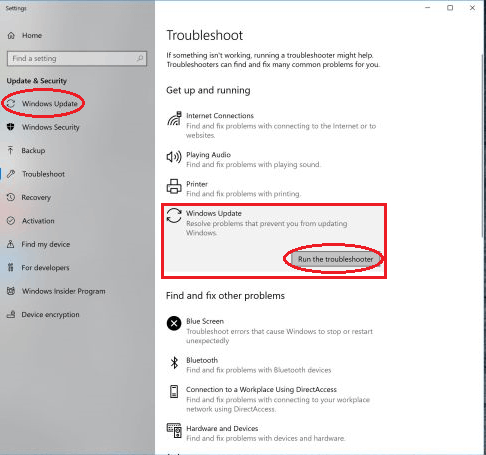
Step 3: A new button known as "Run the troubleshooter" is seen in the windows update. Click on it for the start of troubleshooting.
Step 4: The troubleshooter window is opened, and Windows 10 scans for the problems in the user's system. When the issue is caught, the troubleshooter verifies the missing updates and corrupted files to find the actual cause. The troubleshooter then asks for the user's choice of whether they want to apply or Skip This Fix. Here it is always to choose to click the fix.
Step 5: When everything is completed user will get a list of issues found and fixed, then the user may choose the close option to close the process. If the troubleshooter doesn't solve the issue, you should try to run the troubleshooter again or update the software.
2. Low disk space
Every version of the Windows operating system will require some free space to install any new software into the system.
Windows 10, having a 32-bit version of OS, often present in low-price laptops and tablets need a free space of 16 GB.
Windows 10, having a 64-bit OS often present in laptops and computers, needs a free space of 20 GB.
When space is currently unavailable on your system hardware, the quicker way to get the space is to uninstall the programs which consume more space and 3D games. If the space is even more required, uninstall the files in the order starting with video, audio, image, and documents, followed by other files.
The other way to get space is to transfer the files to the external storage device like pen drive, CD and delete them.
So always try to keep some extra space before the new software installation to avoid problems beforehand.
3. Errors codes
Occasionally, it will stop the program process during the Windows installation and display an error code.
Hundreds of errors may come while installing the software, in them most of them are common. When error codes appear, try the code displayed and then search for the code and related issues in the browser to know about them and find the solution to fix them.
Some solutions to the problems are as follows:
- Suppose unnecessary devices are plugged into the computer, like flash drives. Remove them. The computer should have a connection only with the mouse, CPU, and keyboard.
- Desktops should be disconnected from unnecessary internal hardware. Disconnect the card readers and other externally connected hardware.
- Sometimes anti-virus software installed in the system might cause problems while upgrading or installing new software, so you should also check that.
4. Hardware Incompatibility
If your device’s processor has a speed of less than 1 GHz or RAM of less than 1 GB for the 32-bit version or RAM of 2 GB for the 64-bit version. Then the program installation will not be allowed by the setup wizard.
RAM and the desktop's processor can be updated, whereas the laptops that do not meet the requirements cannot upgrade easily to make their hardware compatible with installing a new program.
5. Rollback an update
Sometimes the updates we make to any program are not supported by the computers, which will degrade the computer's functioning. In that case, it is better to delete the update and back the computer to its initial state.
The process for rolling back an update is as follows:
Step 1: Go to settings and then select Update & Security.
Step 2: From the left navigation pane, select the “windows update” and then click “View Update History”. And it will display all updates. Based on your choice, you can delete the particular update by clicking Uninstall.
Step 3: Choose the recent update from the displayed options and select Uninstall to delete the update. But before uninstalling the update, check the issue causing the update and then delete it.