
What Does Alt + F4 Do?
Alt+F4 is a keyboard shortcut frequently used to close active window or applications. When Alt+F4 is pressed, the operating system sends a signal to the active window or application to close. In most cases, pressing this shortcut will prompt the window or application to close immediately without further input from the user. However, some applications may prompt the user to save any unsaved work or confirm that the application should be completed before closing.
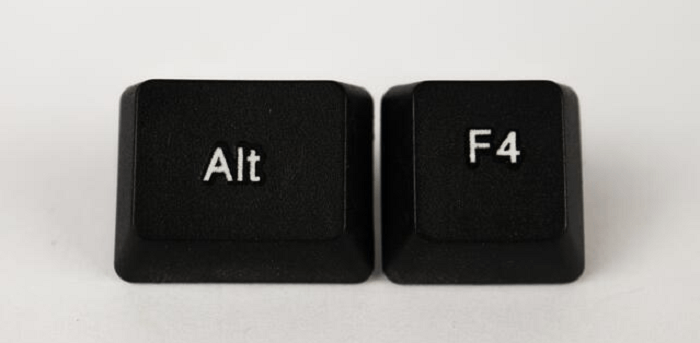
Alt+F4 is often used as a quick way to close a window or application that is not responding or is no longer needed. It is also commonly used to close multiple windows or applications simultaneously, as pressing Alt+F4 repeatedly will close each open window or application.
Alt+F4 can be used in various operating systems, including Windows, macOS, and Linux as well. In some operating systems, Alt+F4 may have distinct effects depending on the context in which it is used. For example, in Windows, Alt+F4 can be used to close the active window or application, but it can also be used to shut down or restart the computer if it is used from the desktop.
It is important to note that Alt+F4 is not a universal keyboard shortcut, and it may not work in all applications or operating systems. Some applications may have keyboard shortcuts for closing the application or may not respond to Alt+F4. Additionally, some operating systems may have different keyboard shortcuts for closing windows or applications or may not include Alt+F4 as a default shortcut.
Does Alt+F4 work on Windows?
The Alt+F4 keyboard shortcut is a quick and convenient way to close the currently active program using a Microsoft Windows operating system. By pressing & holding the Alt key and pressing the F4 key next, a command is sent to the computer to complete the program currently in focus. This is often used as a shortcut to close a program instead of navigating to the File menu and selecting the Exit or Close option.
It's important to note that when the Alt+F4 keyboard shortcut is used, the active program will close without allowing the user to save any unsaved changes. Therefore, it's important to keep up your work before using this shortcut.
When no programs are open, or you are on the desktop, pressing the Alt+F4 keyboard shortcut will open the Shutdown window. This window allows the user to choose from various options, such as shutting down the computer, restarting the computer, putting the computer to sleep, or signing out of the current user account.
Overall, the Alt+F4 keyboard shortcut is a useful tool for quickly closing programs, but it should be used with caution to avoid losing unsaved work.
What to do when Alt+F4 Doesn't Work?
If the Alt+F4 keyboard shortcut is not working, there are a few things you can try to troubleshoot the issue:
- Check your keyboard: Ensure that your keyboard is properly connected to your computer and that all the keys are working properly.
- Check for conflicting shortcuts: Some programs may have shortcuts that use the Alt+F4 combination. Try disabling these shortcuts or reassigning them to a different variety.
- Check for software conflicts: Some programs or software may interfere with the Alt+F4 shortcut. Try disabling or uninstalling any newly installed programs to see if this resolves the issue.
- Try using the Task Manager: Press the keys Ctrl+Shift+Esc, this will open the Task Manager, and you can select the program you want to close and click on the end task button.
- Restart your computer: A simple restart can sometimes resolve keyboard shortcuts issues.
- Check your settings: Go to settings > Ease of access > keyboard and check if the filter keys option is on and turn it off; this may be blocking the Alt+F4 shortcut.
If none of these solutions fixes the issue, there may be a deeper issue with your computer or the program you are trying to close. In this case, it may be essential to seek additional help from a technical support professional or try reinstalling the program.
There may be various reasons when Alt+F4 is not working:
- The program you are trying to close is not the active window: Alt+F4 will only work if the program you want to complete is currently selected and in focus.
- There is a conflict with another keyboard shortcut: If you have any custom keyboard shortcuts set up, they may prevent Alt+F4 from working.
- The program is running in full-screen mode: If you try to close a program in full-screen mode, Alt+F4 may not work. In this case, you can press Alt+Tab to switch to a different program and then try Alt+F4.
- There is an issue with the program itself: The program may have become unresponsive or encountered an error preventing it from closing.
- There is a problem with your computer: If none of the above solutions fixes the problem, there may be an issue with your computer that is preventing Alt+F4 from working. This could be due to a hardware problem or a software issue.
- If the Alt+F4 shortcut is not working, try using Task Manager to close the program or restart your computer. If these solutions don't work, you may need additional help from a technical support professional.
How to use the Alt+F4 shortcut?
To use this shortcut, follow these steps:
1. Locate the Alt key on your keyboard. This key is typically located on the left side of the keyboard, next to the spacebar.
2. Press and hold the Alt key.
3. While holding the Alt key, press the F4 key next.
4. Release both keys.
When you press the Alt+F4 keys together, the active window will close. This shortcut is commonly used to close programs, but it can also complete other types of windows, such as the Start menu or the Task Manager.
It's important to note that using the Alt+F4 keyboard shortcut will close the active window without giving you the option to save any unsaved changes you may have made. Be sure to keep your work before using this shortcut.
Difference Between Alt+F4 and Ctrl+F4:
Alt+F4 is a keyboard shortcut often used to close the currently active window or program on a computer. This shortcut works in most programs and operating systems, including Windows and macOS.
Ctrl+F4 is a keyboard shortcut used to close a tab or window within a program; it works slightly differently than Alt+F4. In some programs, Ctrl+F4 will close the current document or file within the program rather than closing the entire program. For example, if you use a word processor and have multiple copies open, Ctrl+F4 will close the active document, but the word processor itself will remain open.
Key differences between Alt+F4 and Ctrl+F4:
- Alt+F4 closes the entire program or window, while Ctrl+F4 only closes the active document or file within a program.
- Alt+F4 works in most programs and operating systems, while Ctrl+F4 may only work in certain programs.
- Alt+F4 is usually the default keyboard shortcut for closing a window or program, while Ctrl+F4 may be program-specific.
- Alt+F4 is a more widely used and universal keyboard shortcut for closing windows and programs, while Ctrl+F4 is more specific and may only work in certain programs. Hence it is essential to pay attention to the context in which you use these keyboard shortcuts.
Conclusion
Pressing the "Alt+F4" key combination on a Windows computer typically closes the active window. This can be beneficial when you want to complete a program or window that is not responding or that you no longer need. All in all, Alt+F4 can be a handy keyboard shortcut to have in your toolkit. Still, it's important to use it responsibly to avoid losing unsaved work or accidentally shutting down your computer.