
What is the svchost.exe file used for in Windows?
Svchost.exe is a crucial Windows file that loads the DLL files necessary by Microsoft Windows and other programs that operate under Windows on your computer. Multiple Windows services can share a single process thanks to the shared service process svchost.exe. Windows uses fewer resources overall by sharing a single process. The Svc Host process also referred to as svchost.exe or Service Host, is used to host one or more operating system services. Svchost.exe is the name of the Windows executable file and stands for Generic Host Process for Win32 Services.
It is simple to observe everything active under svchost.exe using the Windows Task Manager. By looking at your Windows Task Manager, you can see which Windows services are currently running under Svchost.exe. To examine the various services running behind svchost.exe, open the Windows Task Manager and click the arrow directly to its right (service host). Depending on the version of Windows, this file can be available in c:\windows\system32 or c:\winnt\system32, and it might also be in the DLL cache directory.
Reason for Multiple svchost.exe processes running in Task manager
Your computer may execute many instances of svchost.exe, each containing a separate set of services. A single service for a program may be hosted by one instance of svchost.exe, whereas another may host several Windows services. The number of instances of the Svc Host process that the operating system runs will depend on how many services are required. The Svc Host process shares its resources with all of the services running inside of it, which helps to save computer resources like RAM. The Task Manager Processes tab frequently displays three or four svchost.exe processes.
While reducing the number of resources the computer uses, this shared process might also have some disadvantages. The Svc Host process will terminate if any of the services running inside it encounter an unhandled exception error. Since the services are no longer running inside of that shared process, which could cause additional problems. Additionally, malware programs occasionally disguise themselves by running under the same process name as svchost.exe, which is a frequent process in Task Manager. In other situations, malicious software may inject its service into an active svchost.exe process. Both ways, this disguising behavior might make finding and get rid of these malware applications challenging.
To see which services are active within each svchost.exe instance, utilize Task Manager. By pressing CTRL+SHIFT+ESC, launch Task Manager. From there, right-click a svchost.exe instance in the Details tab and select Go to Service (s). On the Services tab, the services connected to the process are highlighted.
Svchost.exe - is it malware or a virus?
Svchost.exe, which stands for "service host," is a file utilized by numerous Windows programs. However, malware developers have been known to attach dangerous files to the svchost.exe service to avoid detection, leading to frequent confusion with viruses. To escape detection by untrained eyes, malware writers frequently build processes with typos like "svhost.exe" and "svchosl.exe." Using a reliable malware remover to identify and remove all components of the svchost.exe virus infection is the first step in dealing with any digital infestation. Even though these tools are made to find and eliminate risks, running a security suite is still recommended. Instead, malware removal tools are made to target and eliminate infections as soon as they appear.
This file can be infected by viruses that could start an SVCHOST.EXE service. The svchost.exe file is not malicious, and your machine is not affected if your antivirus program does not find any viruses or other malware. Update your virus protection software and visit the Microsoft Windows update page if you think your machine is infected with a virus.
Note: Microsoft Internet Explorer crashes or displays the SVCHOST.EXE error with the code 0xe03c3a68. As mentioned earlier, the blaster virus has infected users who have an issue with their memory.
Removing svchost.exe file
This file is essential to Windows and is required by Windows. Windows would stop working if this file were deleted. Your antivirus program ought to be able to quarantine or remove the file if it's malicious. However, we can remove the svchost.exe malware on our computer.
SvcHost.exe Trojan Removal Instructions:
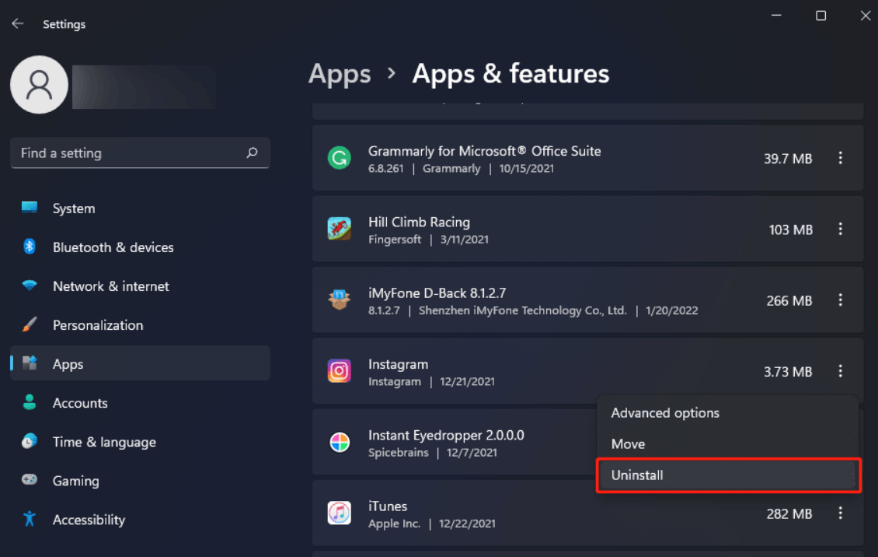
Step 1: Remove harmful software from Windows
- Go to Windows Settings.
- Choose "Apps and Features" after clicking "Apps."
- Look for and remove any harmful software.
- To uninstall software, follow the on-screen instructions.
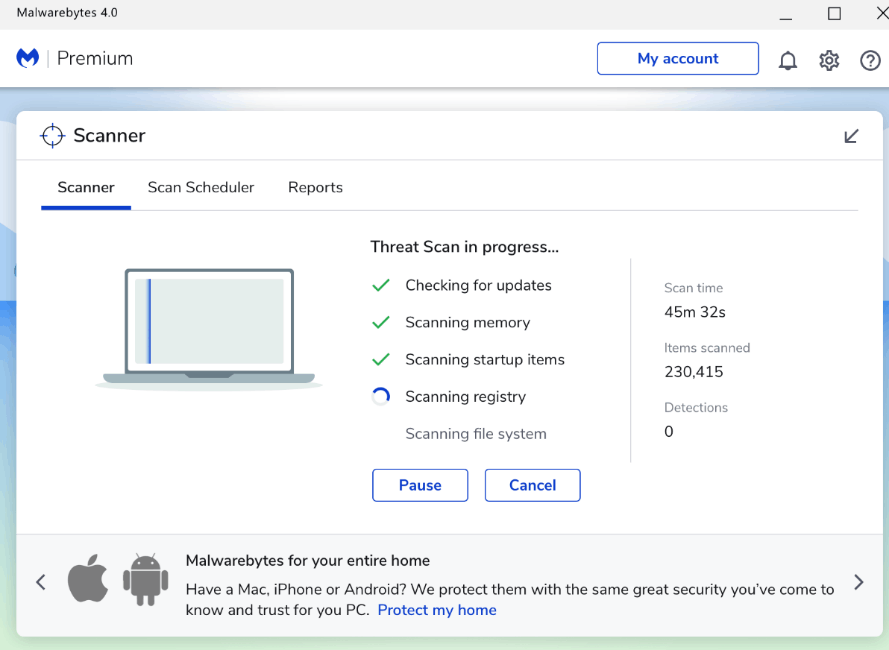
STEP 2: Delete the SvcHost.exe Trojan using Malwarebytes.
- Install Malwarebytes on your computer.
- To install Malwarebytes, double-click its setup file.
- To install Malwarebytes, adhere to the on-screen instructions.
- Then select "Scan."
- Watch for Malwarebytes to finish its scan.
- Select "Quarantine."
- Reboot the computer.
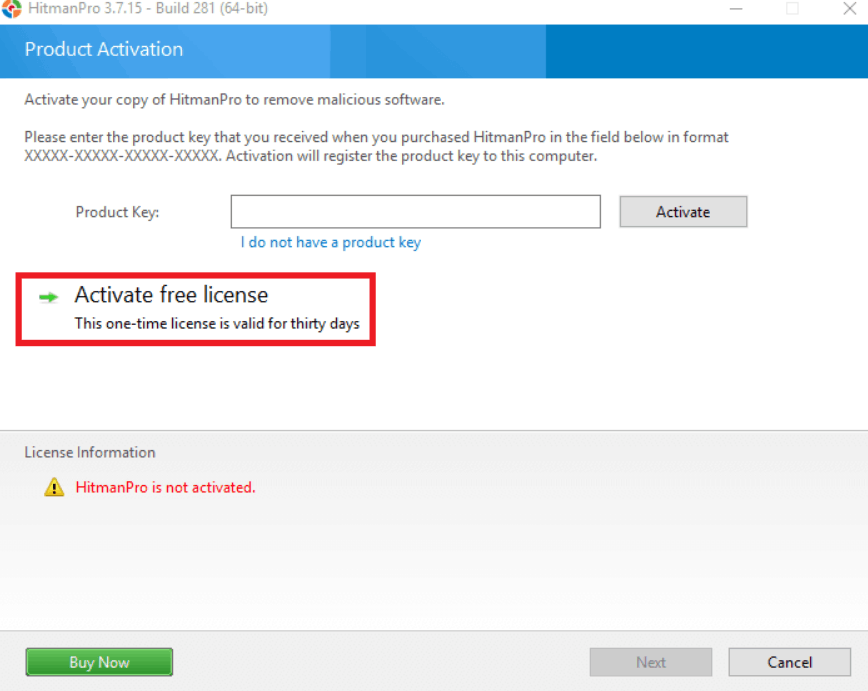
STEP 3: Check your computer with the HitmanPro for the SvcHost.exe Trojan and other threats.
- Install HitmanPro.
- Set up HitmanPro.
- Pay attention to the instructions that are displayed on the screen.
- Await the conclusion of the HitmanPro scan.
- Click "Next."
- Press the "Activate free licence" button.
STEP 4: Remove harmful browser policies using the AdwCleaner.
- Install AdwCleaner.
- Double-click the installation file.
- To erase browser policies, enable "Reset Chrome policies."
- Select "Scan Now."
- Watch for AdwCleaner to finish its scan.
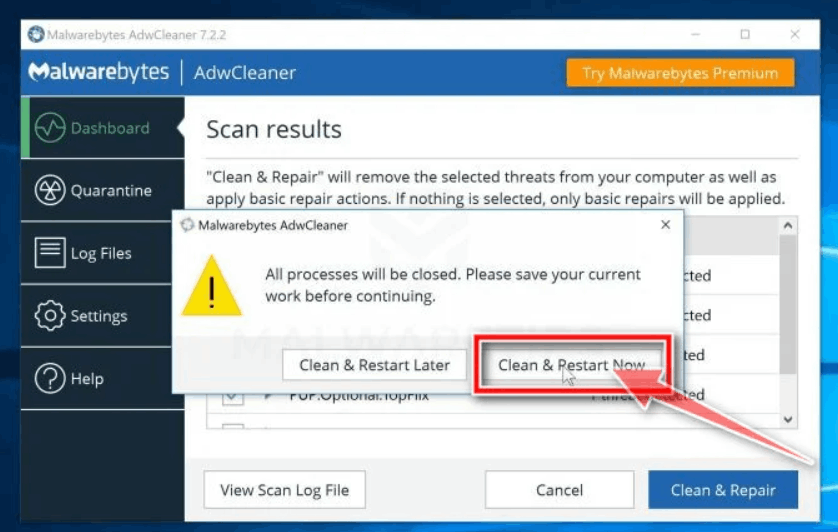
- Choose "Clean & Repair."
- Then, select "Clean & Restart Now."
STEP 5: Get rid of browser malware.
- In the top-right corner, click the three dots and select "Settings."
- Select "Advanced."
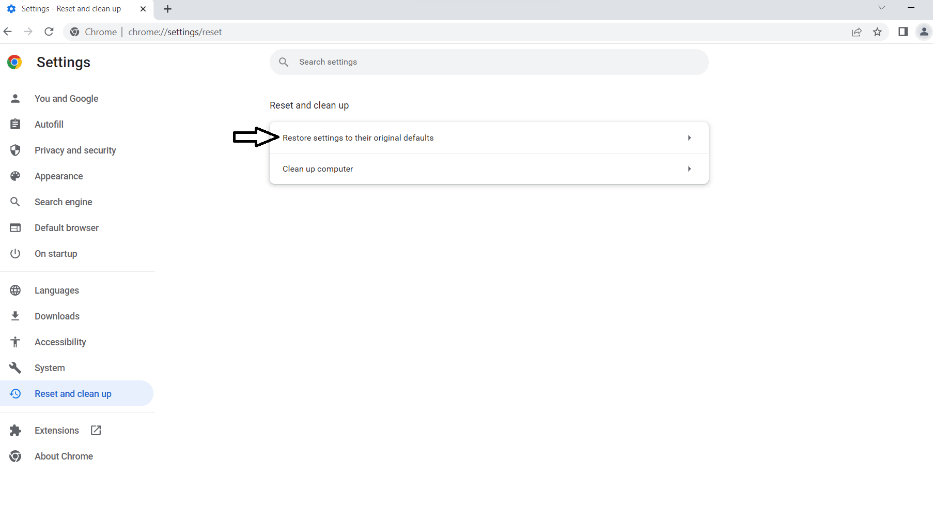
- Then select "Reset and clear up."
- Select "Reset settings to their default values."
- Tap "Reset settings."
Applications handled by svchost.exe
If you're on Windows 2000 or XP, you'll need either tlist.exe or tasklist.exe to see what's in the svchost.exe file. Windows Defender also allows users to see what is happening with the svchost.exe. Let's see how it works for Windows XP and Windows 2000.
Running the program tlist and tasklist:
Running the program tlist and tasklist:
In Windows XP, select Start > Run, enter command or cmd, and click OK. Type tasklist /svc at the MS-DOS prompt and hit Enter.
In Windows 2000, select Start > Run, enter command or cmd, and click OK. Enter the command "tlist -s" at the MS-DOS prompt.
If you cannot open or locate this file on your computer, follow the instructions below to install it.
Windows XP installation task list
Users of Windows XP Home must download "tasklist.exe" from our Windows XP downloads page. Users of Windows XP Professional who cannot locate this file can download it from the previously mentioned link or expand it from the i386 directory on their Windows XP Professional installation disc. Sadly, the Windows XP Home CD does not contain this file.
Installation of Windows 2000 “Tlist”
You must install the Microsoft Windows 2000 support tools if you still need them. Put the Windows 2000 CD in the machine and launch setup.exe from the SUPPORT TOOLS directory.
An example of what can be found in the tlist and tasklist
Here is an illustration of how the output of the tasklist in Windows XP may look.
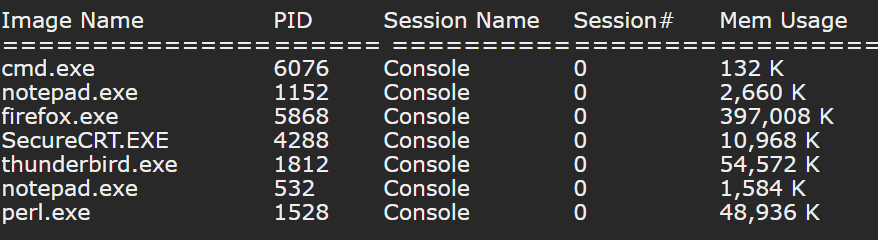
Below is an illustration of what Windows 2000 would show for the svchost.exe services. Information similar to the example below is displayed with tlist.exe or tasklist.exe.

The svchost.exe Process hosts services in Windows
Your computer may execute many instances of svchost.exe, each containing a distinct service. You'll typically find 10 to 20 of these processes running on Windows PCs. The majority of services in Windows 10 operate independently, one per svchost.exe instance. This will increase the number of svchost.exe processes while improving the efficiency and accuracy of process and service management. Once you know which service is operating inside a particular svchost.exe process that creates problems, you can fix the problem quickly. Let's see some of the services offered by it:
Task Manager
The task manager is the only place to look if you use Windows 10. Press CTRL + SHIFT + ESC on the keyboard or click Start and enter task manager. Task Manager will open as a result.
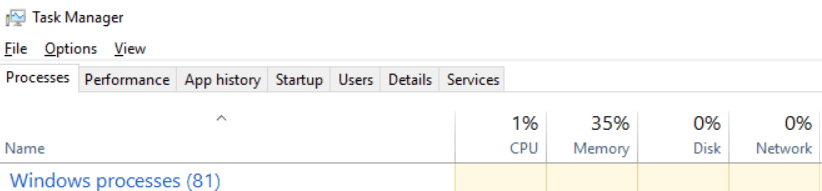
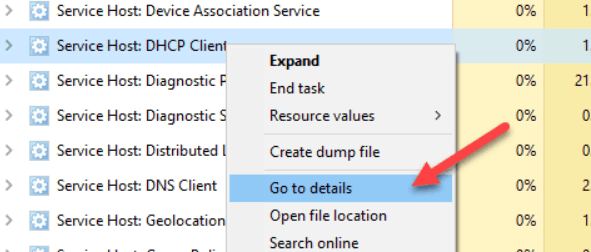
When you reach Windows Processes, click the Processes tab after moving through Apps and Background Processes. Up till you see Service Host keep scrolling down. You can see each service host will have the name of the service listed after the semicolon. There ought to be quite a few of them listed. As a result, it is very simple to determine which service corresponds to which svchost.exe process. Right-click the line and select Go to details to view the precise process ID. It will instantly bring up the Details page and choose the line that pertains to that process for you.
Tasklist Command:
You may create a list of all the svchost.exe processes and the active services inside each one using the command line on any version of Windows. Open a command prompt by selecting Start and typing cmd to accomplish this.
Copy/paste the following command into the command prompt:
tasklist /svc | find "svchost.exe"
It will produce a list of all currently active processes, feed that list to the find command, and filter it only to display processes with the svchost.exe extension. Use the following command to output this to a text file:
tasklist /svc | find "svchost.exe" > c:\tasklist.txt
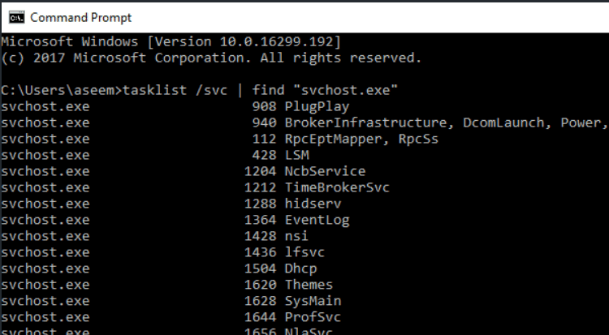
Note: You must launch an Administrator command prompt to output to the root of the C disc (Start, type cmd, right-click on the command prompt and choose Run as Administrator). You can alter the path to something different, such as C:\Users\username\Documents if it's simpler.
Process Explorer
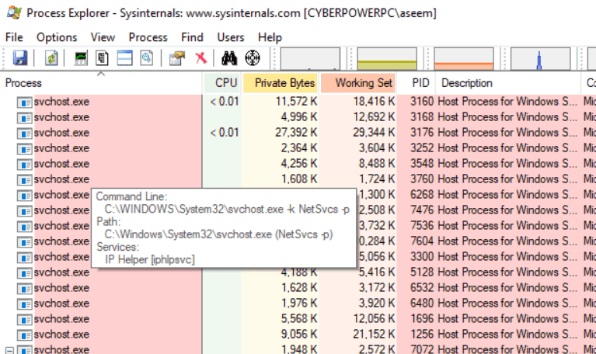
Finally, you can utilize Process Explorer, a third-party tool from Microsoft. You only need to download, unzip, and launch the EXE file. Conveniently, nothing needs to be installed.
To sort the list of processes, click on the header for the Process column. Then, scroll down until you see svchost.exe. Hovering the mouse pointer over any process will display the services connected to that process.
Using Windows Defender to view running processes:
Microsoft Windows Defender can view all currently running programs and processes, including those under svchost.exe. Windows Defender must be set up on your machine to complete these procedures.
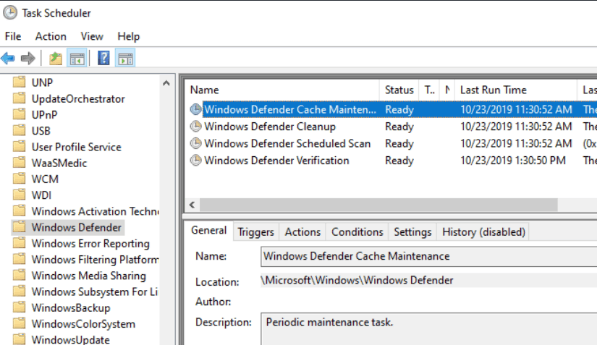
- If it isn't already open, launch Windows Defender by choosing Start > Programs > Windows Defender.
- Choose Tools.
- On Software Explorer, click.
- A down arrow will appear next to Category; click it to select Currently Running Programs.
All items listed under "Microsoft Generic Host Process for Win32 Services" for Windows XP are components of the svchost.exe.