
×

How to log out of your operating system

Whenever you use an application or software or an operating system, you have to log in to that particular system. As soon as you log in, a period called a login session starts, and the work you do in that system is done during this period. When you have finished your work, that system gives you an option to log out. It is a good and vital method to log out as it protects your data from the access of some other user coming to that system.

According to different Operating Systems and their versions, there are multiple ways to log out.

For Windows 10 Users

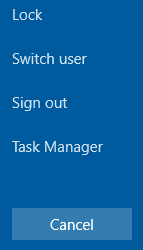
1) Using Ctrl + Alt + Del – This is a keyboard shortcut method in which first press "Ctrl + Alt + Del" keys from your keyboard, and you will get to see several options such as Lock, Switch User, Sign Out, and Task Manager between these options click on Sign Out.
How to log out of your operating system

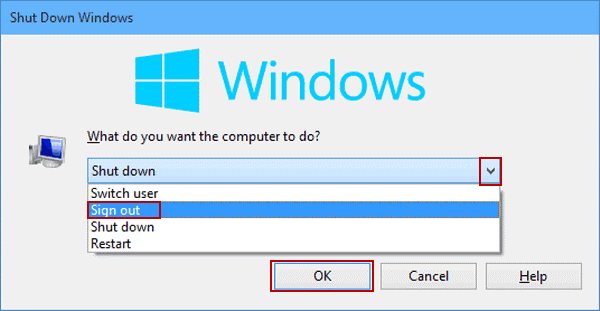
2) Using Alt + F4 – This is another keyboard shortcut method by pressing "Alt + F4" keys simultaneously will open a Shut Down Windows popup. You will get to see a drop-down list. Click on it and select the option ‘Sign Out.
How to log out of your operating system

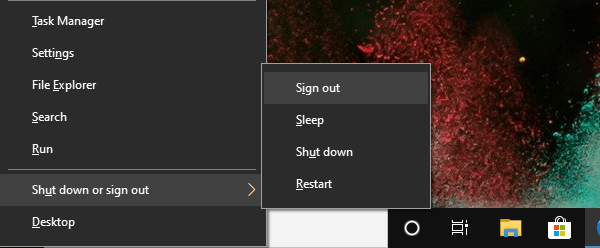
3) Using Power Menu – One way of doing this is by using the keyboard shortcut keys "Win + X" or on your screen, you will get to see a Start icon on the bottom left corner. Using your mouse right, click on this icon. After doing any one of the above, a power menu opens up, having multiple options. Choose the Shut down or sign out option and select Sign out.
How to log out of your operating system

4) Sign Out from Command Prompt – Press the "Win + X" keys from your keyboard, and you will get to see a power menu opening. Choose Windows PowerShell or Command Prompt option. After this, type the command "shutdown /l", and press enter from your keyboard. Windows will now automatically sign out from your account.

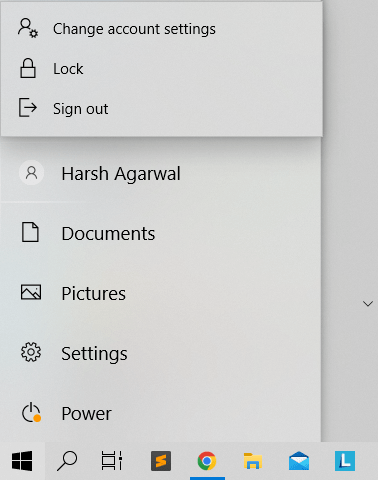
5) Using Start Menu – Using your mouse left, click on the "Start" icon and select the profile picture of the user who is currently logged in to the system. Choose the option Sign out. If multiple users are logged into the single system, you also get to see the Switch account option. By choosing the Switch account option, you will be able to log out from the current account and log in to some other account.
How to log out of your operating system

6) Run Logoff Command – From your keyboard, press the "Win + R" keys, and you will get to see a "Run" named dialog box opened. Besides the "Open:" label, you will get to see a typing space out here type "logoff" and press enter. Now Windows will sign you out from your current account.

7) Add Sign Out Shortcut Menu – This method will create a shortcut Sign out menu on the desktop, with the help of this you will be able to Sign out quickly. To do so, first of all, type "logoff" from your keyboard in the Cortana Search Box or in Windows. You will get to see an option named "logoff" as Run Command right-click on this option and then select "Open file location".

A path "C:\Windows\System32" will open up, which contains the "logoff.exe" file on your computer. From the several options displayed right, click on the "logoff" file and then select the "Send to" option. Under this, choose the "Desktop (create shortcut)" option. Now you will get to see a "logoff-Shortcut" on your desktop.

For Windows 8 and 8.1 users

1) Using Ctrl + Alt + Del – This is a keyboard shortcut method in which you need to press the "Ctrl + Alt + Del" keys from your keyboard and then choose the "Sign out" option.

2) Using Start Screen – In the Start screen of your Windows, click on the profile picture of the user who is currently logged in to the system and then select the "Sign out" option.

For Windows 7 and Vista users

1) Using Ctrl + Alt + Del – This is a keyboard shortcut method in which first press the "Ctrl + Alt + Del" keys from your keyboard and then choose the "Log off" option.

2) Using the Start menu – Click on the "Start" icon, and you will get to see the "Start" menu. In this menu, on the bottom right side beside the "Shut down", click on the right arrow and choose the "Log off" option.
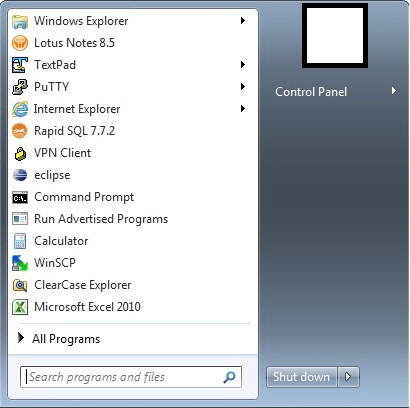
How to log out of your operating system

For Windows XP users

1) Using the Start menu – Click on the "Start" icon, and a "Start" menu will open up. In this menu, click on "Log off".
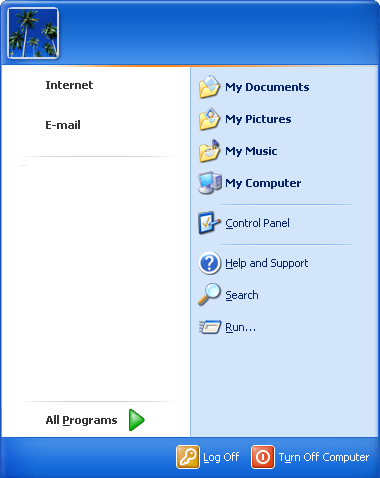
How to log out of your operating system

For Apple Mac OS users

1) Using Shift-Cmd-Q - From your keyboard, press "Shift-Cmd-Q", and a dialog box named "logoff" opens up and here, click on "Log Out".

2) Using Shift-Opt-Cmd-Q - Press "Shift-Opt-Cmd-Q" and click on "Log Out".

3) Using Apple Menu – At the upper left corner, click on the Apple icon. An Apple menu opens up and at the bottom, click on "Log Out".


Related Topics

Block Diagram of Computer

Computer Block Diagram System: Mainly computer system consists of three parts, that are central processing unit (CPU),Input Devices, andOutput Devices. The Central Processing Unit (CPU) is divided into two parts...

5 minutes read.

How to find out how much hard drive space is available?

A certain kind of non-volatile data storage device is a hard disc (called a hard drive, HD, or HDD). It is frequently installed inside a computer and attached directly to...

4 minutes read.

What is a TAB stop?

The place where the cursor stops after pressing the Tab key is known as a tab stop. The carriage moves to the next tab stop when you click the tab...

3 minutes read.

What is PC

PC stands for personal computer that allows the user to perform certain functions that can reduce the load of daily tasks and be effectively used by an individual. Ed Roberts...

12 minutes read.

When I click my mouse, it sometimes double-clicks?

You may have noticed that occasionally, despite just pressing the mouse button once, your mouse will "double-click" an icon or the pointer. By following the steps below, you may review...

4 minutes read.

Augmented Reality

Augmented reality, or simply AR, is an alternate or enhanced version of the world we see around us with the help of some technologies. AR is like a new trend...

3 minutes read.

Top 10 online services and applications

It can be difficult to select the best Internet service or application for your needs because there are tens of thousands of them. An online service is a business that...

4 minutes read.

How to restart Microsoft Windows

Restarting resolves many errors and helps in running the windows smoothly, and if any new updates or new software is installed, restarting clears the memory and stops the tasks that...

4 minutes read.

What is a Mechanical Mouse?

A computer mouse with a metal or rubber ball on the underside is a mechanical mouse. The mouse's internal sensors detect any movement of the ball when it is rolled,...

3 minutes read.

What is Data Manipulation?

Data Manipulation is the process in which the developer organizes the data making it more understandable by properly arranging it in the proper structure. For example, you have gathered the...

9 minutes read.

What is a Desktop?

Any of the following may be referred to as a desktop: 1. A desktop computer or system unit is referred to as a desktop. 2. The Desktop is the main location to...

6 minutes read.

What is a Card Reader?

A hardware device that can read from and write to a memory card or memory stick is termed a card reader. Its task is to transfer data to computers and...

9 minutes read.

Windows 7 Alt+Tab won’t stay on top or stick

One of the most helpful keyboard shortcuts is Alt+Tab, which makes switching between numerous open windows a breeze. You save time and effort by not having to move the mouse....

3 minutes read.

Use of Internet

The Internet, sometimes known as "the Net," is a global system of computer networks. It is a network of devices that allows users at any one computer to obtain information...

13 minutes read.

What is Clipboard?

The Clipboard is a particular location in computer, phone, or tablet memory where you can store copied text or other data. It is also known as paste-board. When you copy...

6 minutes read.

How does a Computer work?

How does a Computer work? As humans we always built tools that helps up to solve our problems. All the early inventions unlike wheelbarrow, hammer, printing press, or a tractor, helped...

8 minutes read.

How to Fix a Windows CD-ROM, DVD, or Disc Drive Issue?

If your CD-ROM, DVD, or disc drive is not working properly in Windows, you can try a few troubleshooting steps to fix the issue. These steps include checking the connections,...

6 minutes read.

What is A4?

A4 is a standard paper size widely used for printing documents and other materials. It is 210 x 297 millimeters or about 8.27 x 11.69 inches. It is part of...

7 minutes read.

How to determine Which Version of Microsoft Office I'm using?

Many people who use Windows computers also use Microsoft's Office package. While it is simple to tell what version of Windows you are using just by glancing at your desktop,...

3 minutes read.

What is Device Driver?

Device Driver A device driver is a specific type of programming application that permits one equipment device (like a PC) to interface with another equipment device (like a printer). A device...

6 minutes read.